godot-mcp-pilot exposes Godot engine operations as MCP tools, letting AI assistants launch the editor, run projects, create and edit scenes, write GDScript, and inspect assets — all through natural language. Works for both 2D and 3D games.
godot-mcp-pilot
Model Context Protocol server for Godot 4 — Give AI assistants (Claude, Cursor, Cline, etc.) direct control over your Godot projects.


godot-mcp-pilot exposes Godot engine operations as MCP tools, letting AI assistants launch the editor, run projects, create and edit scenes, write GDScript, and inspect assets — all through natural language. Works for both 2D and 3D games.
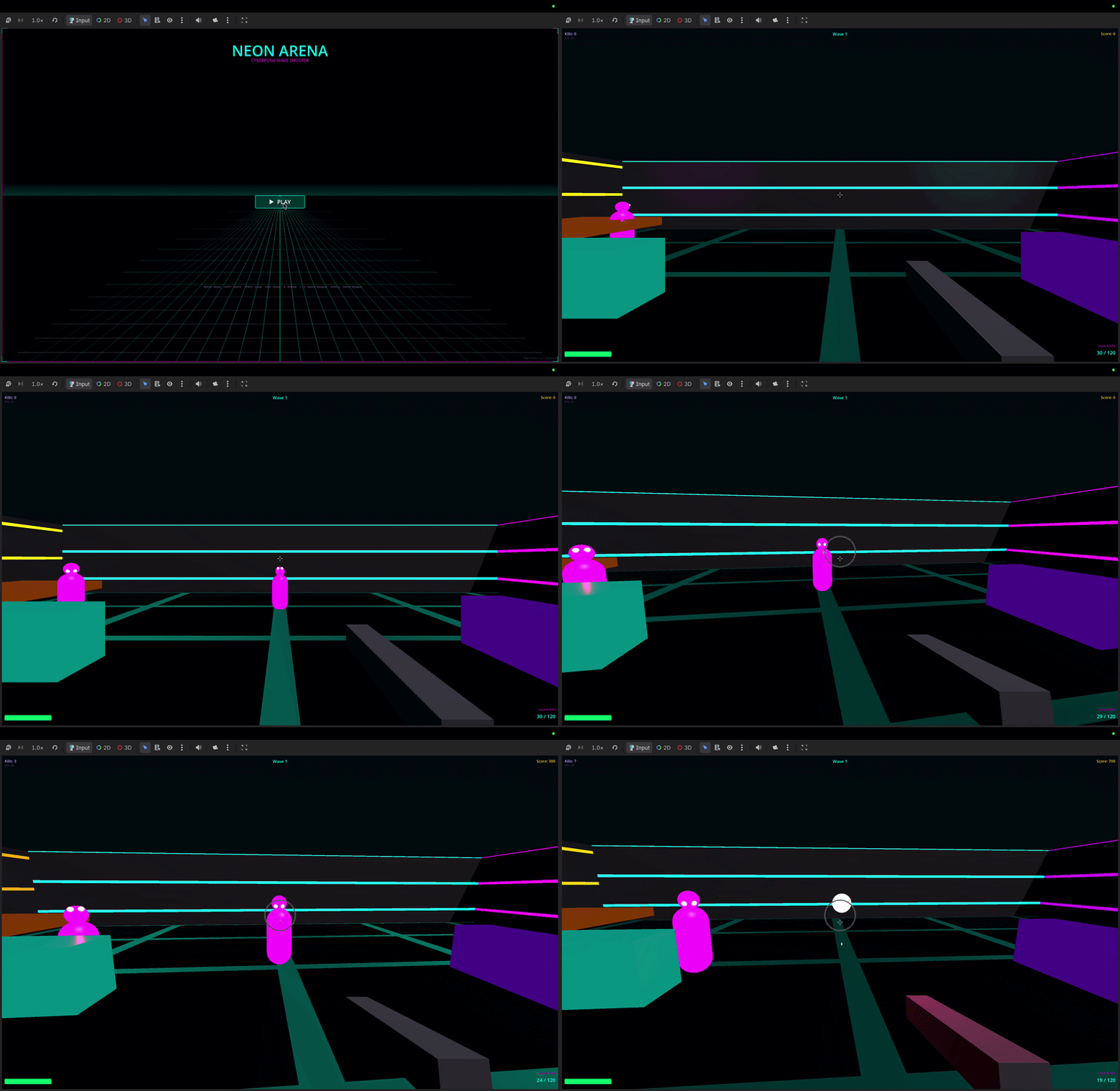
"Create a CharacterBody3D player scene with a Camera3D and collision"
"Run the project and show me any errors"
"Add a DirectionalLight3D to the scene"
"Create a 2D platformer with sprites and tilemaps"
Quick Start
1. Install
npm install -g godot-mcp-pilot
Or use without installing:
npx godot-mcp-pilot
2. Run the setup wizard
npx godot-mcp-pilot setup
# or, if installed globally:
godot-mcp-pilot-setup
The wizard will:
- Auto-detect your Godot binary (checks Applications, Downloads, PATH)
- Ask which AI client you use
- Write the config to the right place for that client
Manual Setup
Claude Code (CLI / IDE extension)
Critical: Claude Code reads
.mcp.jsonfrom the directory where you launch it.
The file must be in your game project folder, not the godot-mcp-pilot folder.
# From inside your game project directory:
claude mcp add godot -- npx godot-mcp-pilot
This writes .mcp.json to your current directory. Then always launch Claude Code from that directory:
cd ~/games/my-platformer
claude
If Godot isn't auto-detected (e.g. you never moved it out of ~/Downloads):
claude mcp add godot -e GODOT_PATH=/path/to/Godot.app/Contents/MacOS/Godot -- npx godot-mcp-pilot
Or write .mcp.json manually in your game project root:
{
  "mcpServers": {
    "godot": {
      "command": "npx",
      "args": ["godot-mcp-pilot"],
      "env": {
        "GODOT_PATH": "/path/to/your/Godot"
      }
    }
  }
}
Claude Desktop
Claude Desktop uses a different config file — it does not read .mcp.json.
Edit ~/Library/Application Support/Claude/claude_desktop_config.json (macOS)
or %APPDATA%\Claude\claude_desktop_config.json (Windows):
{
  "mcpServers": {
    "godot": {
      "command": "npx",
      "args": ["godot-mcp-pilot"],
      "env": {
        "GODOT_PATH": "/path/to/your/Godot"
      }
    }
  }
}
Then quit and reopen Claude Desktop.
Cursor (.cursor/mcp.json)
{
  "mcpServers": {
    "godot": {
      "command": "npx",
      "args": ["godot-mcp-pilot"],
      "env": {
        "GODOT_PATH": "/path/to/your/Godot"
      }
    }
  }
}
Godot Path Detection
The server searches these locations automatically (in order):
| OS | Paths checked |
|---|---|
| macOS | /Applications/Godot.app, /Applications/Godot_4.app, versioned names like Godot_v4.3.app, ~/Applications/..., ~/Downloads/..., Homebrew |
| Linux | /usr/bin/godot, /usr/local/bin/godot, /snap/bin/godot, ~/.local/bin/godot |
| Windows | C:\Program Files\Godot\Godot.exe, %LOCALAPPDATA%\Godot\Godot.exe |
If auto-detection fails, set GODOT_PATH to the absolute path of your Godot executable.
2D and 3D Games
godot-mcp-pilot works equally well for 2D and 3D. Use the appropriate node types:
| | 2D | 3D |
|---|---|---|
| Player | CharacterBody2D | CharacterBody3D |
| Root | Node2D | Node3D |
| Camera | Camera2D | Camera3D |
| Mesh | Sprite2D | MeshInstance3D |
| Collision | CollisionShape2D | CollisionShape3D |
| Physics | RigidBody2D | RigidBody3D |
| Light | — | DirectionalLight3D, OmniLight3D |
Example prompts:
"Create a 3D scene with a Node3D root, MeshInstance3D floor, and DirectionalLight3D"
"Add a CharacterBody3D with a CollisionShape3D using a CapsuleShape3D"
"Write a GDScript for 3D first-person movement"
Features
| Category | Tools |
|---|---|
| System | get_godot_version, list_projects, get_project_info |
| Editor / Run | launch_editor, run_project, stop_project, get_debug_output, run_gdscript |
| Scenes | list_project_scenes, read_scene, create_scene, save_scene |
| Nodes | add_node, edit_node, remove_node, duplicate_node, move_node, load_sprite, instantiate_scene |
| Scripts | list_project_scripts, read_script, create_script, modify_script, analyze_script, list_script_functions, add_script_function, remove_script_function, add_signal, add_variable |
| Project | get_project_settings, set_project_setting, get_main_scene, set_main_scene, list_autoloads, add_autoload, remove_autoload, list_input_actions, add_input_action, remove_input_action |
| Assets | list_assets, get_asset_info |
| UIDs | get_uid, update_project_uids |
Configuration
| Environment Variable | Default | Description |
|---|---|---|
| GODOT_PATH | auto-detected | Absolute path to the Godot executable |
| READ_ONLY_MODE | false | If true, disables all modifying tools (safe for CI/review) |
| DEBUG | false | Print debug info to stderr |
Troubleshooting
"MCP server not connected" / tools not appearing
Claude Code: The .mcp.json must be in the directory where you run claude. Open a new terminal, cd into your game project, and run claude from there.
Claude Desktop: Make sure you edited the right file (claude_desktop_config.json, not .mcp.json) and fully quit and reopened the app.
Godot not found
Set GODOT_PATH explicitly in the config env block. On macOS, if you downloaded Godot but never moved it:
GODOT_PATH=/Users/yourname/Downloads/Godot.app/Contents/MacOS/Godot
To find where Godot is:
# macOS / Linux
find ~/Downloads ~/Applications /Applications -name "Godot" -type f 2>/dev/null
Scene parse errors / malformed .tscn
If Godot refuses to load a scene edited by the MCP, check that instance= lines are unquoted:
# Correct
instance=ExtResource("1_abc")

# Wrong (Godot rejects this)
instance="ExtResource(\"1_abc\")"
Run the project headless to see the exact error:
/path/to/Godot --path /path/to/project --headless --quit 2>&1
MCP disconnects during a session
This is a known issue with some MCP host implementations. Workaround: close and reopen your AI client. The MCP server itself is stateless — reconnecting is safe.
Example Workflows
2D top-down shooter
"Create a 2D scene called Main.tscn"
"Add a CharacterBody2D called Player at the center"
"Create a movement + shooting script for the Player"
"Add an Area2D called Enemy that moves toward the player"
"Run the project and show errors"
3D platformer
"Create a 3D scene with a StaticBody3D floor (MeshInstance3D box, scale 20x1x20)"
"Add a CharacterBody3D player with a CapsuleShape3D collision"
"Create a 3D character controller script with jump and gravity"
"Add a Camera3D as a child of the player with offset Vector3(0, 2, 5)"
Read-Only Mode
READ_ONLY_MODE=true npx godot-mcp-pilot
Disables all write tools. Useful for CI/CD or review workflows.
Development
git clone https://github.com/pushks18/godot-mcp-pilot
cd godot-mcp-pilot
npm install
npm run build

# Run the setup wizard
npm run setup

# Development mode (ts-node, no build step)
npm run dev
Project Structure
godot-mcp-pilot/
├── src/
│   ├── index.ts               # Entry point
│   ├── server.ts              # MCP server + tool routing
│   ├── config.ts              # Godot path detection, env config
│   ├── godot-process.ts       # Process management (spawn, capture)
│   ├── tools/
│   │   ├── system.ts          # Version, project listing/info
│   │   ├── execution.ts       # Launch editor, run/stop project
│   │   ├── scene.ts           # Scene CRUD + node manipulation
│   │   ├── script.ts          # GDScript read/write/analyze
│   │   ├── assets.ts          # Asset listing/inspection
│   │   ├── project_settings.ts # Settings, autoloads, input maps
│   │   └── uid.ts             # Godot 4 UID management
│   └── utils/
│       ├── path.ts            # Path validation (prevents traversal)
│       ├── tscn.ts            # .tscn parser and serializer
│       └── project_godot.ts   # project.godot reader
└── scripts/
    ├── setup.js               # Interactive setup wizard
    └── godot_operations.gd    # Bundled GDScript for runtime ops
Compatibility
- Godot 4.x (primary target — tested on 4.2, 4.3, 4.4)
- Godot 3.x — basic tools work; scene format differences apply
- MCP Protocol — 2024-11-05 spec
- Node.js — 18+
Security
- All file paths are validated to stay within the project directory (no path traversal)
launch_editorandrun_projectonly start processes with safe, predefined args- Use
READ_ONLY_MODE=truein untrusted environments - The server never executes arbitrary shell commands — only the Godot binary
License
MIT