Lighweight CLI to interact with MCP servers
mcp-cli
A lightweight, Bun-based CLI for interacting with MCP (Model Context Protocol) servers.
Features
- 🪶 Lightweight - Minimal dependencies, fast startup
- 📦 Single Binary - Compile to standalone executable via
bun build --compile - 🔧 Shell-Friendly - JSON output for scripting, intuitive commands
- 🤖 Agent-Optimized - Designed for AI coding agents (Gemini CLI, Claude Code, etc.)
- 🔌 Universal - Supports both stdio and HTTP MCP servers
- 💡 Actionable Errors - Structured error messages with recovery suggestions
Quick Start
1. Installation
curl -fsSL https://raw.githubusercontent.com/philschmid/mcp-cli/main/install.sh | bash
or
# requires bun install
bun install -g https://github.com/philschmid/mcp-cli
2. Create a config file
Create mcp_servers.json in your current directory or ~/.config/mcp/:
{
  "mcpServers": {
    "filesystem": {
      "command": "npx",
      "args": [
        "-y",
        "@modelcontextprotocol/server-filesystem",
        "."
      ]
    },
    "deepwiki": {
      "url": "https://mcp.deepwiki.com/mcp"
    }
  }
}
3. Discover available tools
# List all servers and tools
mcp-cli

# With descriptions
mcp-cli -d
4. Call a tool
# View tool schema first
mcp-cli filesystem/read_file

# Call the tool
mcp-cli filesystem/read_file '{"path": "./README.md"}'
Usage
mcp-cli [options]                           List all servers and tools (names only)
mcp-cli [options] grep <pattern>            Search tools by glob pattern
mcp-cli [options] <server>                  Show server tools and parameters
mcp-cli [options] <server>/<tool>           Show tool schema (JSON input schema)
mcp-cli [options] <server>/<tool> <json>    Call tool with arguments
[!TIP] Add
-dto any command to include descriptions.
Options
| Option | Description |
|--------|-------------|
| -h, --help | Show help message |
| -v, --version | Show version number |
| -j, --json | Output as JSON (for scripting) |
| -r, --raw | Output raw text content |
| -d, --with-descriptions | Include tool descriptions |
| -c, --config <path> | Path to config file |
Output
| Stream | Content |
|--------|---------|
| stdout | Tool results and data (text by default, JSON with --json) |
| stderr | Errors and diagnostics |
Commands
List Servers
# Basic listing
$ mcp-cli
github
  • search_repositories
  • get_file_contents
  • create_or_update_file
filesystem
  • read_file
  • write_file
  • list_directory

# With descriptions
$ mcp-cli --with-descriptions
github
  • search_repositories - Search for GitHub repositories
  • get_file_contents - Get contents of a file or directory
filesystem
  • read_file - Read the contents of a file
  • write_file - Write content to a file
Search Tools
# Find file-related tools across all servers
$ mcp-cli grep "*file*"
github/get_file_contents
github/create_or_update_file
filesystem/read_file
filesystem/write_file

# Search with descriptions
$ mcp-cli grep "*search*" -d
github/search_repositories - Search for GitHub repositories
View Server Details
$ mcp-cli github
Server: github
Transport: stdio
Command: npx -y @modelcontextprotocol/server-github

Tools (12):
  search_repositories
    Search for GitHub repositories
    Parameters:
      • query (string, required) - Search query
      • page (number, optional) - Page number
  ...
View Tool Schema
$ mcp-cli github/search_repositories
Tool: search_repositories
Server: github

Description:
  Search for GitHub repositories

Input Schema:
  {
    "type": "object",
    "properties": {
      "query": { "type": "string", "description": "Search query" },
      "page": { "type": "number" }
    },
    "required": ["query"]
  }
Call a Tool
# With inline JSON
$ mcp-cli github/search_repositories '{"query": "mcp server", "per_page": 5}'

# JSON output for scripting
$ mcp-cli github/search_repositories '{"query": "mcp"}' --json | jq '.content[0].text'

# Read JSON from stdin (use '-' to indicate stdin)
$ echo '{"path": "./README.md"}' | mcp-cli filesystem/read_file -
Complex Commands
For JSON arguments containing single quotes, special characters, or long text, use stdin to avoid shell escaping issues:
# Using a heredoc with '-' for stdin (recommended for complex JSON)
mcp-cli server/tool - <<EOF
{"content": "Text with 'single quotes' and \"double quotes\""}
EOF

# Using a variable
JSON='{"message": "Hello, it'\''s a test"}'
echo "$JSON" | mcp-cli server/tool -

# From a file
cat args.json | mcp-cli server/tool -

# Using jq to build complex JSON
jq -n '{query: "mcp", filters: ["active", "starred"]}' | mcp-cli github/search -

# Find all TypeScript files and read the first one
mcp-cli filesystem/search_files '{"path": "src/", "pattern": "*.ts"}' --json | jq -r '.content[0].text' | head -1 | xargs -I {} sh -c 'mcp-cli filesystem/read_file "{\"path\": \"{}\"}"'
Why stdin? Shell interpretation of {}, quotes, and special characters requires careful escaping. Stdin bypasses shell parsing entirely, making it reliable for any JSON content.
Configuration
Config File Format
The CLI uses mcp_servers.json, compatible with Claude Desktop, Gemini or VS Code:
{
  "mcpServers": {
    "local-server": {
      "command": "node",
      "args": ["./server.js"],
      "env": {
        "API_KEY": "${API_KEY}"
      },
      "cwd": "/path/to/directory"
    },
    "remote-server": {
      "url": "https://mcp.example.com",
      "headers": {
        "Authorization": "Bearer ${TOKEN}"
      }
    }
  }
}
Environment Variable Substitution: Use ${VAR_NAME} syntax anywhere in the config. Values are substituted at load time. By default, missing environment variables cause an error with a clear message. Set MCP_STRICT_ENV=false to use empty values instead (with a warning).
Config Resolution
The CLI searches for configuration in this order:
MCP_CONFIG_PATHenvironment variable-c/--configcommand line argument./mcp_servers.json(current directory)~/.mcp_servers.json~/.config/mcp/mcp_servers.json
Environment Variables
| Variable | Description | Default |
|----------|-------------|---------|
| MCP_CONFIG_PATH | Path to config file | (none) |
| MCP_DEBUG | Enable debug output | false |
| MCP_TIMEOUT | Request timeout (seconds) | 1800 (30 min) |
| MCP_CONCURRENCY | Servers processed in parallel (not a limit on total) | 5 |
| MCP_MAX_RETRIES | Retry attempts for transient errors (0 = disable) | 3 |
| MCP_RETRY_DELAY | Base retry delay (milliseconds) | 1000 |
| MCP_STRICT_ENV | Error on missing ${VAR} in config | true |
Using with AI Agents
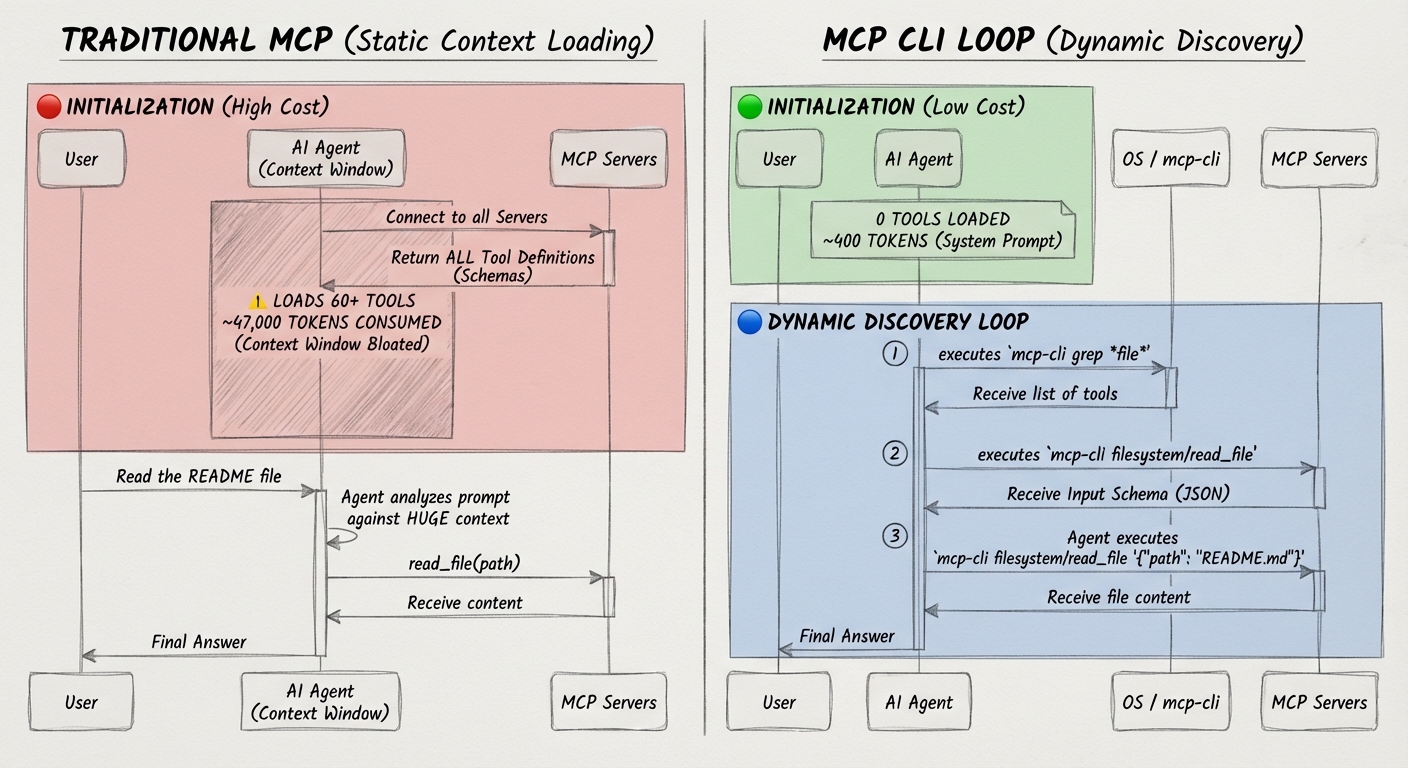
mcp-cli is designed to give AI coding agents access to MCP (Model Context Protocol) servers. MCP enables AI models to interact with external tools, APIs, and data sources through a standardized protocol.
Why MCP + CLI?
Traditional MCP integration loads full tool schemas into the AI's context window, consuming thousands of tokens. The CLI approach:
- On-demand loading: Only fetch schemas when needed
- Token efficient: Minimal context overhead
- Shell composable: Chain with
jq, pipes, and scripts - Scriptable: AI can write shell scripts for complex workflows
Option 1: System Prompt Integration
Add this to your AI agent's system prompt for direct CLI access:
## MCP Servers

You have access to MCP (Model Context Protocol) servers via the `mcp-cli` cli.
MCP provides tools for interacting with external systems like GitHub, databases, and APIs.

Available Commands:

```bash
mcp-cli                              # List all servers and tool names
mcp-cli <server>                     # Show server tools and parameters
mcp-cli <server>/<tool>              # Get tool JSON schema and descriptions
mcp-cli <server>/<tool> '<json>'     # Call tool with JSON arguments
mcp-cli grep "<pattern>"             # Search tools by name (glob pattern)
```

**Add `-d` to include tool descriptions** (e.g., `mcp-cli <server> -d`)

Workflow:

1. **Discover**: Run `mcp-cli` to see available servers and tools or `mcp-cli grep "<pattern>"` to search for tools by name (glob pattern)
2. **Inspect**: Run `mcp-cli <server> -d` or `mcp-cli <server>/<tool>` to get the full JSON input schema if required context is missing. If there are more than 5 mcp servers defined don't use -d as it will print all tool descriptions and might exceed the context window.
3. **Execute**: Run `mcp-cli <server>/<tool> '<json>'` with correct arguments

### Examples

```bash
# With inline JSON
$ mcp-cli github/search_repositories '{"query": "mcp server", "per_page": 5}'

# From stdin (use '-' to indicate stdin input)
$ echo '{"query": "mcp"}' | mcp-cli github/search_repositories -

# Using a heredoc with '-' for stdin (recommended for complex JSON)
mcp-cli server/tool - <<EOF
{"content": "Text with 'single quotes' and \"double quotes\""}
EOF

# Complex Command chaining with xargs and jq
mcp-cli filesystem/search_files '{"path": "src/", "pattern": "*.ts"}' --json | jq -r '.content[0].text' | head -1 | xargs -I {} sh -c 'mcp-cli filesystem/read_file "{\"path\": \"{}\"}"'
```

### Rules

1. **Always check schema first**: Run `mcp-cli <server> -d or `mcp-cli <server>/<tool>` before calling any tool
3. **Quote JSON arguments**: Wrap JSON in single quotes to prevent shell interpretation
Option 2: Agents Skill
For Code Agents that support Agents Skills, like Gemini CLI, OpenCode or Claude Code. you can use the mcp-cli skill to interface with MCP servers. The Skill is available at SKILL.md
Create mcp-cli/SKILL.md in your skills directory.
Architecture
Connection Model
The CLI uses a lazy, on-demand connection strategy. Server connections are only established when needed and closed immediately after use.
┌─────────────────────────────────────────────────────────────────┐
│                         USER REQUEST                            │
└─────────────────────────────────────────────────────────────────┘
                                │
              ┌─────────────────┼─────────────────┐
              │                 │                 │
              ▼                 ▼                 ▼
    ┌─────────────────┐ ┌─────────────────┐ ┌─────────────────┐
    │   mcp-cli       │ │ mcp-cli grep    │ │ mcp-cli server/ │
    │   (list all)    │ │   "*pattern*"   │ │   tool '{...}'  │
    └─────────────────┘ └─────────────────┘ └─────────────────┘
              │                 │                 │
              ▼                 ▼                 ▼
    ┌─────────────────┐ ┌─────────────────┐ ┌─────────────────┐
    │  Connect to ALL │ │  Connect to ALL │ │  Connect to ONE │
    │  servers (N)    │ │  servers (N)    │ │  server only    │
    └─────────────────┘ └─────────────────┘ └─────────────────┘
              │                 │                 │
              ▼                 ▼                 ▼
         List tools       Search tools       Execute tool
              │                 │                 │
              ▼                 ▼                 ▼
    ┌─────────────────────────────────────────────────────────────┐
    │                    CLOSE CONNECTIONS                        │
    └─────────────────────────────────────────────────────────────┘
When are servers connected?
| Command | Servers Connected |
|---------|-------------------|
| mcp-cli (list) | All N servers in parallel |
| mcp-cli grep "*pattern*" | All N servers in parallel |
| mcp-cli server | Only the specified server |
| mcp-cli server/tool | Only the specified server |
| mcp-cli server/tool '{}' | Only the specified server |
Concurrency Control
For commands that connect to multiple servers (list, grep), the CLI uses a worker pool with concurrency limiting to prevent resource exhaustion.
┌─────────────────────────────────────────────────────────────────┐
│                  50 SERVERS CONFIGURED                          │
│   ┌────┐ ┌────┐ ┌────┐ ┌────┐ ┌────┐ ... ┌────┐ ┌────┐ ┌────┐  │
│   │ S1 │ │ S2 │ │ S3 │ │ S4 │ │ S5 │     │S48 │ │S49 │ │S50 │  │
│   └────┘ └────┘ └────┘ └────┘ └────┘     └────┘ └────┘ └────┘  │
└─────────────────────────────────────────────────────────────────┘
                            │
                            ▼
┌─────────────────────────────────────────────────────────────────┐
│              WORKER POOL (5 concurrent by default)              │
│  ┌──────────────────────────────────────────────────────────┐   │
│  │  Worker 1    Worker 2    Worker 3    Worker 4    Worker 5│   │
│  │    ▼           ▼           ▼           ▼           ▼     │   │
│  │  [S1]→[S6]→  [S2]→[S7]→  [S3]→[S8]→  [S4]→[S9]→  [S5]→  │   │
│  │   [S11]→...   [S12]→...   [S13]→...   [S14]→...   [S10]→ │   │
│  └──────────────────────────────────────────────────────────┘   │
│                                                                 │
│  Total Time ≈ (N / concurrency) × average_connection_time      │
│  With 50 servers @ 5 concurrency: ~10 batches × ~2s = ~20s     │
└─────────────────────────────────────────────────────────────────┘
Concurrency settings:
- Default:
5concurrent connections - Set via:
MCP_CONCURRENCY=10 mcp-clior export globally - Results are order-preserved (sorted alphabetically for display)
Why limit concurrency?
- File descriptor limits - Each stdio server spawns a subprocess with pipes
- Memory usage - Each connection buffers data
- Server rate limits - HTTP servers may throttle clients
- Predictable timing - Linear scaling vs exponential resource usage
Error Handling & Retry
The CLI includes automatic retry with exponential backoff for transient failures:
┌───────────────────────────────────────────────────────────────┐
│                     INITIAL ATTEMPT                           │
└───────────────────────────────────────────────────────────────┘
                           │
                           ▼
                    ┌──────────────┐
                    │   FAILED?    │
                    └──────────────┘
                      │ YES      │ NO
                      ▼          ▼
            ┌──────────────┐   SUCCESS
            │  TRANSIENT?  │
            └──────────────┘
              │ YES    │ NO
              ▼        ▼
         RETRY with    FAIL with
         exponential   error message
         backoff
         (1s → 2s → 4s,
          max 3 retries)
Transient errors (auto-retried):
- Network:
ECONNREFUSED,ETIMEDOUT,ECONNRESET - HTTP:
502,503,504,429
Non-transient errors (fail immediately):
- Config: Invalid JSON, missing fields
- Auth:
401,403 - Tool: Validation errors, not found
Development
Prerequisites
- Bun >= 1.0.0
Setup
bun install https://github.com/philschmid/mcp-cli
Commands
# Run in development
bun run dev

# Type checking
bun run typecheck

# Linting
bun run lint
bun run lint:fix

# Run all tests (unit + integration)
bun test

# Run only unit tests (fast)
bun test tests/config.test.ts tests/output.test.ts tests/client.test.ts

# Run integration tests (requires MCP server, ~35s)
bun test tests/integration/

# Build single executable
bun run build

# Build for all platforms
bun run build:all
Local Testing
Test the CLI locally without compiling by using bun link:
# Link the package globally (run once)
bun link

# Now you can use 'mcp-cli' anywhere
mcp-cli --help
mcp-cli filesystem/read_file '{"path": "./README.md"}'

# Or run directly during development
bun run dev --help
bun run dev filesystem
To unlink when done:
bun unlink
Releasing
Releases are automated via GitHub Actions. Use the release script:
./scripts/release.sh 0.2.0
Error Messages
All errors include actionable recovery suggestions, optimized for both humans and AI agents:
Error [CONFIG_NOT_FOUND]: Config file not found: /path/config.json
  Suggestion: Create mcp_servers.json with: { "mcpServers": { "server-name": { "command": "..." } } }

Error [SERVER_NOT_FOUND]: Server "github" not found in config
  Details: Available servers: filesystem, sqlite
  Suggestion: Use one of: mcp-cli filesystem, mcp-cli sqlite

Error [INVALID_JSON_ARGUMENTS]: Invalid JSON in tool arguments
  Details: Parse error: Unexpected identifier "test"
  Suggestion: Arguments must be valid JSON. Use single quotes: '{"key": "value"}'

Error [TOOL_NOT_FOUND]: Tool "search" not found in server "filesystem"
  Details: Available tools: read_file, write_file, list_directory (+5 more)
  Suggestion: Run 'mcp-cli filesystem' to see all available tools
License
MIT License - see LICENSE for details.
Contributing
Contributions are welcome! Please feel free to submit a Pull Request.