This repository is built for demonstrating how you can build and host your own Remote MCP Servers to enable Platform teams to utilise MCP Servers in their day-day workflows
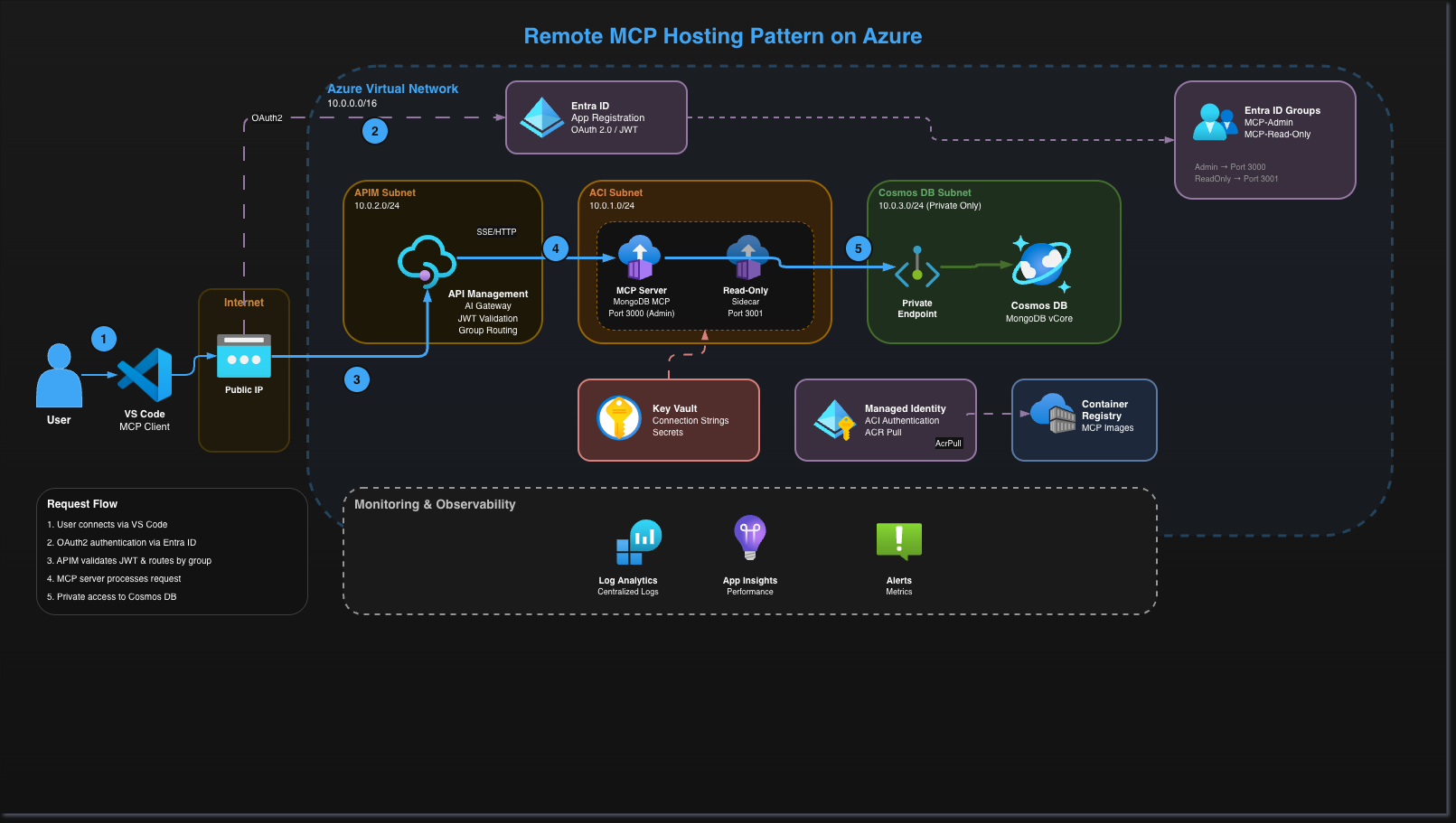
Remote MCP Hosting Pattern on Azure
A production-ready infrastructure pattern for hosting Model Context Protocol (MCP) servers on Microsoft Azure using Terraform, Azure DevOps, and Workload Identity Federation.
Prerequisites
- Azure Subscription with Owner/Contributor access
- Azure CLI installed and authenticated
- Terraform >= 1.5
- Azure DevOps organisation (or GitHub Actions/Jenkins)
Getting Started
Step 1: Create Resource Group & Managed Identity
First, we create the foundational resources that will be managed outside of Terraform. We use Workload Identity Federation for authentication which provides:
- No client secrets to manage or rotate
- No risk of secret leakage
- Zero-trust security principles
- Microsoft's recommended approach for CI/CD
Set Environment Variables
SUBSCRIPTION_ID="<your-subscription-id>"
RESOURCE_GROUP="<your-resource-group>"          # e.g., rg-mcp-pipeline
LOCATION="<your-location>"                       # e.g., uksouth, eastus
IDENTITY_NAME="<your-identity-name>"             # e.g., id-mcp-pipeline
Create Resources
az account set --subscription $SUBSCRIPTION_ID

az group create \
  --name $RESOURCE_GROUP \
  --location $LOCATION

az identity create \
  --name $IDENTITY_NAME \
  --resource-group $RESOURCE_GROUP \
  --location $LOCATION
Fetch Identity Details
IDENTITY_CLIENT_ID=$(az identity show --name $IDENTITY_NAME --resource-group $RESOURCE_GROUP --query clientId -o tsv)
IDENTITY_PRINCIPAL_ID=$(az identity show --name $IDENTITY_NAME --resource-group $RESOURCE_GROUP --query principalId -o tsv)

echo "Client ID: $IDENTITY_CLIENT_ID"
echo "Principal ID: $IDENTITY_PRINCIPAL_ID"
Save these values - you'll need them in the next steps.
Step 2: Configure Azure DevOps
Create ADO Organisation & Project
- Navigate to Azure DevOps and create your organisation
- Create a new project for your MCP infrastructure
Create Service Connection
Go to Project Settings > Service Connections > New Service Connection:
| Setting | Value |
|---------|-------|
| Type | Azure Resource Manager |
| Identity Type | Managed Identity |
| Subscription | <your-subscription-id> |
| Resource Group | <your-resource-group> |
| Managed Identity | <your-identity-name> |
| Service Connection Name | <your-service-connection-name> |
Create Federated Credential & Assign Permissions
# Set variables (use values from Step 1)
ADO_ORG="<your-ado-org>"
ADO_PROJECT="<your-ado-project>"
SERVICE_CONNECTION_NAME="<your-service-connection-name>"

# Create Federated Credential
az identity federated-credential create \
  --name "ado-federation" \
  --identity-name $IDENTITY_NAME \
  --resource-group $RESOURCE_GROUP \
  --issuer "https://vstoken.dev.azure.com/${ADO_ORG}" \
  --subject "sc://${ADO_ORG}/${ADO_PROJECT}/${SERVICE_CONNECTION_NAME}" \
  --audiences "api://AzureADTokenExchange"

# Assign Contributor role
az role assignment create \
  --assignee-object-id $IDENTITY_PRINCIPAL_ID \
  --assignee-principal-type ServicePrincipal \
  --role "Contributor" \
  --scope "/subscriptions/$SUBSCRIPTION_ID"

# Assign User Access Administrator (required for Terraform RBAC)
az role assignment create \
  --assignee-object-id $IDENTITY_PRINCIPAL_ID \
  --assignee-principal-type ServicePrincipal \
  --role "User Access Administrator" \
  --scope "/subscriptions/$SUBSCRIPTION_ID"
Assign Entra ID Permissions
The pipeline needs Application Administrator role and Microsoft Graph permissions:
MI_OBJECT_ID=$(az identity show \
  --name $IDENTITY_NAME \
  --resource-group $RESOURCE_GROUP \
  --query principalId -o tsv)

# Assign Application Administrator role
az rest --method POST \
  --uri "https://graph.microsoft.com/v1.0/roleManagement/directory/roleAssignments" \
  --headers "Content-Type=application/json" \
  --body "{
    \"@odata.type\": \"#microsoft.graph.unifiedRoleAssignment\",
    \"principalId\": \"$MI_OBJECT_ID\",
    \"roleDefinitionId\": \"9b895d92-2cd3-44c7-9d02-a6ac2d5ea5c3\",
    \"directoryScopeId\": \"/\"
  }"

# Get Microsoft Graph Service Principal
MSGRAPH_SP_ID=$(az ad sp list --filter "appId eq '00000003-0000-0000-c000-000000000000'" --query "[0].id" -o tsv)

# Grant AppRoleAssignment.ReadWrite.All (for admin consent)
az rest --method POST \
  --uri "https://graph.microsoft.com/v1.0/servicePrincipals/${MI_OBJECT_ID}/appRoleAssignments" \
  --headers "Content-Type=application/json" \
  --body "{
    \"principalId\": \"${MI_OBJECT_ID}\",
    \"resourceId\": \"${MSGRAPH_SP_ID}\",
    \"appRoleId\": \"06b708a9-e830-4db3-a914-8e69da51d44f\"
  }"

# Grant Group.ReadWrite.All (for Entra ID groups)
az rest --method POST \
  --uri "https://graph.microsoft.com/v1.0/servicePrincipals/${MI_OBJECT_ID}/appRoleAssignments" \
  --headers "Content-Type=application/json" \
  --body "{
    \"principalId\": \"${MI_OBJECT_ID}\",
    \"resourceId\": \"${MSGRAPH_SP_ID}\",
    \"appRoleId\": \"62a82d76-70ea-41e2-9197-370581804d09\"
  }"
Step 3: Create Remote State Storage
Terraform state is stored in Azure Blob Storage. This is managed outside Terraform for bootstrap purposes.
Create Storage Account
STORAGE_ACCOUNT="<your-storage-account>"         # e.g., stmcptfstate (must be globally unique)
CONTAINER_NAME="<your-container-name>"           # e.g., tfstate

az storage account create \
  --name $STORAGE_ACCOUNT \
  --resource-group $RESOURCE_GROUP \
  --location $LOCATION \
  --sku Standard_LRS \
  --kind StorageV2 \
  --min-tls-version TLS1_2 \
  --allow-blob-public-access false

# Assign yourself Storage Blob Data Contributor
az ad signed-in-user show --query id -o tsv | az role assignment create \
  --role "Storage Blob Data Contributor" \
  --assignee @- \
  --scope "/subscriptions/$SUBSCRIPTION_ID/resourceGroups/$RESOURCE_GROUP/providers/Microsoft.Storage/storageAccounts/$STORAGE_ACCOUNT"

# Create container
az storage container create \
  --account-name $STORAGE_ACCOUNT \
  --name $CONTAINER_NAME \
  --auth-mode login

# Grant Pipeline identity access
az role assignment create \
  --assignee-object-id $IDENTITY_PRINCIPAL_ID \
  --assignee-principal-type ServicePrincipal \
  --role "Storage Blob Data Contributor" \
  --scope "/subscriptions/$SUBSCRIPTION_ID/resourceGroups/$RESOURCE_GROUP/providers/Microsoft.Storage/storageAccounts/$STORAGE_ACCOUNT"
Initialise Terraform State
The infrastructure is split into two stages for efficient deployment:
# Stage 1 - ACR and Managed Identity
cd terraform/stage1
terraform init \
  -reconfigure \
  -backend-config="storage_account_name=$STORAGE_ACCOUNT" \
  -backend-config="resource_group_name=$RESOURCE_GROUP" \
  -backend-config="key=stage1.tfstate"

# Stage 2 - Main Infrastructure
cd ../stage2
terraform init \
  -reconfigure \
  -backend-config="storage_account_name=$STORAGE_ACCOUNT" \
  -backend-config="resource_group_name=$RESOURCE_GROUP" \
  -backend-config="key=stage2.tfstate"
Step 4: Deploy Infrastructure
Configure Variables
Update terraform/environments/dev/terraform.tfvars with your values.
Deploy via Pipeline
Trigger the Azure DevOps pipeline to deploy all infrastructure.
Deploy Locally
If deploying locally, follow these steps:
Stage 1 - Deploy ACR & Managed Identity
cd terraform/stage1
terraform plan -var-file="../environments/dev/terraform.tfvars"
terraform apply -var-file="../environments/dev/terraform.tfvars"
Build and Push MCP Server Image
Make sure you have Docker Desktop installed and running.
# Set ACR name (from Stage 1 output or terraform.tfvars)
ACR_NAME="<your-acr-name>"  # e.g., acrmcppoddev

# Login to ACR
az acr login --name $ACR_NAME

# Navigate to the mongo-db-server directory
cd mongo-db-server

# Build for Linux AMD64 (required for Azure Container Instances)
docker build --platform linux/amd64 -t ${ACR_NAME}.azurecr.io/mongodb-mcp:latest .

# Push to ACR
docker push ${ACR_NAME}.azurecr.io/mongodb-mcp:latest

# Return to terraform directory
cd ../terraform/stage2
Assign Key Vault Permissions
Before deploying Stage 2, assign yourself Key Vault Administrator role:
USER_OBJECT_ID=$(az ad signed-in-user show --query id -o tsv)
KEY_VAULT_NAME="<your-keyvault-name>"  # e.g., keyvault-mcp-pod-dev
SUBSCRIPTION_ID="<your-subscription-id>"
RESOURCE_GROUP="<your-resource-group>"

az role assignment create \
  --role "Key Vault Administrator" \
  --assignee $USER_OBJECT_ID \
  --scope "/subscriptions/$SUBSCRIPTION_ID/resourceGroups/$RESOURCE_GROUP/providers/Microsoft.KeyVault/vaults/$KEY_VAULT_NAME"
Stage 2 - Deploy Main Infrastructure
# Initialize terraform (if not already done)
terraform init \
  -backend-config="storage_account_name=$STORAGE_ACCOUNT" \
  -backend-config="resource_group_name=$RESOURCE_GROUP" \
  -backend-config="key=stage2.tfstate"

# Plan and apply
terraform plan -var-file="../environments/dev/terraform.tfvars"
terraform apply -var-file="../environments/dev/terraform.tfvars"
Project Structure
.
├── terraform/
│   ├── stage1/                 # ACR & Managed Identity
│   ├── stage2/                 # Main infrastructure
│   ├── environments/
│   │   └── dev/
│   │       └── terraform.tfvars
│   └── modules/
│       ├── acr/                # Azure Container Registry
│       ├── apim/               # API Management
│       ├── app-registration/   # OAuth 2.0
│       ├── container-instance/ # MCP Containers
│       ├── cosmosdb-mongodb/   # Database
│       ├── entra-groups/       # Access Control Groups
│       ├── key-vault/          # Secrets
│       ├── managed-identity/   # Identity
│       ├── monitoring/         # Observability
│       ├── private-endpoint/   # Private Connectivity
│       ├── rbac/               # Role Assignments
│       └── vnet/               # Networking
├── pipelines/                  # Azure DevOps pipelines
└── docs/
    └── diagrams/
Security Benefits
| Feature | Benefit | |---------|---------| | Workload Identity Federation | No secrets to manage or rotate | | Private Endpoints | Database only accessible within VNet | | OAuth 2.0 + Entra ID | Enterprise authentication | | Group-Based Routing | Admin vs Read-only access control | | RBAC Everywhere | Least privilege access |
Support
For issues or questions, please raise an issue in this repository.