Semantic router for MCP ecosystems - discover and execute tools across multiple servers with intelligent context management.
OmniMCP
Semantic router for MCP ecosystems
Discover and execute tools across multiple MCP servers without context bloat


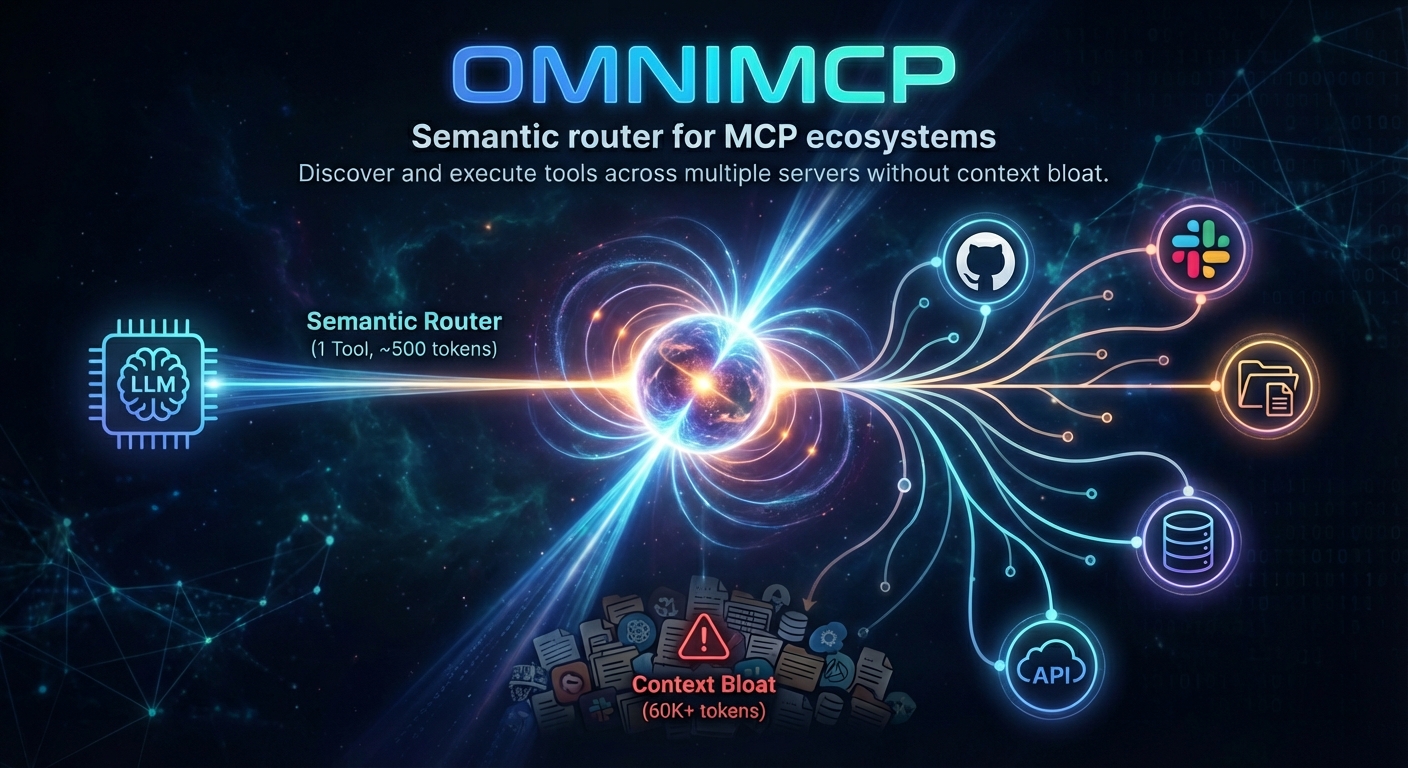
The Problem
MCP tool definitions consume tokens fast. A typical setup:
| Server | Tools | Tokens | |--------|-------|--------| | GitHub | 35 | ~26K | | Slack | 11 | ~21K | | Filesystem | 8 | ~5K | | Database | 12 | ~8K |
That's 60K+ tokens before the conversation starts. Add more servers and you're competing with your actual context.
Why this matters
Context bloat kills performance. When tool definitions consume 50-100K tokens, you're left with limited space for actual conversation, documents, and reasoning. The model spends attention on tool schemas instead of your task.
More tools = more hallucinations. With 50+ similar tools (like notification-send-user vs notification-send-channel), models pick wrong tools and hallucinate parameters. Tool selection accuracy drops as the toolset grows.
Dynamic tool loading breaks caching. Loading tools on-demand during inference seems smart, but it invalidates prompt caches. Every new tool added mid-conversation means reprocessing the entire context. Your "optimization" becomes a performance tax.
Tool results bloat context too. A single file read can return 50K tokens. An image is 1K+ tokens base64-encoded. These pile up in conversation history, pushing out earlier context.
The Solution
OmniMCP exposes a single semantic_router tool as the only entry point to your entire MCP ecosystem. The LLM never sees individual tool definitions—just one unified interface.
Traditional: 58 tools → 55K tokens in tool definitions
OmniMCP:      1 tool   → ~500 tokens (semantic_router)
How it works:
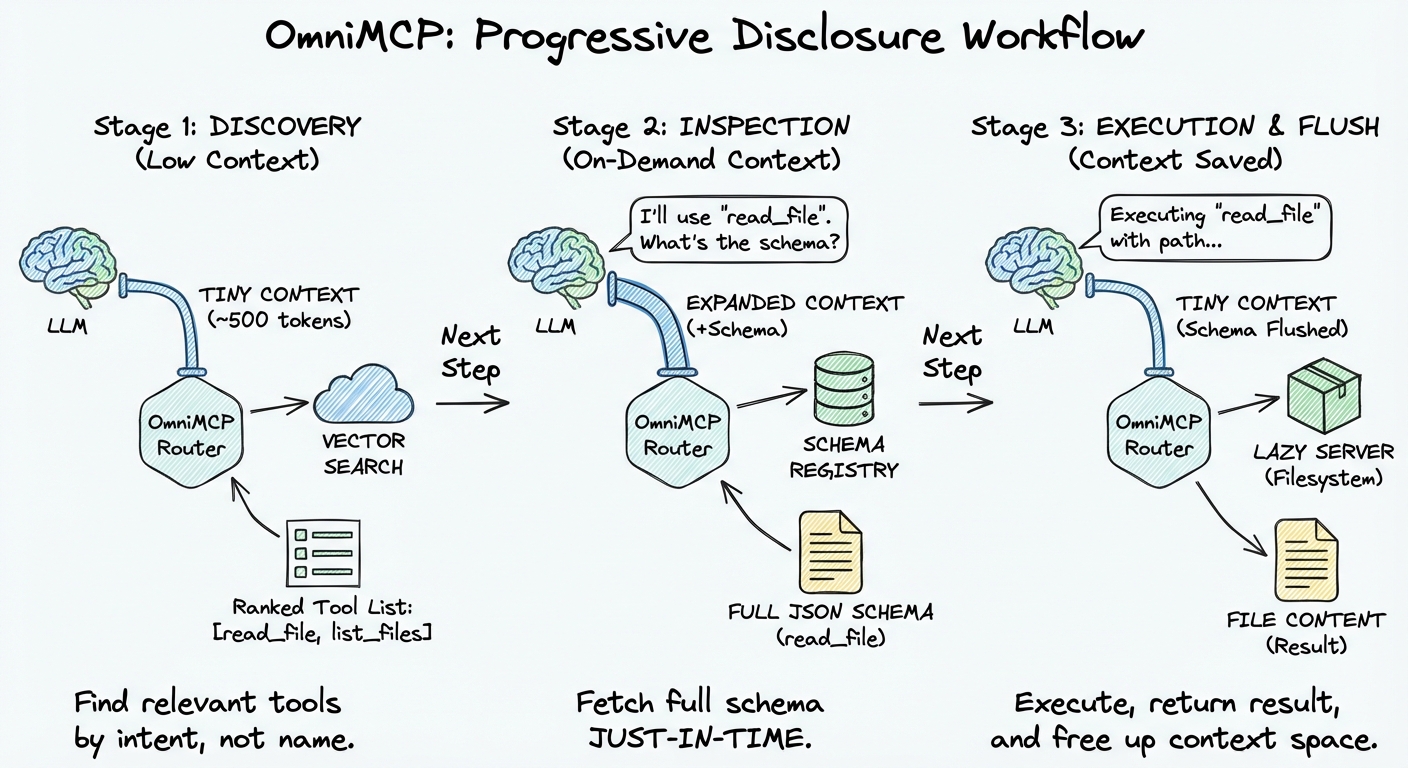
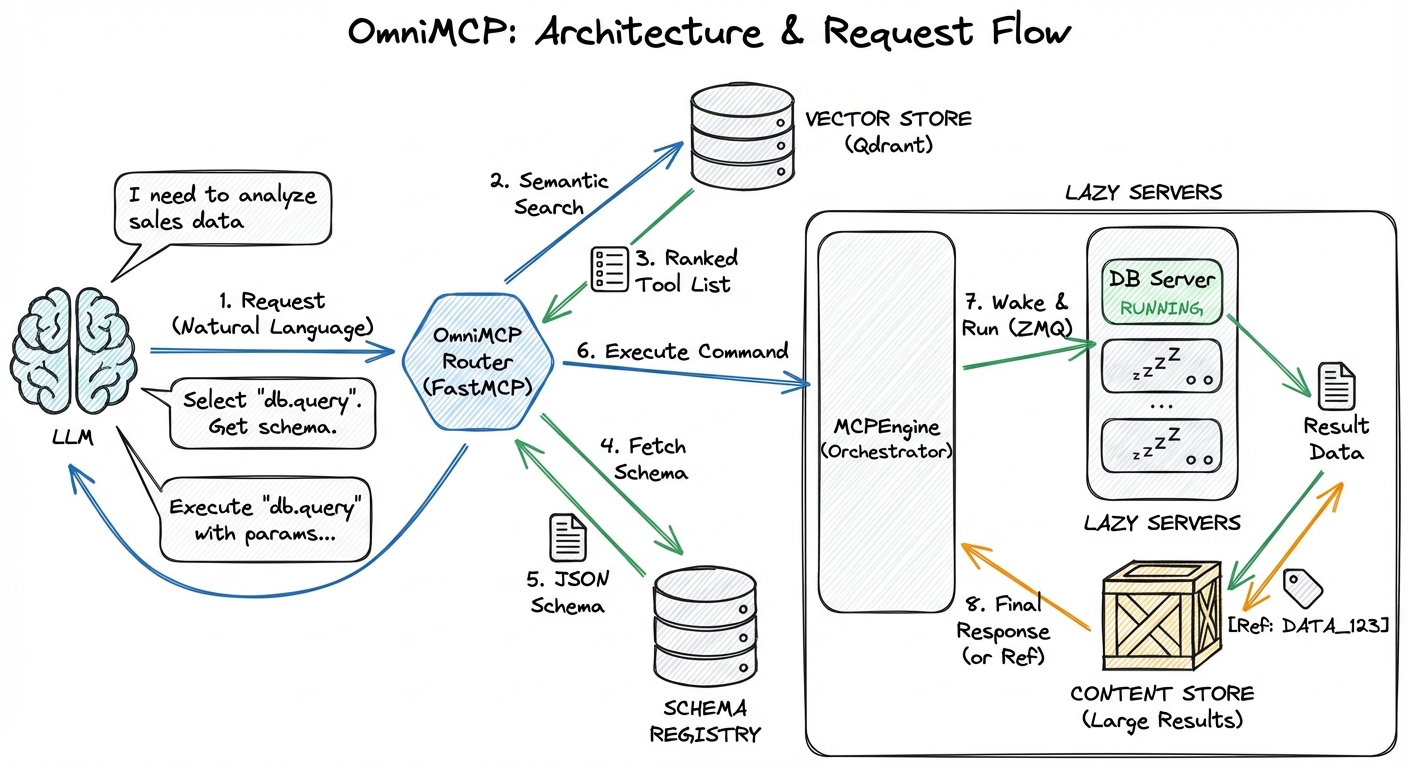
- Semantic search → Find relevant tools by intent, not name. Tools are pre-indexed with embeddings, searched at runtime, returned as text results (not tool definitions)
- Lazy server loading → Servers start only when needed, shutdown when done
- Progressive schema loading → Full JSON schema fetched only before execution, returned as text in conversation
- Content offloading → Large results chunked, images described, stored for retrieval
Key insight: Tool schemas appear in conversation text, not in tool definitions. This means:
- Prompt caching stays intact (tool definition never changes)
- Only relevant schemas enter context (via search results)
- No hallucination from similar tool names (model sees 3-5 tools, not 50+)
From ~60K tokens to ~3K. Access to everything, cost of almost nothing.
Architecture: Meta-Tool Pattern
OmniMCP uses the meta-tool pattern, similar to Claude Code's Agent Skills system. Instead of exposing dozens of individual tools, it exposes a single semantic_router meta-tool that acts as a gateway to your entire MCP ecosystem.
Progressive Disclosure Workflow
Architecture & Request Flow
How It Works
Traditional MCP approach:
tools: [
  {name: "github_create_issue", description: "..."},
  {name: "github_create_pr", description: "..."},
  {name: "filesystem_read", description: "..."},
  // ... 50+ more tools
]
❌ Problems: Context bloat, tool hallucination, no caching
OmniMCP's meta-tool approach:
{
  "tools": [
    {
      "name": "semantic_router",
      "description": "Universal gateway to MCP ecosystem...\n
        OPERATIONS: search_tools, get_server_info, execute_tool...\n
        LIST OF INDEXED SERVERS:\n
        filesystem: 8 tools (file operations, read/write)\n
        github: 35 tools (issues, PRs, repos)\n
        ...",
      "input_schema": {
        "operation": "search_tools | execute_tool | ..."
      }
    }
  ]
}
✅ Benefits: Single tool definition, server list in description, dynamic discovery
Parallel to Claude Skills
Claude Skills and OmniMCP share the same architectural insight:
| Aspect | Claude Skills | OmniMCP |
|--------|--------------|------------|
| Meta-tool | Skill tool | semantic_router tool |
| Discovery | Skill descriptions in tool description | Server list + hints in tool description |
| Invocation | Skill(command="skill-name") | semantic_router(operation="execute_tool", server_name=...) |
| Context injection | Skill instructions loaded on invocation | Tool schemas fetched on-demand, returned as text |
| Cache-friendly | Tool definition never changes | Tool definition never changes |
| Dynamic list | <available_skills> section | LIST OF INDEXED SERVERS section |
| Behavioral hints | Skill descriptions guide LLM | Server hints field guides LLM |
Key insight: Both systems inject instructions through prompt expansion rather than traditional function calling. The tool description becomes a dynamic directory that the LLM reads and reasons about, while actual execution details are loaded lazily.
Example of behavioral guidance:
Claude Skills:
<available_skills>
  skill-creator: "When user wants to create a new skill..."
  internal-comms: "When user wants to write internal communications..."
</available_skills>
OmniMCP hints:
{
  "elevenlabs": {
    "hints": [
      "When the user requests audio generation (speech or music), always execute in background mode",
      "Proactively offer to play audio using the ElevenLabs tool when contextually relevant"
    ]
  }
}
Both inject behavioral instructions that shape how the LLM uses the tools, not just what they do.
Real-World Example
Multi-server orchestration in action:
Claude Code generated a video using OmniMCP(previously pulsar-mcp) to coordinate multiple MCP servers.
The process:
- Exa (background mode) - Parallel web searches to gather latest news
- Modal Sandbox - Computed and generated video from news data
- Filesystem - Retrieved the video file from Modal's output
- ffmpeg - Transformed video to GIF format
The workflow:
search_tools("web search news")
  → execute_tool(exa, search, in_background=True) × 3 parallel calls
  → poll_task_result() → aggregate results
  → execute_tool(modal-sandbox, generate_video, data)
  → execute_tool(filesystem, read_file, video_path)
  → execute_tool(modal-sandbox, ffmpeg_convert, video_to_gif)
What this demonstrates:
- Semantic discovery - Finding the right tools across servers without knowing their exact names
- Background execution - Parallel Exa searches without blocking the conversation
- Cross-server coordination - Modal → Filesystem → Modal pipeline with automatic state management
- Single interface - All operations through one
semantic_routertool
Without OmniMCP: 50+ tool definitions, complex orchestration, context overflow. With OmniMCP: Discover → Execute → Coordinate. Seamlessly.
Installation
uv pip install omnimcp // or uv add omnimcp
Configuration
Environment Variables
OmniMCP requires several environment variables to operate. You must configure these before running index or serve commands.
Required variables:
| Variable | Description | Example |
|----------|-------------|---------|
| OPENAI_API_KEY | OpenAI API key for embeddings and descriptions | sk-proj-... |
| TOOL_OFFLOADED_DATA_PATH | Path for storing offloaded content (large results, images) | /path/to/tool_offloaded_data |
Qdrant connection (choose ONE mode):
| Mode | Variables | Description |
|------|-----------|-------------|
| Local file | QDRANT_DATA_PATH=/path/to/data | Embedded Qdrant, persists to disk |
| In-memory | QDRANT_DATA_PATH=:memory: | Embedded Qdrant, no persistence (testing) |
| Remote server | QDRANT_URL=http://localhost:6333 | Docker or self-hosted Qdrant |
| Qdrant Cloud | QDRANT_URL=https://xxx.qdrant.ioQDRANT_API_KEY=your-api-key | Managed Qdrant Cloud |
Optional variables (with defaults):
| Variable | Default | Description |
|----------|---------|-------------|
| EMBEDDING_MODEL_NAME | text-embedding-3-small | OpenAI embedding model |
| DESCRIPTOR_MODEL_NAME | gpt-4.1-mini | Model for generating tool descriptions |
| VISION_MODEL_NAME | gpt-4.1-mini | Model for describing images |
| MAX_RESULT_TOKENS | 5000 | Chunk threshold for large results |
| DESCRIBE_IMAGES | true | Use vision to describe images |
| DIMENSIONS | 1024 | Embedding dimensions |
Setup methods:
Option 1: Local file storage (simplest)
export OPENAI_API_KEY="sk-proj-..."
export QDRANT_DATA_PATH="/path/to/qdrant_data"
export TOOL_OFFLOADED_DATA_PATH="/path/to/tool_offloaded_data"
Option 2: Docker Qdrant server
# Start Qdrant in Docker
docker run -p 6333:6333 -p 6334:6334 qdrant/qdrant

# Configure OmniMCP
export OPENAI_API_KEY="sk-proj-..."
export QDRANT_URL="http://localhost:6333"
export TOOL_OFFLOADED_DATA_PATH="/path/to/tool_offloaded_data"
Option 3: Qdrant Cloud
export OPENAI_API_KEY="sk-proj-..."
export QDRANT_URL="https://your-cluster.qdrant.io"
export QDRANT_API_KEY="your-qdrant-api-key"
export TOOL_OFFLOADED_DATA_PATH="/path/to/tool_offloaded_data"
Option 4: Create a .env file
# .env
OPENAI_API_KEY=sk-proj-...
QDRANT_DATA_PATH=/path/to/qdrant_data
# OR for remote: QDRANT_URL=http://localhost:6333
TOOL_OFFLOADED_DATA_PATH=/path/to/tool_offloaded_data
Then use the --env-file flag when running commands:
uvx --env-file .env omnimcp index --config-path mcp-servers.json
Note: Sourcing environment variables (e.g., source .env) does not work reliably with uvx. Always use --env-file or export variables directly.
Note: For stdio transport, environment variables must also be included in your MCP client config (see stdio transport section below).
Quick Start
1. Create your MCP servers config (mcp-servers.json):
This is an enhanced schema of Claude Desktop's MCP configuration with additional OmniMCP-specific fields. OmniMCP supports two transport types for connecting to MCP servers:
Server Transport Types
stdio Transport (Local Subprocess)
Use command + args to spawn a local MCP server as a subprocess. This is the standard MCP approach used by Claude Desktop, Cursor, etc.
{
  "mcpServers": {
    "filesystem": {
      "command": "npx",
      "args": ["-y", "@modelcontextprotocol/server-filesystem", "/path/to/allowed/directory"],
      "env": {},
      "timeout": 30.0
    }
  }
}
HTTP Transport (Remote Server)
Use url to connect to a remote MCP server via Streamable HTTP. This eliminates the need for mcp-remote or mcp-proxy bridges—just provide the URL directly.
{
  "mcpServers": {
    "remote-api": {
      "url": "https://mcp.example.com/api",
      "headers": {"Authorization": "Bearer your-token"},
      "timeout": 60.0
    }
  }
}
When to use HTTP transport:
- Remote MCP servers (cloud APIs, shared services)
- Servers already running as HTTP endpoints
- Avoid spawning subprocesses for every server
- Direct connection without
mcp-remotebridge overhead
Mixed Configuration Example
You can mix both transport types in a single config:
{
  "mcpServers": {
    "filesystem": {
      "command": "npx",
      "args": ["-y", "@modelcontextprotocol/server-filesystem", "/path/to/allowed/directory"],
      "env": {},
      "timeout": 30.0,
      "hints": ["file operations", "read write files"],
      "blocked_tools": [],
      "ignore": false,
      "overwrite": false
    },
    "github": {
      "command": "npx",
      "args": ["-y", "@modelcontextprotocol/server-github"],
      "env": {"GITHUB_TOKEN": "..."},
      "blocked_tools": ["delete_repository", "fork_repository"]
    },
    "elevenlabs": {
      "command": "uvx",
      "args": ["elevenlabs-mcp"],
      "env": {"ELEVENLABS_API_KEY": "..."},
      "hints": [
        "When the user requests audio generation (speech or music), always execute in background mode",
        "Proactively offer to play audio using the ElevenLabs tool when contextually relevant"
      ]
    },
    "exa-direct": {
      "url": "https://mcp.exa.ai/mcp",
      "headers": {"Authorization": "Bearer your-exa-api-key"},
      "timeout": 60.0,
      "hints": [
        "Always execute web searches in background mode to avoid blocking the conversation",
        "Multiple Exa tool calls can be fired in parallel to efficiently gather information from different sources"
      ]
    },
    "company-internal-api": {
      "url": "http://internal-mcp.company.com:8080/mcp",
      "headers": {"X-API-Key": "internal-key"},
      "timeout": 120.0,
      "hints": ["Internal company data access", "Use for employee and project queries"]
    }
  }
}
Configuration Fields Reference
Transport-specific fields (choose ONE):
| Field | Type | Description |
|-------|------|-------------|
| command | string | stdio transport: Executable to run (npx, uvx, docker, python, etc.) |
| args | array | stdio transport: Command-line arguments passed to the executable |
| env | object | stdio transport: Environment variables for this MCP server |
| url | string | HTTP transport: URL of the remote MCP server endpoint |
| headers | object | HTTP transport: HTTP headers (e.g., Authorization, API keys) |
Shared fields (work with both transports):
| Field | Type | Description |
|-------|------|-------------|
| timeout | number | Seconds to wait for server startup/connection (default: 30.0) |
| hints | array | Powerful! Guide the LLM on how to use this server. Used for both discovery and execution instructions. Examples: "Always execute in background mode", "Multiple calls can be fired in parallel", "Proactively offer when contextually relevant" |
| blocked_tools | array | Tool names that will be indexed but blocked from execution |
| ignore | boolean | If true, skip indexing this server entirely (default: false) |
| overwrite | boolean | If true, force re-index even if already indexed (default: false) |
Note: You must specify either command (stdio) OR url (HTTP), but not both. The transport type is auto-detected based on which field is present.
2. Set environment variables:
export OPENAI_API_KEY="sk-..."
export QDRANT_DATA_PATH="/path/to/qdrant_data"
export TOOL_OFFLOADED_DATA_PATH="/path/to/tool_offloaded_data"
3. Index your servers (recommended before serving):
uvx --env-file .env omnimcp index --config-path mcp-servers.json
4. Run the server:
# Default: HTTP transport (recommended)
uvx --env-file .env omnimcp serve --config-path mcp-servers.json --transport http --host 0.0.0.0 --port 8000

# stdio transport (for local MCP clients - requires pre-indexing)
uvx --env-file .env omnimcp serve --config-path mcp-servers.json --transport stdio
Alternatively, use CLI options directly:
# With local Qdrant storage
uvx omnimcp serve \
  --config-path mcp-servers.json \
  --openai-api-key "sk-..." \
  --qdrant-data-path /path/to/qdrant_data \
  --tool-offloaded-data-path /path/to/tool_offloaded_data

# With remote Qdrant (Docker or Cloud)
uvx omnimcp serve \
  --config-path mcp-servers.json \
  --openai-api-key "sk-..." \
  --qdrant-url "http://localhost:6333" \
  --qdrant-api-key "optional-api-key" \
  --tool-offloaded-data-path /path/to/tool_offloaded_data
Transport Modes
OmniMCP supports two transport protocols, each optimized for different deployment scenarios:
HTTP Transport (Default - Recommended)
Best for most use cases: remote access, web integrations, or when using with mcp-remote or mcp-proxy.
uvx omnimcp serve --config-path mcp-servers.json --transport http --host 0.0.0.0 --port 8000
Use cases:
- Remote access - Serve OmniMCP on a server, connect from anywhere
- Multiple clients - Share one OmniMCP instance across multiple agents
- Web integrations - REST API access to your MCP ecosystem
- mcp-remote/mcp-proxy - Expose OmniMCP through MCP proxy layers
Example with mcp-remote:
npm install mcp-remote
{
  "mcpServers": {
    "omnimcp-remote": {
      "command": "npx",
      "args": ["-y", "mcp-remote", "http://your-server:port/mcp"]
    }
  }
}
HTTP mode advantages:
- Indexing happens once on server startup
- Multiple clients share the same indexed data
stdio Transport
Best for local MCP clients that communicate via standard input/output (Claude Desktop, Cline, etc.).
⚠️ IMPORTANT: You MUST run uvx omnimcp index before using stdio mode to avoid slow startup times.
uvx omnimcp serve --config-path mcp-servers.json --transport stdio
Recommended workflow:
- Index first - Run
omnimcp indexbefore adding to your MCP client config - Then mount - Add OmniMCP to your client's MCP configuration
- Start serving - Client launches OmniMCP automatically via stdio
Example client config (claude_desktop_config.json):
{
  "mcpServers": {
    "omnimcp": {
      "command": "uvx",
      "args": ["omnimcp", "serve"],
      "env": {
        "CONFIG_PATH": "/path/mcp/config/file",
        "TRANSPORT": "stdio|http",
        "OPENAI_API_KEY": "sk-...",
        "QDRANT_DATA_PATH": "/path/to/qdrant_data",
        "TOOL_OFFLOADED_DATA_PATH": "/path/to/tool_offloaded_data"
        // add other env keys
      }
    }
  }
}
Why index before mounting? Indexing can take time with many servers. Pre-indexing ensures instant startup when your MCP client launches OmniMCP.
Troubleshooting uvx Issues
Error: spawn uvx ENOENT or command not found: uvx
This means uv is not installed or not in your PATH. Detailed troubleshooting guide • Official MCP docs.
Quick fixes:
-
Install uv (if not installed):
# macOS/Linux brew install uv # or official installer curl -LsSf https://astral.sh/uv/install.sh | sh -
Ensure uv is in PATH (macOS/Linux):
# Check if installed which uvx # If not found, add to PATH (add to ~/.zshrc or ~/.bashrc) export PATH="$HOME/.local/bin:$PATH" # Or create symlink sudo ln -s ~/.local/bin/uvx /usr/local/bin/uvx -
Use absolute path in config (find with
which uvx):"command": "/Users/you/.local/bin/uvx" // macOS "command": "C:\\Users\\you\\.local\\bin\\uvx.exe" // Windows
Alternative: Use mcp-remote for HTTP mode
If uvx issues persist, run OmniMCP via HTTP and connect through mcp-remote:
# Terminal 1: Run OmniMCP HTTP server
uvx omnimcp serve --config-path mcp-servers.json --transport http --port 8000
// Claude Desktop config
{
  "mcpServers": {
    "omnimcp": {
      "command": "npx",
      "args": ["-y", "mcp-remote", "http://localhost:8000/mcp"]
    }
  }
}
This bypasses stdio issues and works reliably across platforms.
How It Works
OmniMCP exposes a single semantic_router tool that acts as a gateway to your entire MCP ecosystem:
search_tools("read CSV files and analyze data")
    → Returns: filesystem.read_file, database.query (ranked by relevance)

get_tool_details("filesystem", "read_file")
    → Returns: Full JSON schema with parameters

manage_server("filesystem", "start")
    → Launches the server process

execute_tool("filesystem", "read_file", {"path": "/data/sales.csv"})
    → Returns: File content (chunked if large)
Operations
| Operation | Description |
|-----------|-------------|
| search_tools | Semantic search across all indexed tools |
| get_server_info | View server capabilities and limitations |
| list_server_tools | Browse tools on a specific server |
| get_tool_details | Get full schema before execution |
| manage_server | Start or shutdown server instances |
| list_running_servers | Show active servers |
| execute_tool | Run tools with optional background mode |
| poll_task_result | Check background task status |
| get_content | Retrieve offloaded content by reference |
Content Management
Large tool results are automatically handled:
- Text > 5000 tokens → Chunked, preview returned with reference ID
- Images → Offloaded, described with GPT-4 vision, reference returned
- Audio → Offloaded, reference returned
Retrieve full content with get_content(ref_id, chunk_index).
Background Execution
For long-running tools:
# Queue for background execution
execute_tool("server", "slow_tool", args, in_background=True, priority=1)
# Returns: task_id

# Check status
poll_task_result(task_id)
# Returns: status, result when done
Docker
OmniMCP can be run in a Docker container with full support for both npx (Node.js MCP servers) and uvx (Python MCP servers).
Pull from Docker Hub
docker pull milkymap/omnimcp:latest

Build Locally (Optional)
docker build -t omnimcp:latest -f Dockerfile .
Run
With local Qdrant storage:
docker run --rm -it \
  -v /path/to/qdrant_data:/data/qdrant \
  -v /path/to/tool_offloaded_data:/data/tool_offloaded_data \
  -v /path/to/mcp-servers.json:/app/config/mcp-servers.json:ro \
  --env-file .env.docker \
  -p 8000:8000 \
  milkymap/omnimcp:latest serve
With remote Qdrant (Cloud or Docker):
docker run --rm -it \
  -v /path/to/tool_offloaded_data:/data/tool_offloaded_data \
  -v /path/to/mcp-servers.json:/app/config/mcp-servers.json:ro \
  --env-file .env.docker \
  -p 8000:8000 \
  milkymap/omnimcp:latest serve
Environment file (.env.docker) - choose ONE Qdrant mode:
OPENAI_API_KEY=sk-proj-...
CONFIG_PATH=/app/config/mcp-servers.json
TOOL_OFFLOADED_DATA_PATH=/data/tool_offloaded_data
TRANSPORT=http
HOST=0.0.0.0
PORT=8000

# Option 1: Local Qdrant storage
QDRANT_DATA_PATH=/data/qdrant

# Option 2: Remote Qdrant (comment out QDRANT_DATA_PATH above)
# QDRANT_URL=https://your-cluster.qdrant.io
# QDRANT_API_KEY=your-api-key
Available commands:
# Show help
docker run --rm milkymap/omnimcp:latest --help

# Index servers
docker run --rm \
  -v /path/to/mcp-servers.json:/app/config/mcp-servers.json:ro \
  --env-file .env.docker \
  milkymap/omnimcp:latest index

# Serve (HTTP mode)
docker run --rm -d \
  -v /path/to/mcp-servers.json:/app/config/mcp-servers.json:ro \
  --env-file .env.docker \
  -p 8000:8000 \
  --name omnimcp \
  milkymap/omnimcp:latest serve
Development
git clone https://github.com/milkymap/omnimcp.git
cd omnimcp
uv sync
uv run pytest
Related Research
OmniMCP builds on emerging research in scalable tool selection for LLM agents:
ScaleMCP: Dynamic and Auto-Synchronizing Model Context Protocol Tools
Lumer et al. (2025) introduce ScaleMCP, addressing similar challenges in MCP tool selection at scale. Their approach emphasizes:
- Dynamic tool retrieval - Giving agents autonomy to discover and add tools during multi-turn interactions
- Auto-synchronizing storage - Using MCP servers as the single source of truth via CRUD operations
- Tool Document Weighted Average (TDWA) - Novel embedding strategy that selectively emphasizes critical tool document components
Their evaluation across 5,000 financial metric servers demonstrates substantial improvements in tool retrieval and agent invocation performance, validating the importance of semantic search in MCP ecosystems.
Key insight: Both OmniMCP and ScaleMCP recognize that traditional monolithic tool repositories don't scale. The future requires dynamic, semantic-first approaches to tool discovery.
Anthropic's Advanced Tool Use
Anthropic's Tool Search feature (2025) introduces three capabilities that align with OmniMCP's architecture:
- Tool Search Tool - Discover thousands of tools without consuming context window
- Programmatic Tool Calling - Invoke tools in code execution environments to reduce context impact
- Tool Use Examples - Learn correct usage patterns beyond JSON schema definitions
Quote from Anthropic: "Tool results and definitions can sometimes consume 50,000+ tokens before an agent reads a request. Agents should discover and load tools on-demand, keeping only what's relevant for the current task."
This mirrors OmniMCP's core philosophy: expose minimal interface upfront (single semantic_router tool), discover tools semantically, load schemas progressively.
Convergent Evolution
These independent efforts converge on similar principles:
- Semantic discovery over exhaustive enumeration
- Progressive loading over upfront tool definitions
- Agent autonomy to query and re-query tool repositories
- Context efficiency as a first-class design constraint
OmniMCP implements these principles through semantic routing, lazy server loading, and content offloading—making large-scale MCP ecosystems practical today.
License
MIT License - see LICENSE for details.
Built after several months of research and development
Multiple architectural iterations • Real-world agent deployments • Extensive testing across diverse MCP ecosystems
OmniMCP emerged from solving actual problems in production agent systems where traditional approaches failed. Every feature—from semantic routing to background execution to content offloading—was battle-tested against the challenges of scaling MCP ecosystems beyond toy examples.
We hope OmniMCP will be useful to the community in building more capable and efficient agent systems.