A powerful MCP testing tool with multi-provider LLM support (Ollama, OpenAI, Claude, Gemini). Test, debug, and develop MCP servers with a modern UI.
MCP Chat Studio
A powerful MCP (Model Context Protocol) testing and development tool with a modern glassmorphism UI.




📌 Note: MCP Chat Studio is a local MCP test bench. It is designed for development and is not intended to be internet-exposed by default.
✨ Why MCP Chat Studio?
- 🎯 Built for MCP Development - Test and debug MCP servers without writing code
- 🔧 7 LLM Providers - Switch between Ollama, OpenAI, Claude, Gemini, Azure, Groq, and Together AI
- 🧪 One-Click Testing - Smoke test all MCP tools with a single click
- 🔍 Low-Level Debugging - Inspector tab for raw MCP protocol inspection
- 🐳 Production Ready - Docker support, CI/CD, security-hardened
- 💡 Zero Config Start - Works with Ollama out of the box, no API keys needed
- 🎨 Beautiful UI - Modern glassmorphism design with dark/light themes
Perfect for:
- MCP server developers testing their tools
- Comparing different LLM providers with the same tools
- Debugging MCP protocol issues
- Building MCP-powered applications
📸 Screenshots
Click to view screenshots
Main Chat Interface
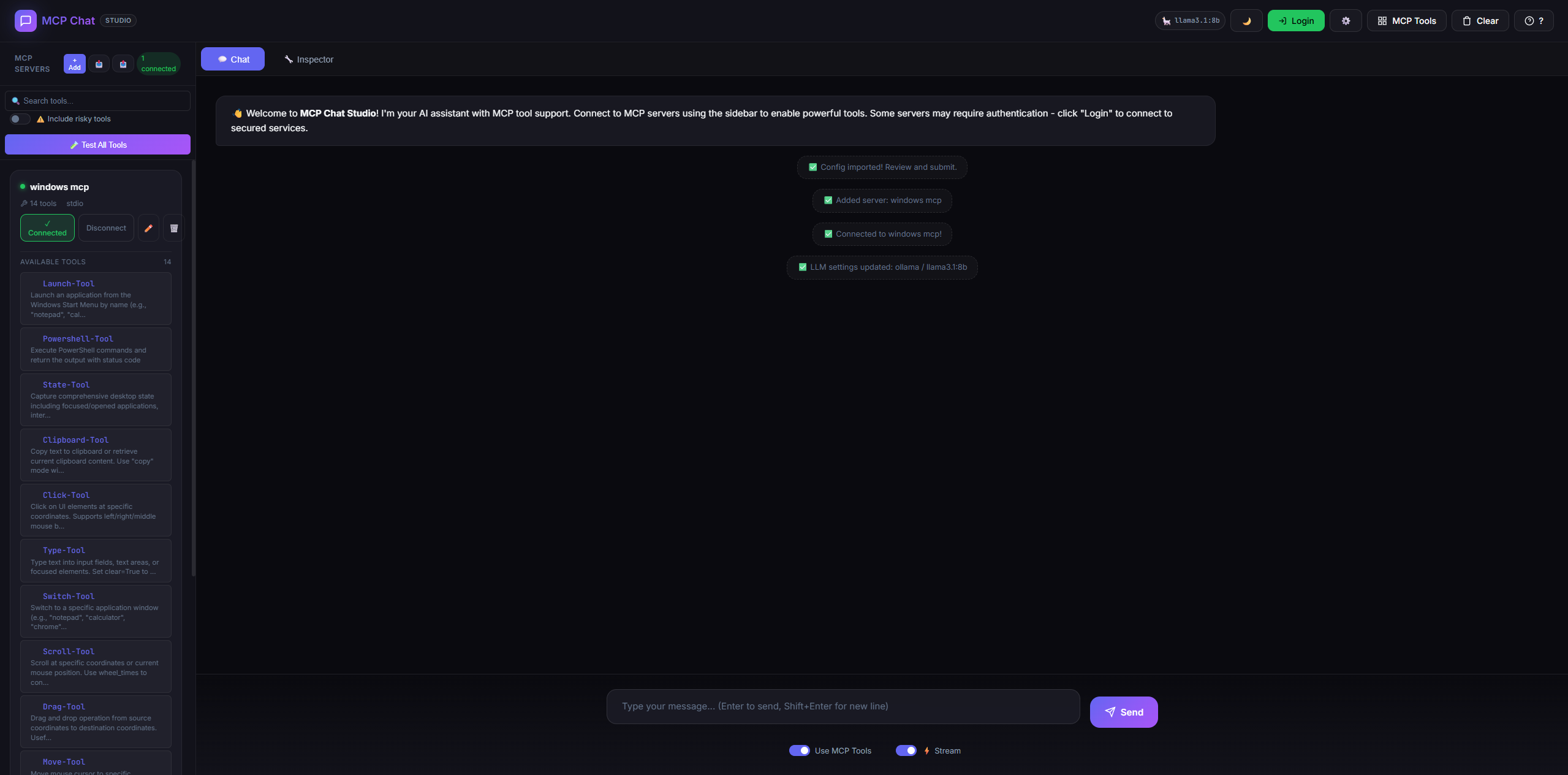
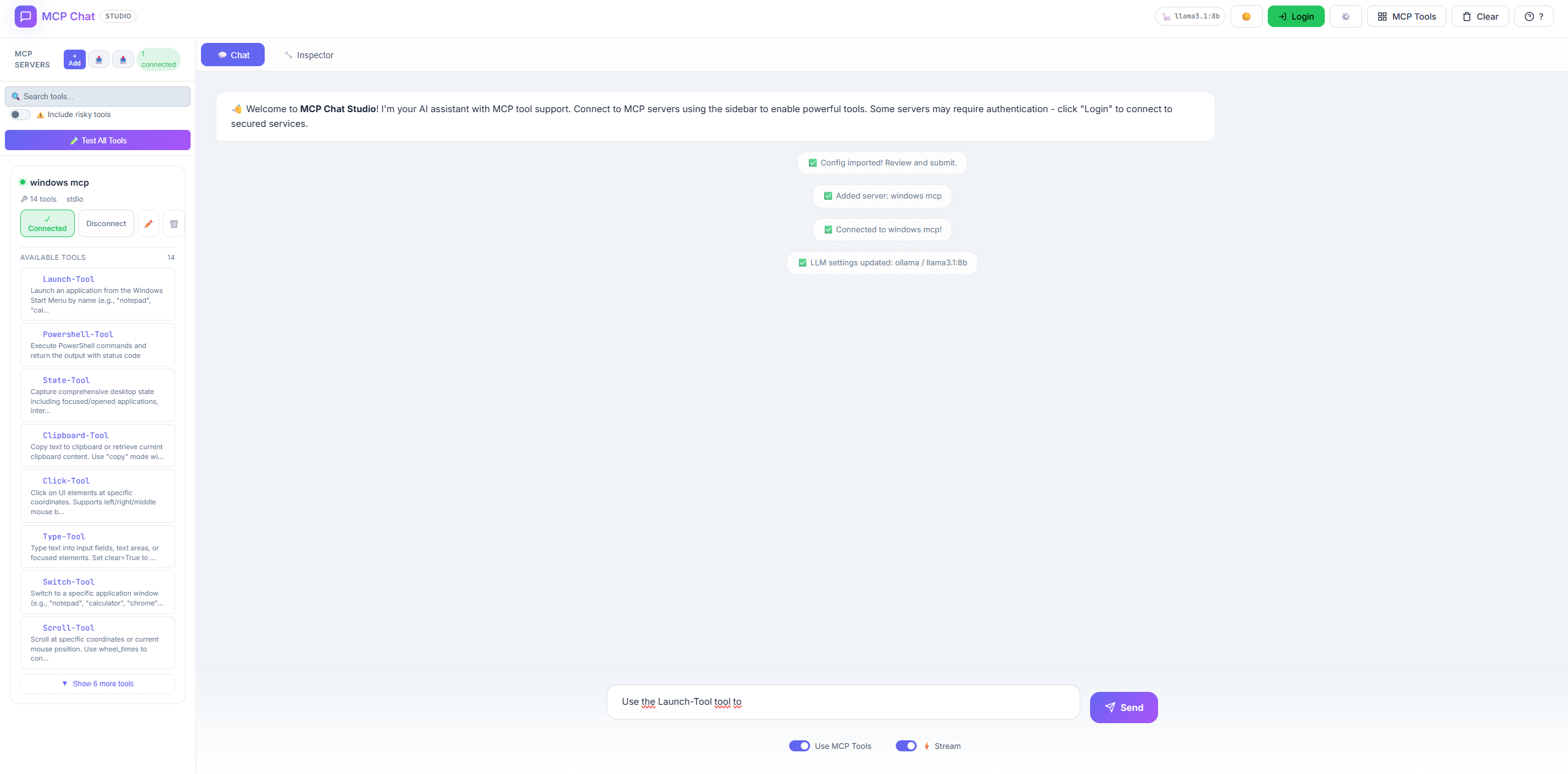
Light Mode
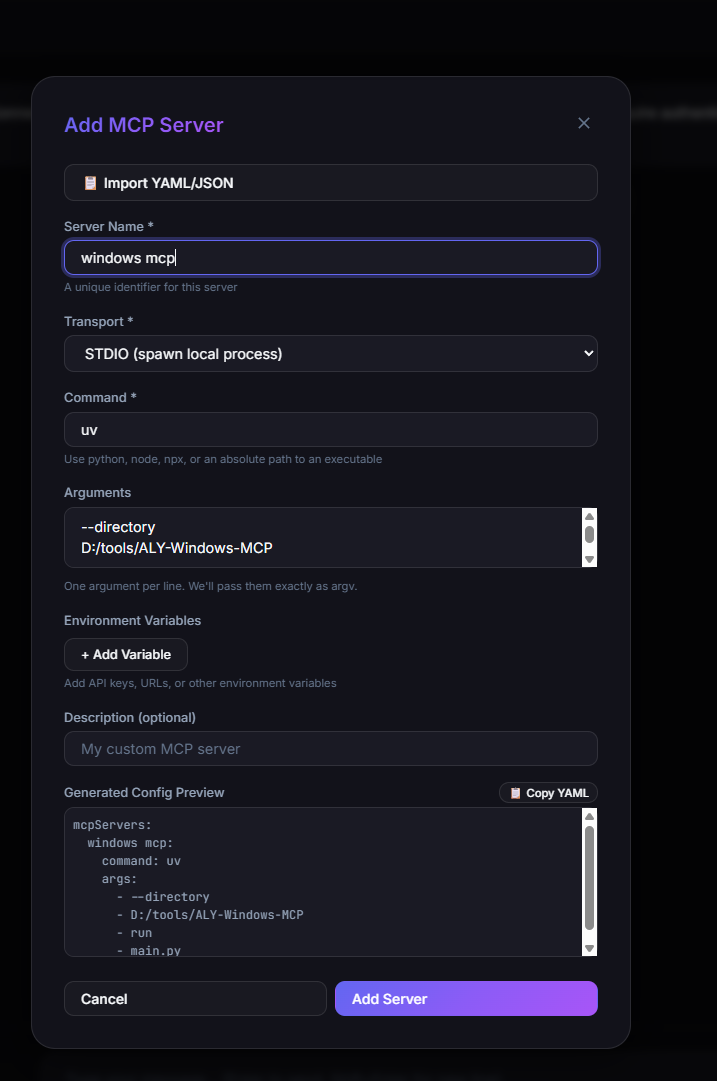
Adding MCP Servers
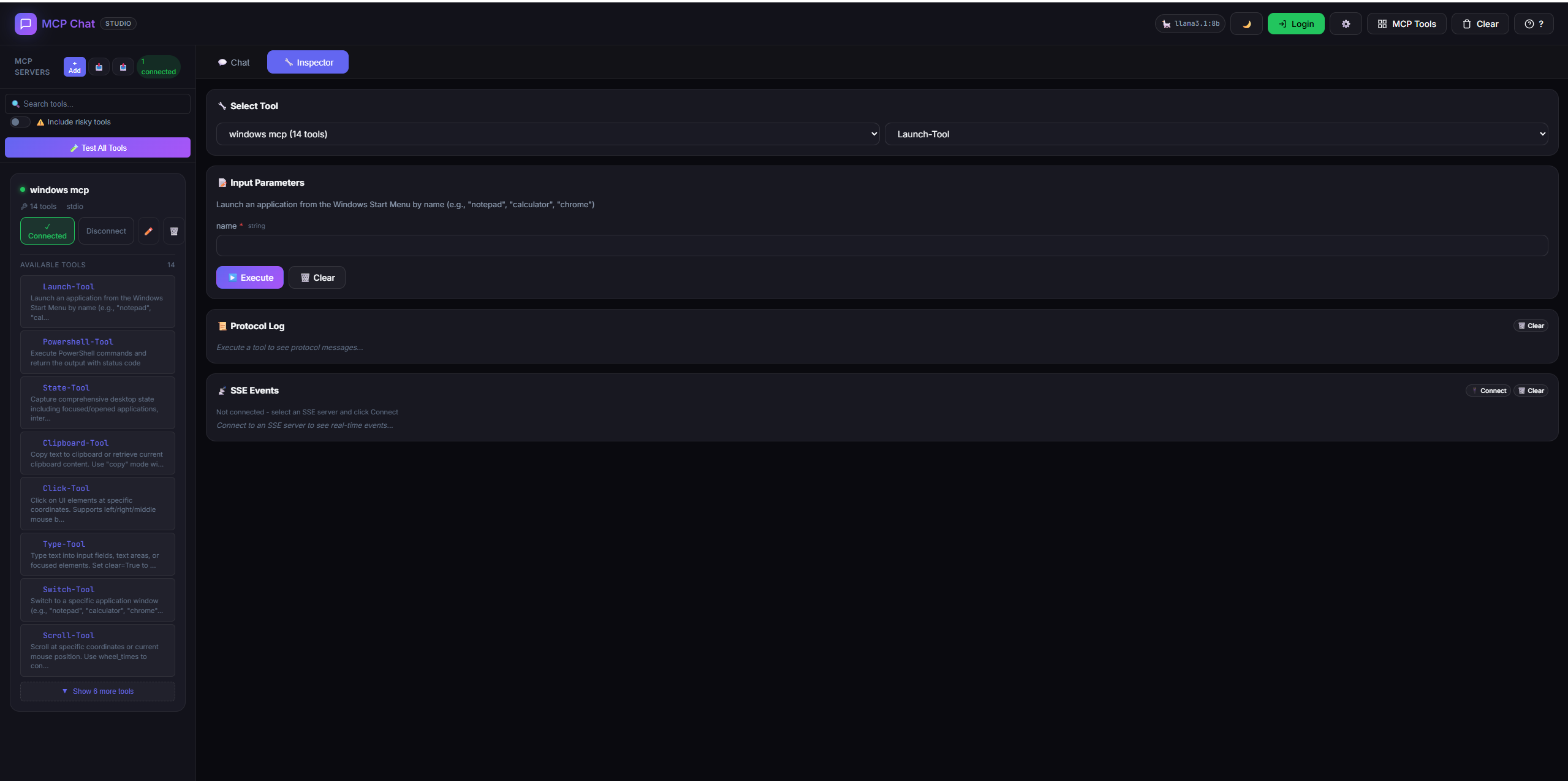
Tool Inspector (Low-Level Debugging)
Tool Testing
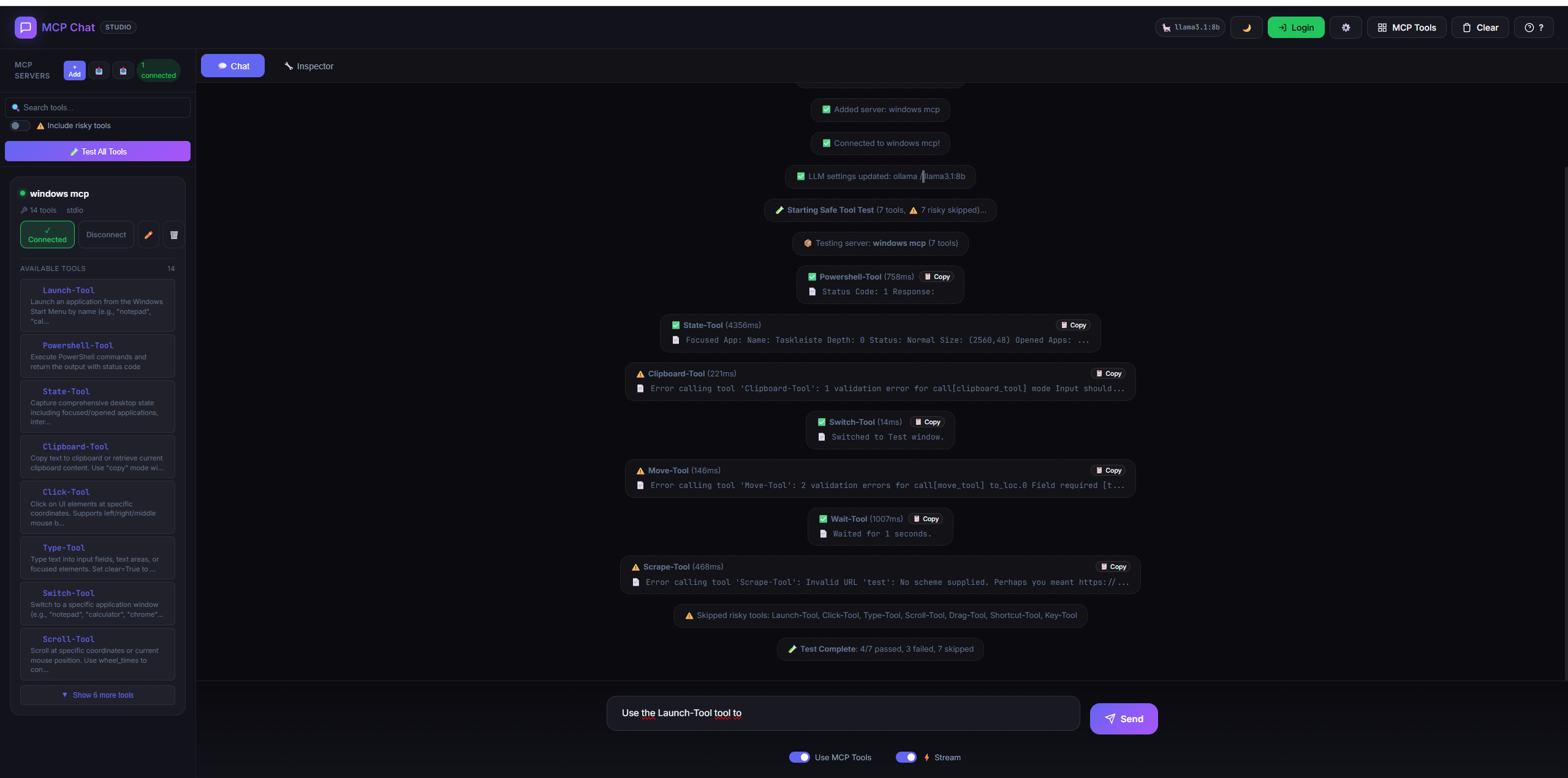
Keyboard Shortcuts
🚀 Features
💬 Multi-Provider LLM Chat
- Ollama - Local LLM (llama3, mistral, qwen, etc.)
- OpenAI - GPT-4o, GPT-4, GPT-3.5
- Anthropic - Claude 3.5, Claude 3
- Google Gemini - Gemini Pro, Gemini Flash
- Azure OpenAI - Enterprise Azure deployments
- Groq - Ultra-fast inference (Mixtral, LLaMA)
- Together AI - Open-source models
- Real-time streaming with typing effect
🔧 MCP Tool Management
- Dynamic server management - Add/remove servers at runtime
- STDIO & SSE transports supported
- Environment variables - Configure API keys, URLs per server
- Import YAML/JSON - Paste config from docs
- Config preview - See generated config before adding
🧪 Tool Testing
- Test All Tools - Smoke test all connected tools
- Response preview - See what each tool returns
- Timing - Measure tool response times
- Safe mode - Skip risky tools (Click, Type, Launch)
- Error detection - Uses MCP's
isErrorfield
🔧 Inspector Tab (Low-Level Debugging)
- Manual tool execution - Call any tool with custom arguments
- Auto-generated forms - Input fields from JSON schema
- Protocol log - See raw MCP request/response JSON
- SSE event viewer - Real-time server events for SSE transports
- Resources/Prompts API - Full MCP protocol support
📤 Config Export/Import
- Export - Download your config as YAML
- Import - Load config from YAML/JSON file
- Team sharing - Share configs across machines
🔒 Flexible Authentication
- Keycloak - Full OIDC with PKCE
- GitHub - OAuth2 preset
- Google - OAuth2 preset
- Custom - Any OAuth2 provider with custom URLs
🎨 Modern UI
- Glassmorphism design - Frosted glass aesthetic
- Dark/Light theme - Toggle with 🌙/☀️
- Tool schema viewer - See parameter details inline
- Responsive layout - Works on all screen sizes
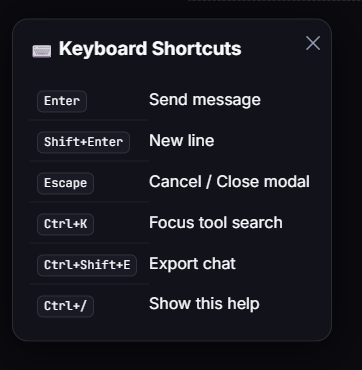
⌨️ Keyboard Shortcuts
| Shortcut | Action |
| -------------- | -------------------- |
| Enter | Send message |
| Shift+Enter | New line |
| Escape | Cancel / Close modal |
| Ctrl+K | Focus tool search |
| Ctrl+Shift+E | Export chat |
| Ctrl+/ | Show shortcuts help |
📦 Installation
Prerequisites
- Node.js 18+
- npm or yarn
Quick Start
# Clone the repository
git clone https://github.com/JoeCastrom/mcp-chat-studio.git
cd mcp-chat-studio

# Install dependencies
npm install

# Copy environment template
cp .env.example .env

# Start the server
npm run dev
Open http://localhost:3082 in your browser.
🐳 Docker Deployment
Using Docker Compose (Recommended)
Option 1: Use Your Local Ollama (Default)
If you already have Ollama installed on your machine:
# Start MCP Chat Studio only (uses your local Ollama)
docker-compose up

# Run in background
docker-compose up -d
The app automatically connects to your local Ollama at http://localhost:11434.
Option 2: Include Ollama in Docker
If you don't have Ollama installed locally:
# Start both MCP Chat Studio AND Ollama in Docker
docker-compose --profile with-ollama up

# Run in background
docker-compose --profile with-ollama up -d
Services started:
- MCP Chat Studio: http://localhost:3082
- Ollama (if using profile): http://localhost:11434
Configure API Keys
# Create .env file or set environment variables
OPENAI_API_KEY=sk-your-key
ANTHROPIC_API_KEY=sk-ant-your-key
GOOGLE_API_KEY=your-google-key
Using Docker Only
# Build image
docker build -t mcp-chat-studio .

# Run with Ollama (default)
docker run -p 3082:3082 mcp-chat-studio

# Run with OpenAI
docker run -p 3082:3082 \
  -e OPENAI_API_KEY=sk-your-key \
  mcp-chat-studio

# Run with custom config
docker run -p 3082:3082 \
  -v $(pwd)/config.yaml:/app/config.yaml:ro \
  mcp-chat-studio
Health Check
curl http://localhost:3082/api/health
Response:
{
  "status": "ok",
  "mcpServers": {
    "server-name": "connected"
  }
}
⚙️ Configuration
LLM Providers
MCP Chat Studio supports 8 LLM providers. Configure in config.yaml:
Ollama (Local - Default)
llm:
  provider: ollama
  model: llama3.2
No API key needed. Just run ollama serve.
OpenAI
llm:
  provider: openai
  model: gpt-4o
# .env
OPENAI_API_KEY=sk-your-key
Anthropic Claude
llm:
  provider: anthropic
  model: claude-3-5-sonnet-20241022
# .env
ANTHROPIC_API_KEY=sk-ant-your-key
Google Gemini
llm:
  provider: gemini
  model: gemini-1.5-flash
# .env
GOOGLE_API_KEY=your-google-ai-key
Azure OpenAI
llm:
  provider: azure
  model: gpt-4o
# .env
AZURE_OPENAI_API_KEY=your-key
AZURE_OPENAI_ENDPOINT=https://your-resource.openai.azure.com
AZURE_OPENAI_DEPLOYMENT=your-deployment-name
Groq (Ultra-fast)
llm:
  provider: groq
  model: llama-3.3-70b-versatile
# .env
GROQ_API_KEY=gsk_your-key
Together AI
llm:
  provider: together
  model: meta-llama/Llama-3.3-70B-Instruct-Turbo
# .env
TOGETHER_API_KEY=your-key
MCP Servers (config.yaml)
mcpServers:
  my-mcp-server:
    type: stdio
    command: python
    args:
      - -m
      - my_mcp_server
    env:
      API_KEY: '${API_KEY}' # From .env
    description: 'My custom MCP server'
    startup: true # Auto-connect on startup
🛠️ Adding MCP Servers
Via UI (Recommended)
- Click + Add in the sidebar
- Fill in server details:
- Name: Unique identifier
- Transport: STDIO or SSE
- Command/URL: How to start/connect
- Arguments: Command-line args
- Environment Variables: API keys, URLs
- Preview the generated config
- Click Add Server
Via Import
- Click 📋 Import YAML/JSON
- Paste your config:
command: python
args:
  - -m
  - my_server
env:
  API_KEY: sk-xxx
- Click Import → Form auto-fills
- Review and Add Server
🎯 Example MCP Servers
Get started quickly with these popular MCP servers:
GitHub MCP Server
Access GitHub repositories, issues, PRs, and more:
mcpServers:
  github:
    type: stdio
    command: npx
    args:
      - '@modelcontextprotocol/server-github'
    env:
      GITHUB_TOKEN: '${GITHUB_TOKEN}'
    description: 'GitHub API integration'
    startup: true
In .env:
GITHUB_TOKEN=ghp_your_github_personal_access_token
Installation:
npm install -g @modelcontextprotocol/server-github
Filesystem MCP Server
Secure file operations with access control:
mcpServers:
  filesystem:
    type: stdio
    command: npx
    args:
      - '@modelcontextprotocol/server-filesystem'
      - '/path/to/allowed/directory'
    description: 'File system operations'
Note: Only has access to the specified directory for security.
Brave Search MCP Server
Web search capabilities:
mcpServers:
  brave-search:
    type: stdio
    command: npx
    args:
      - '@modelcontextprotocol/server-brave-search'
    env:
      BRAVE_API_KEY: '${BRAVE_API_KEY}'
    description: 'Web search via Brave'
Puppeteer MCP Server
Browser automation and web scraping:
mcpServers:
  puppeteer:
    type: stdio
    command: npx
    args:
      - '@modelcontextprotocol/server-puppeteer'
    description: 'Browser automation'
More Official Servers
- @modelcontextprotocol/server-postgres - PostgreSQL database access
- @modelcontextprotocol/server-sqlite - SQLite database operations
- @modelcontextprotocol/server-slack - Slack integration
- @modelcontextprotocol/server-google-maps - Google Maps API
Find more: MCP Servers Directory
🧪 Testing Tools
Test All Tools
- Connect to an MCP server
- Click 🧪 Test All Tools
- View results:
- ✅ Tool works with minimal input
- ⚠️ Tool responded but input validation failed
- ❌ Tool failed completely
Risky Tools
Some tools have side effects and are skipped by default:
Click-Tool- Clicks on screenType-Tool- Types textLaunch-Tool- Opens applicationsDrag-Tool,Key-Tool,Shortcut-Tool,Scroll-Tool
Check ⚠️ Include risky tools to test them.
Response Data
- Each test shows a preview of the response
- Click 📋 Copy to copy full JSON
- Duration shows response time in ms
💬 Using the Chat
Basic Chat
- Type a message and press Enter
- The LLM responds (with streaming if enabled)
Using MCP Tools
- Enable Use MCP Tools checkbox
- The LLM can call any connected tool
- Tool results appear in the chat
Streaming
- Enable ⚡ Stream for real-time typing effect
- Streaming is disabled when tools are enabled (tools need full response)
Force Tool Mode
- Click a tool in the sidebar
- Click Force to require the LLM to use it
- Badge shows which tool is forced
🔧 Inspector Tab
The Inspector provides low-level MCP debugging without using the LLM.
How to Use
- Click the 🔧 Inspector tab
- Select a Server from the dropdown
- Select a Tool from the dropdown
- Fill in the parameters (auto-generated from schema)
- Click ▶️ Execute
- View the raw JSON response
Input Types
| Schema Type | Input Field | | ----------- | --------------------- | | string | Text input | | number | Number input | | boolean | True/False dropdown | | array | JSON textarea | | object | JSON textarea | | enum | Dropdown with options |
When to Use
- Debugging - Test tools without LLM interpretation
- Development - Iterate on tool parameters quickly
- Verification - Check exact MCP responses
📁 Project Structure
mcp-chat-studio/
├── public/
│   └── index.html        # Single-page UI (HTML + CSS + JS)
├── server/
│   ├── index.js          # Express server entry
│   ├── routes/
│   │   ├── chat.js       # Chat & LLM endpoints
│   │   ├── llm.js        # LLM settings endpoints
│   │   ├── mcp.js        # MCP management endpoints
│   │   └── oauth.js      # OAuth endpoints
│   └── services/
│       ├── LLMClient.js  # Multi-provider LLM client
│       └── MCPManager.js # MCP server manager
├── config.yaml           # MCP server configs
├── .env                  # Environment variables
└── package.json
🔌 API Endpoints
Chat
| Method | Endpoint | Description |
| ------ | -------------------- | ---------------------------------- |
| POST | /api/chat | Send message (streaming supported) |
| POST | /api/chat/continue | Continue after tool call |
MCP
| Method | Endpoint | Description |
| ------ | -------------------------- | ----------------------- |
| GET | /api/mcp/status | Get server statuses |
| GET | /api/mcp/tools | Get all available tools |
| POST | /api/mcp/add | Add new server |
| POST | /api/mcp/connect | Connect to server |
| POST | /api/mcp/disconnect | Disconnect from server |
| POST | /api/mcp/call | Call a tool |
| DELETE | /api/mcp/remove/:name | Remove server |
| GET | /api/mcp/resources/:name | List resources |
| POST | /api/mcp/resources/read | Read a resource |
| GET | /api/mcp/prompts/:name | List prompts |
| POST | /api/mcp/prompts/get | Get a prompt |
LLM
| Method | Endpoint | Description |
| ------ | ------------------- | ------------------------ |
| GET | /api/llm/settings | Get current LLM settings |
| POST | /api/llm/settings | Update LLM settings |
🎨 Theming
Toggle between Dark and Light mode using the 🌙/☀️ button in the header.
Theme is saved to localStorage and persists across sessions.
🔒 Authentication (Optional)
MCP Chat Studio supports multiple OAuth2 providers:
Provider Presets
oauth:
  provider: keycloak # or github, google
  client_id: '${OAUTH_CLIENT_ID}'
  client_secret: '${OAUTH_CLIENT_SECRET}'
  redirect_uri: 'http://localhost:3082/api/oauth/callback'

  # Keycloak-specific
  keycloak_url: 'https://your-keycloak/auth'
  keycloak_realm: 'your-realm'
Custom OAuth2 Provider
oauth:
  authorize_url: 'https://provider.com/oauth/authorize'
  token_url: 'https://provider.com/oauth/token'
  userinfo_url: 'https://provider.com/api/userinfo'
  client_id: '${OAUTH_CLIENT_ID}'
  client_secret: '${OAUTH_CLIENT_SECRET}'
  scopes: ['openid', 'profile', 'email']
  use_pkce: true # false for legacy providers
Environment Variables
OAUTH_CLIENT_ID=your-client-id
OAUTH_CLIENT_SECRET=your-secret
OAUTH_AUTHORIZE_URL=https://...  # For custom providers
OAUTH_TOKEN_URL=https://...
Click Login to authenticate.
🔐 Security Best Practices
Important Security Notes
- ⚠️ Never commit
.envfile - Contains API keys and secrets - ⚠️ Use environment variables - All secrets should be in
.envor environment - ⚠️ SSL verification enabled - Disabled only for dev with self-signed certs
- ⚠️ OAuth tokens in memory - Production: use Redis for persistence
For Development
# .env (local development)
OPENAI_API_KEY=sk-your-key
ANTHROPIC_API_KEY=sk-ant-your-key

# Disable SSL verify only for internal/self-signed certs
OAUTH_DISABLE_SSL_VERIFY=true
For Production
# Use secure environment variables
export OPENAI_API_KEY="sk-your-key"
export ANTHROPIC_API_KEY="sk-ant-your-key"

# Never disable SSL verification in production
# OAUTH_DISABLE_SSL_VERIFY should NOT be set

# Use Redis for OAuth tokens (multi-instance deployments)
# Modify server/services/OAuthManager.js to use Redis instead of Map
MCP Server Security
- Filesystem Server: Only grant access to specific directories
- Database Servers: Use read-only credentials when possible
- API Keys: Store in
.env, never inconfig.yaml - Network Servers (SSE): Use HTTPS and authentication
What's Safe to Commit
✅ Safe:
config.yaml.example.env.example- Source code
- Documentation
❌ NEVER Commit:
.env(actual credentials)config.yaml(may contain secrets)- API keys or tokens
- Certificates or private keys
❓ Frequently Asked Questions
General
Q: Can I use multiple MCP servers at once?
A: Yes! Add as many as you want. Tools are automatically namespaced (e.g., github__get_issue, filesystem__read_file) to prevent conflicts.
Q: Do I need API keys to start? A: No! Use Ollama locally (free, no keys required). API keys are only needed for cloud LLM providers like OpenAI, Anthropic, etc.
Q: Can I use my own MCP server?
A: Absolutely! Add it via the UI or edit config.yaml. Supports both STDIO and SSE transports.
Q: Does this work on Windows? A: Yes! Works on Windows, macOS, and Linux. For Windows, use PowerShell or Git Bash for commands.
Usage
Q: How do I test tools without the chat? A: Use the Inspector tab to call tools directly without involving the LLM. Perfect for debugging and testing.
Q: Why can't I use streaming with tools? A: LLMs need the complete response to decide which tools to call. Streaming is auto-disabled when tools are enabled.
Q: What are "risky tools"? A: Tools that have side effects (clicking, typing, launching apps). They're skipped by default in "Test All Tools" to prevent unwanted actions.
Q: How do I switch LLM providers? A: Click ⚙️ Settings → Change provider and model → Save. Changes take effect immediately.
MCP Servers
Q: What's the difference between STDIO and SSE? A: STDIO runs locally as a subprocess. SSE connects to remote servers over HTTP. Use STDIO for local tools, SSE for network services.
Q: Can MCP servers see my API keys? A: Only if you explicitly pass them via environment variables. Each server only sees the env vars you configure for it.
Q: My MCP server won't connect. What's wrong? A: Check:
- Command/path is correct
- Required dependencies installed (
npm install -g ...) - Environment variables set
- Server logs in browser console (F12)
Q: Can I use the same MCP server with different configurations?
A: Yes! Add it multiple times with different names and configs. For example, github-personal and github-work with different tokens.
Development
Q: How do I add a new LLM provider?
A: Edit server/services/LLMClient.js. See CONTRIBUTING.md for details.
Q: Can I contribute new features? A: Yes! We welcome contributions. See CONTRIBUTING.md for guidelines.
Q: Is there an API for automation? A: Yes! See the API Endpoints section. All features are accessible via REST API.
🐛 Troubleshooting
MCP Server Won't Connect
- Check the command/path is correct
- Verify environment variables
- Check server logs in console
- Try running the command manually
LLM Not Responding
- Check provider settings in ⚙️ Settings
- Verify Ollama is running (
ollama serve) - Check API key for OpenAI
Tools Show ⚠️ Warning
This means the tool responded but our dummy test input was invalid. The tool is working - it just needs proper arguments.
📜 License
MIT License - feel free to use and modify.
🤝 Contributing
We welcome contributions from the community! Whether it's bug fixes, new features, documentation improvements, or examples - all contributions are appreciated.
How to Contribute
- Fork the repository
- Clone your fork:
git clone https://github.com/YOUR_USERNAME/mcp-chat-studio.git - Create a branch:
git checkout -b feature/amazing-feature - Make changes and test thoroughly
- Format code:
npm run format - Lint code:
npm run lint - Commit:
git commit -m 'feat: add amazing feature' - Push:
git push origin feature/amazing-feature - Open a Pull Request
Contribution Guidelines
Please read CONTRIBUTING.md for:
- Code style guidelines
- Commit message conventions
- Testing requirements
- Pull request process
Found a Bug?
Open an issue with:
- Clear description
- Steps to reproduce
- Expected vs actual behavior
- Screenshots if applicable
- Environment details (OS, Node version, etc.)
Want a Feature?
Request it here with:
- Use case description
- Proposed solution
- Alternatives considered
Quick Contribution Ideas
- 🐛 Fix a bug from issues
- 📚 Improve documentation
- 🧪 Add tests
- 🎨 Improve UI/UX
- 🔌 Add new LLM provider
- 📦 Create example MCP servers
- 🌐 Add translations
🙏 Acknowledgments
- Created by Youssef Ghazi
- Built with Model Context Protocol
- Inspired by the MCP community
- Thanks to all contributors!
Built with ❤️ by Youssef Ghazi for MCP developers