MCP server for Bambu Lab 3D printers — STL manipulation, BambuStudio slicing, and direct printer control
bambu-printer-mcp






A Bambu Lab-focused MCP server for controlling Bambu printers, manipulating STL files, and managing end-to-end 3MF print workflows from Claude Desktop, Claude Code, or any MCP-compatible client.
This is a stripped-down, Bambu-only fork of mcp-3D-printer-server. All OctoPrint, Klipper, Duet, Repetier, Prusa Connect, and Creality Cloud support has been removed. What remains is a focused, lean implementation for Bambu Lab hardware.
Click to expand Table of Contents
Table of Contents
- Description
- Features
- Installation
- Configuration
- Usage
- Enabling Developer Mode (Required)
- Finding Your Bambu Printer's Serial Number and Access Token
- AMS (Automatic Material System) Setup
- Bambu Communication Notes (MQTT and FTP)
- Available Tools
- Available Resources
- Example Commands for Claude
- Bambu Lab Printer Limitations
- General Limitations and Considerations
- License
Description
bambu-printer-mcp is a Model Context Protocol server that gives Claude (or any MCP client) direct control over Bambu Lab 3D printers. It handles the full workflow: manipulate an STL, auto-slice it with BambuStudio if needed, upload the resulting 3MF over FTPS, and start the print via an MQTT project_file command -- all without leaving your conversation.
What this is not. This package intentionally supports only Bambu Lab printers. It does not include adapters for OctoPrint, Klipper (Moonraker), Duet, Repetier, Prusa Connect, or Creality Cloud. If you need multi-printer support, use the parent project mcp-3D-printer-server instead.
Why a separate package? The parent project carries all printer adapters in a single binary. When working exclusively with Bambu hardware, that breadth adds unnecessary weight. This fork strips the project to its Bambu core for a smaller, faster install. Both packages share the same protocol fixes and safety features.
Note on resource usage. STL manipulation loads entire mesh geometry into memory. For large or complex STL files (greater than 10 MB), these operations can be memory-intensive. See General Limitations and Considerations for details.
Features
- Get detailed printer status: temperatures (nozzle, bed, chamber), print progress, current layer, time remaining, and live AMS slot data
- List, upload, and manage files on the printer's SD card via FTPS
- Upload and print
.3mffiles with full plate selection and calibration flag control - Automatic slicing: pass an unsliced 3MF to
print_3mfand the server will slice it with BambuStudio CLI (or another configured slicer) before uploading - Parse AMS mapping from the 3MF's embedded slicer config (
Metadata/project_settings.config) and send it correctly formatted per the OpenBambuAPI spec - Cancel in-progress print jobs via MQTT
- Set nozzle and bed temperature via G-code dispatch over MQTT
- Start G-code files already stored on the printer
- STL manipulation: scale, rotate, extend base, merge vertices, center at origin, lay flat, and inspect model info
- Slice STL or 3MF files using BambuStudio, OrcaSlicer, PrusaSlicer, Cura, or Slic3r
- Optional Blender MCP bridge for advanced mesh operations
- Dual transport: stdio (default, for Claude Desktop / Claude Code) and Streamable HTTP
Installation
Prerequisites
- Node.js 18 or higher
- npm
- BambuStudio (optional -- only needed for slicing) -- download from bambulab.com. Required by
slice_stlandprint_3mfauto-slice (when a 3MF has no embedded gcode). Not needed if you only print pre-sliced 3MF files. Default path:/Applications/BambuStudio.app/Contents/MacOS/BambuStudio(macOS); setSLICER_PATHif installed elsewhere.
Run without installing (npx)
The fastest way to get started. No global install required:
npx bambu-printer-mcp
Set environment variables inline or via a .env file in your working directory (see Configuration).
Install globally from npm
npm install -g bambu-printer-mcp
After installation, the bambu-printer-mcp command is available in your PATH.
Install from source
git clone https://github.com/DMontgomery40/bambu-printer-mcp.git
cd bambu-printer-mcp
npm install
npm run build
npm link
npm link makes the bambu-printer-mcp binary available globally without publishing to npm.
Configuration
Create a .env file in the directory where you run the server, or pass environment variables directly in your MCP client config. All printer connection variables can also be passed as tool arguments on a per-call basis, which is useful when working with multiple printers.
# --- Bambu printer connection (required for all printer tools) ---
PRINTER_HOST=192.168.1.100        # IP address of your Bambu printer on the local network
BAMBU_SERIAL=01P00A123456789      # Printer serial number (see Finding Your Serial Number below)
BAMBU_TOKEN=your_access_token     # LAN access token from printer touchscreen

# --- Printer model (CRITICAL for safe operation) ---
BAMBU_MODEL=p1s                   # Your printer model: p1s, p1p, x1c, x1e, a1, a1mini, h2d
BED_TYPE=textured_plate           # Bed plate type: textured_plate, cool_plate, engineering_plate, hot_plate
NOZZLE_DIAMETER=0.4               # Nozzle diameter in mm (default: 0.4)

# --- Slicer configuration (required for slice_stl and print_3mf auto-slice) ---
SLICER_TYPE=bambustudio           # Options: bambustudio, prusaslicer, orcaslicer, cura, slic3r
SLICER_PATH=/Applications/BambuStudio.app/Contents/MacOS/BambuStudio
                                  # Default on macOS. Adjust for your OS and install path.
SLICER_PROFILE=                   # Optional: path to a slicer profile/config file

# --- Temporary file directory ---
TEMP_DIR=/tmp/bambu-mcp-temp      # Directory for intermediate files. Created automatically if absent.

# --- MCP transport ---
MCP_TRANSPORT=stdio               # Options: stdio (default), streamable-http

# --- Streamable HTTP transport (only used when MCP_TRANSPORT=streamable-http) ---
MCP_HTTP_HOST=127.0.0.1
MCP_HTTP_PORT=3000
MCP_HTTP_PATH=/mcp
MCP_HTTP_STATEFUL=true
MCP_HTTP_JSON_RESPONSE=true
MCP_HTTP_ALLOWED_ORIGINS=http://localhost

# --- Optional Blender MCP bridge ---
BLENDER_MCP_BRIDGE_COMMAND=       # Shell command to invoke your Blender MCP bridge executable
Environment variables reference
| Variable | Default | Required | Description |
|---|---|---|---|
| PRINTER_HOST | localhost | Yes | IP address of the Bambu printer |
| BAMBU_SERIAL | | Yes | Printer serial number |
| BAMBU_TOKEN | | Yes | LAN access token |
| BAMBU_MODEL | | Yes | Printer model: p1s, p1p, x1c, x1e, a1, a1mini, h2d. Required for safe operation -- determines the correct G-code generation. If omitted and the MCP client supports elicitation, the server will ask you interactively. |
| BED_TYPE | textured_plate | No | Bed plate type: textured_plate, cool_plate, engineering_plate, hot_plate |
| NOZZLE_DIAMETER | 0.4 | No | Nozzle diameter in mm. Used to select the correct BambuStudio machine preset. |
| SLICER_TYPE | bambustudio | No | Slicer to use for slicing operations |
| SLICER_PATH | BambuStudio macOS path | No | Full path to the slicer executable |
| SLICER_PROFILE | | No | Path to a slicer profile or config file |
| TEMP_DIR | ./temp | No | Directory for intermediate files |
| MCP_TRANSPORT | stdio | No | Transport mode: stdio or streamable-http |
| MCP_HTTP_HOST | 127.0.0.1 | No | HTTP bind address (HTTP transport only) |
| MCP_HTTP_PORT | 3000 | No | HTTP port (HTTP transport only) |
| MCP_HTTP_PATH | /mcp | No | HTTP endpoint path (HTTP transport only) |
| MCP_HTTP_STATEFUL | true | No | Enable stateful HTTP sessions |
| MCP_HTTP_JSON_RESPONSE | true | No | Return structured JSON alongside text responses |
| MCP_HTTP_ALLOWED_ORIGINS | | No | Comma-separated list of allowed CORS origins |
| BLENDER_MCP_BRIDGE_COMMAND | | No | Command to invoke Blender MCP bridge |
Usage
Add this server to your MCP client's config (Claude Desktop, Claude Code, Cursor, Codex CLI, or any MCP-compatible client). The config format is the same everywhere -- an mcpServers entry with the command and env vars:
{
  "mcpServers": {
    "bambu-printer": {
      "command": "npx",
      "args": ["-y", "bambu-printer-mcp"],
      "env": {
        "PRINTER_HOST": "192.168.1.100",
        "BAMBU_SERIAL": "01P00A123456789",
        "BAMBU_TOKEN": "your_access_token",
        "BAMBU_MODEL": "p1s",
        "SLICER_TYPE": "bambustudio",
        "SLICER_PATH": "/Applications/BambuStudio.app/Contents/MacOS/BambuStudio"
      }
    }
  }
}
Where this config lives depends on your client:
| Client | Config location |
|--------|----------------|
| Claude Desktop (macOS) | ~/Library/Application Support/Claude/claude_desktop_config.json |
| Claude Desktop (Windows) | %APPDATA%\Claude\claude_desktop_config.json |
| Claude Code (project) | .mcp.json in project root |
| Claude Code (global) | ~/.claude/settings.json |
| Cursor | MCP settings in Cursor preferences |
| Codex CLI | MCP config per Codex docs |
Restart your client after editing the config.
Recommended: use with codemode-mcp
For any MCP server with a large tool surface, wrapping it behind codemode-mcp dramatically reduces token usage. Instead of exposing every tool definition to the model (which can consume tens of thousands of tokens per turn), codemode lets the agent write code against a two-tool interface (search() and execute()), loading only the tools it needs on demand.
Anthropic and Cloudflare independently demonstrated this pattern reduces MCP token costs by up to 98%:
- Code execution with MCP (Anthropic)
- Code Mode: give agents an entire API in 1,000 tokens (Cloudflare)
This applies to all MCP servers, not just this one.
Enabling Developer Mode (Required)
This MCP server communicates directly with your printer over your local network using MQTT and FTPS. For this to work, Developer Mode must be enabled on the printer. Without it, the printer will reject third-party LAN connections even if you have the correct access code.
Developer Mode is available on the following firmware versions and later:
| Series | Minimum Firmware |
|--------|-----------------|
| P1 Series (P1P, P1S) | 01.08.02.00 |
| X1 Series (X1C, X1E) | 01.08.03.00 |
| A1 Series (A1, A1 Mini) | 01.05.00.00 |
| H2D | 01.01.00.01 |
If your firmware is older than these versions, update through Bambu Studio or the Bambu Handy app before proceeding.
Step 1: Navigate to Network Settings
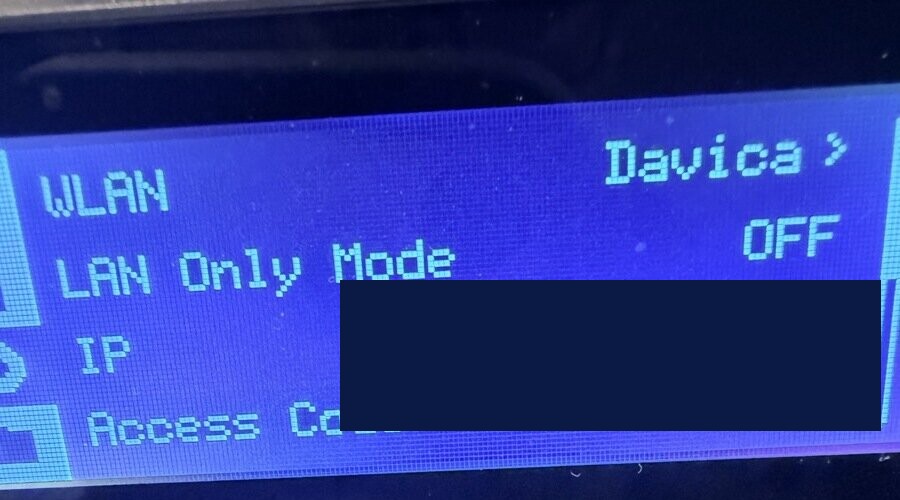
On the printer's touchscreen, go to Settings, then select the Network (WLAN) page. You should see your WiFi network name, IP address, and the LAN Only Mode toggle.
Step 2: Enable LAN Only Mode
Toggle LAN Only Mode to ON. This enables direct local network communication protocols (MQTT on port 8883 and FTPS on port 990) that this server requires.
Important: Enabling LAN Only Mode disconnects the printer from Bambu Lab's cloud services. The Bambu Handy mobile app will stop working while this mode is active. Bambu Studio and OrcaSlicer can still connect over LAN.
Step 3: Enable Developer Mode
Once LAN Only Mode is on, a Developer Mode option appears in the same settings menu. Toggle it ON. This allows third-party clients (like this MCP server) to authenticate and send commands over MQTT.
Step 4: Note the Access Code
The Access Code displayed on the network settings screen is your LAN access token. You will need this value for the BAMBU_TOKEN environment variable.
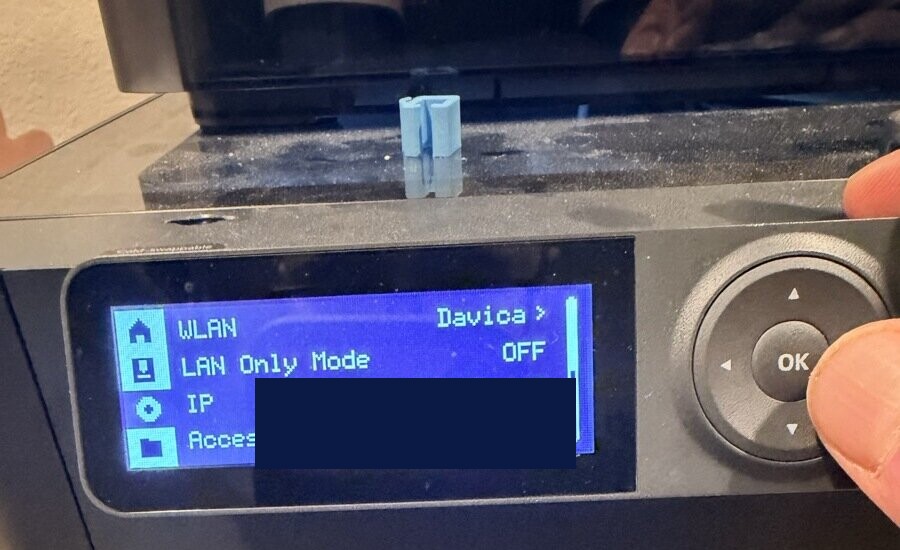
The access code can be refreshed by tapping the circular arrow icon next to it. If you refresh it, any existing connections using the old code will be disconnected and you will need to update your configuration with the new code.
Finding Your Bambu Printer's Serial Number and Access Token
Two values are required to connect directly to a Bambu Lab printer over your local network: the printer's serial number and its LAN access token (the Access Code from Developer Mode setup above).
Serial number
The serial number is printed on a sticker on the back or underside of the printer. It typically follows one of these formats:
- P1 Series: begins with
01P - X1 Series: begins with
01X - A1 Series: begins with
01A
You can also find it on the printer's touchscreen. Navigate to Settings and select the Device Info page:
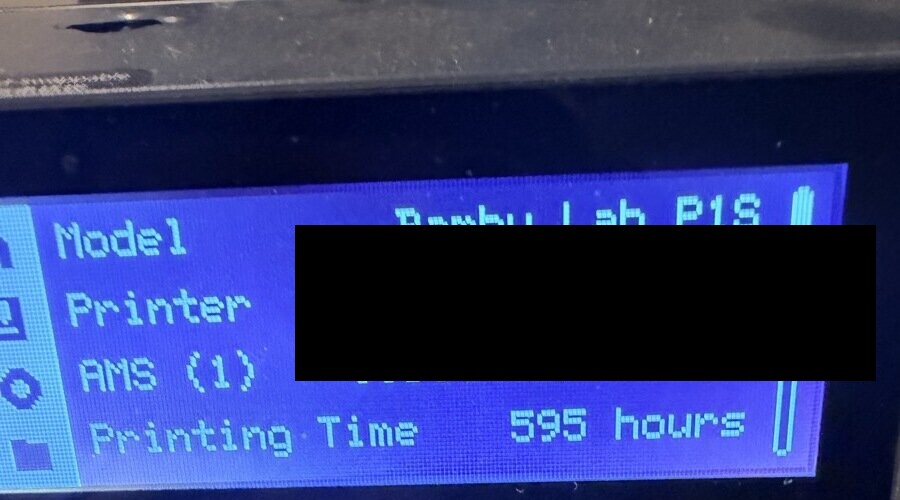
The Printer line shows your serial number. In Bambu Studio, you can also find it under Device > Device Management in the printer information panel.
LAN access token
The access token is the Access Code shown on the printer's network settings screen. It is separate from your Bambu Cloud account password. If you followed the Developer Mode setup above, you already have this value.
P1 Series (P1P, P1S):
- On the printer touchscreen, go to Settings.
- Select the Network / WLAN page.
- The Access Code is displayed at the bottom of the screen.
X1 Series (X1C, X1E):
- On the printer touchscreen, go to Settings.
- Select Network.
- Enable LAN Only Mode and Developer Mode if not already on.
- The Access Code appears on this screen.
A1 and A1 Mini:
- Open the Bambu Handy app on your phone.
- Connect to your printer.
- Navigate to Settings > Network.
- The Access Code is shown here.
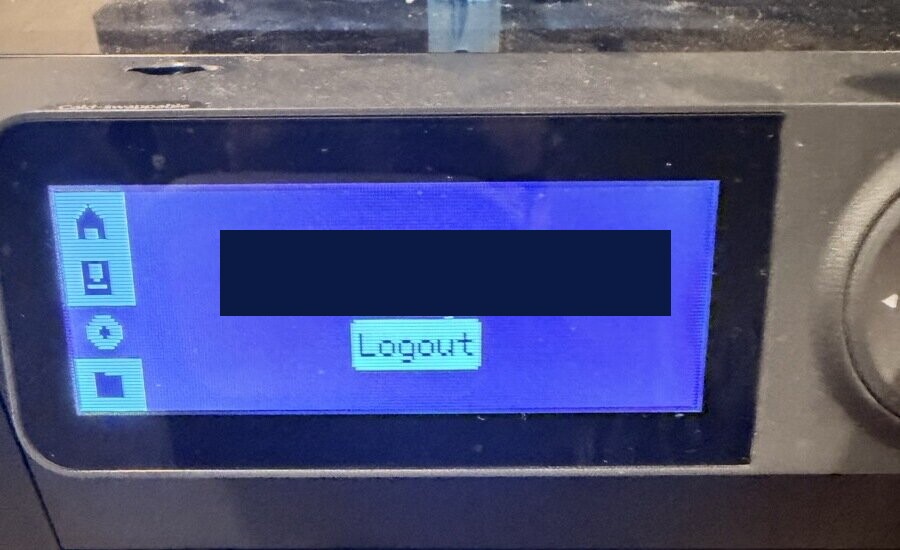
Your printer must also be logged into a Bambu Cloud account for LAN mode to function. You can verify this on the cloud/account settings screen:
Troubleshooting: If the LAN Only Mode or Developer Mode options are not visible, your printer firmware is likely outdated. Update to the latest firmware version through Bambu Studio or the Bambu Handy app and try again.
AMS (Automatic Material System) Setup
The Bambu AMS is a multi-spool feeder that lets you assign different filaments to different parts of a multi-color or multi-material print. This section explains how AMS slot mapping works with this MCP server.
How AMS slots work
The AMS has 4 slots per unit, numbered 0 through 3. If you have multiple AMS units chained together, the second unit's slots are 4 through 7, and so on. When you slice a model in Bambu Studio or OrcaSlicer, each color/material in the print is assigned to a specific AMS slot.
Automatic AMS mapping from the 3MF
When you slice a model in Bambu Studio, the slicer embeds AMS mapping information inside the 3MF file at Metadata/project_settings.config. The print_3mf tool reads this file automatically and extracts the correct mapping. In most cases, you do not need to specify ams_mapping manually -- the tool handles it.
Manual AMS mapping
If you need to override the embedded mapping (for example, you swapped filament positions since slicing), pass the ams_mapping array to print_3mf:
{
  "three_mf_path": "/path/to/model.3mf",
  "ams_mapping": [0, 2],
  "use_ams": true
}
Each element in the array corresponds to a filament slot used in the print file, in the order they appear in the slicer. The value is the physical AMS slot number (0-based) where that filament is currently loaded. In the example above, the first filament in the print uses AMS slot 0, and the second uses AMS slot 2.
The server pads this array to the 5 elements required by the printer's MQTT protocol. An ams_mapping of [0, 2] becomes [0, 2, -1, -1, -1] on the wire, where -1 indicates unused positions.
Single-material prints
For a single-material print (the most common case), the default mapping is [-1, -1, -1, -1, 0], which tells the printer to pull filament from AMS slot 0. If your filament is in a different slot, specify it:
{
  "three_mf_path": "/path/to/model.3mf",
  "ams_mapping": [2]
}
This tells the printer to use AMS slot 2 for the single filament in the print.
Printing without AMS
If you are using the direct-feed spool holder (no AMS attached) or want to bypass the AMS entirely, set use_ams to false:
{
  "three_mf_path": "/path/to/model.3mf",
  "use_ams": false
}
Checking AMS status
Use get_printer_status to see which filaments are currently loaded in each AMS slot, including material type and color data reported by the printer:
"What filaments are loaded in my AMS right now?"
The ams field in the status response contains the raw AMS data from the printer, including tray information for each slot.
Bambu Communication Notes (MQTT and FTP)
Bambu Lab printers do not use a conventional REST API. Instead, they expose two local protocols that this server uses directly:
MQTT (port 8883, TLS): All printer commands and state reports flow over an MQTT broker running on the printer itself. The broker requires your serial number as the client ID and your access token as the password. Commands like starting a print, cancelling a job, and dispatching G-code lines are all MQTT publishes to the device topic. Status data is received by subscribing to the printer's report topic and requesting a push_all refresh. This implementation is based on community reverse engineering documented in the OpenBambuAPI project.
FTPS (port 990, implicit TLS): File operations (upload and directory listing) use FTPS. The printer's SD card is accessible as a filesystem with directories including cache/ (for 3MF and G-code print files), timelapse/, and logs/. Authentication uses the username bblp and your access token as the password.
What this fork fixes
Both this package and the parent project (mcp-3D-printer-server) include fixes for two protocol-level issues in the underlying bambu-js library.
Bug 1: FTP double-path error in bambu-js.
The bambu-js library's sendFile method has a path construction bug. It calls ensureDir to change the working directory into the target directory (e.g., /cache), and then calls uploadFrom with the full relative path including the directory prefix (e.g., cache/file.3mf). The result is that the file lands at the wrong path on the printer (e.g., /cache/cache/file.3mf instead of /cache/file.3mf), and the subsequent print command fails because it references a file that does not exist at the expected path.
This fork bypasses bambu-js for all uploads and uses basic-ftp directly. The upload function (ftpUpload) connects to the printer, resolves the absolute remote path, changes to the correct directory with ensureDir, and then uploads using only the basename -- avoiding the double-path construction entirely.
// From src/printers/bambu.ts
private async ftpUpload(host, token, localPath, remotePath): Promise<void> {
  const client = new FTPClient(15_000);
  await client.access({ host, port: 990, user: "bblp", password: token,
                        secure: "implicit", secureOptions: { rejectUnauthorized: false } });
  const absoluteRemote = remotePath.startsWith("/") ? remotePath : `/${remotePath}`;
  const remoteDir = path.posix.dirname(absoluteRemote);
  await client.ensureDir(remoteDir);
  // basename only -- no double-path
  await client.uploadFrom(localPath, path.posix.basename(absoluteRemote));
  client.close();
}
Bug 2: AMS mapping format in the project_file MQTT command.
The bambu-js library's project file command hardcodes use_ams: true and does not support the ams_mapping field at all. Without the fix, the mapping is a simple array of slot indices (e.g., [0, 2]), which does not match the OpenBambuAPI specification.
According to the OpenBambuAPI spec, ams_mapping must be a 5-element array where each position corresponds to a filament color slot in the print file. Unused positions must be padded with -1. For example, a print using only AMS slot 0 sends [-1, -1, -1, -1, 0].
This fork sends the project_file command directly via bambu-node (bypassing bambu-js entirely for print initiation) and constructs the ams_mapping array correctly:
// From src/printers/bambu.ts
let amsMapping: number[];
if (options.amsMapping && options.amsMapping.length > 0) {
  amsMapping = Array.from({ length: 5 }, (_, i) =>
    i < options.amsMapping!.length ? options.amsMapping![i] : -1
  );
} else {
  amsMapping = [-1, -1, -1, -1, 0];  // default: slot 0 only
}
The command payload also includes all required fields per the OpenBambuAPI spec: param (the internal gcode path within the 3MF), url (the sdcard path), md5 (computed from the plate's embedded gcode), and all calibration flags.
Available Tools
Click to expand STL Manipulation Tools
STL Manipulation Tools
All STL tools load the full mesh geometry into memory. For files larger than 10 MB, monitor memory usage and prefer testing on smaller files first.
get_stl_info
Inspect an STL file without modifying it. Returns bounding box dimensions, face count, vertex count, and model center.
{
  "stl_path": "/path/to/model.stl"
}
scale_stl
Scale an STL model along individual axes. Omit any axis to leave it unchanged (defaults to 1.0).
{
  "stl_path": "/path/to/model.stl",
  "scale_x": 1.5,
  "scale_y": 1.5,
  "scale_z": 1.0
}
For uniform scaling, set all three axes to the same value:
{
  "stl_path": "/path/to/model.stl",
  "scale_x": 2.0,
  "scale_y": 2.0,
  "scale_z": 2.0
}
rotate_stl
Rotate an STL model around one or more axes. Angles are in degrees. Omitted axes default to 0.
{
  "stl_path": "/path/to/model.stl",
  "angle_x": 0,
  "angle_y": 0,
  "angle_z": 90
}
extend_stl_base
Add solid geometry underneath the model to increase its base height. Useful for improving bed adhesion on models with a small or unstable footprint.
{
  "stl_path": "/path/to/model.stl",
  "extension_height": 3.0
}
extension_height is in millimeters.
merge_vertices
Merge vertices that are closer together than the specified tolerance. This can close small gaps in a mesh and slightly reduce file size. Useful as a cleanup step before slicing.
{
  "stl_path": "/path/to/model.stl",
  "tolerance": 0.01
}
tolerance is in millimeters and defaults to 0.01 if omitted.
center_model
Translate the model so the center of its bounding box sits at the world origin (0, 0, 0). Useful before applying transformations or exporting for use in another tool.
{
  "stl_path": "/path/to/model.stl"
}
lay_flat
Identify the largest flat surface on the model and rotate the model so that face is oriented downward on the XY plane (Z = 0). This is a common preparation step before slicing to minimize the need for supports.
{
  "stl_path": "/path/to/model.stl"
}
Note: this works best on models with a clearly dominant flat face. Results on organic or rounded shapes may be unpredictable.
Click to expand Printer Control Tools
Printer Control Tools
All printer tools accept optional host, bambu_serial, and bambu_token arguments. If omitted, values fall back to the environment variables PRINTER_HOST, BAMBU_SERIAL, and BAMBU_TOKEN. Passing them explicitly is useful when working with more than one printer.
get_printer_status
Retrieve current printer state including temperatures, print progress, layer count, time remaining, and AMS slot data. Internally sends a push_all MQTT command to force a fresh status report before reading cached state.
{
  "host": "192.168.1.100",
  "bambu_serial": "01P00A123456789",
  "bambu_token": "your_access_token"
}
Returns a structured object with fields including status (gcode_state string), temperatures.nozzle, temperatures.bed, temperatures.chamber, print.progress, print.currentLayer, print.totalLayers, print.timeRemaining, and ams (raw AMS data from the printer).
list_printer_files
List files stored on the printer's SD card. Scans the cache/, timelapse/, and logs/ directories and returns both a flat list and a directory-grouped breakdown.
{
  "host": "192.168.1.100",
  "bambu_serial": "01P00A123456789",
  "bambu_token": "your_access_token"
}
upload_gcode
Write G-code content from a string directly to the printer's cache/ directory. The content is written to a temporary file and uploaded via FTPS.
{
  "filename": "calibration.gcode",
  "gcode": "G28\nM104 S210\nG1 X100 Y100 Z10 F3000\n",
  "host": "192.168.1.100",
  "bambu_serial": "01P00A123456789",
  "bambu_token": "your_access_token"
}
upload_file
Upload a local file (G-code or 3MF) to the printer. If print is true and the file is a .gcode file, start_print_job is called automatically after a successful upload. For .3mf files, upload completes normally but you must use print_3mf to initiate the print (which handles plate selection and metadata).
{
  "file_path": "/Users/yourname/Downloads/part.3mf",
  "filename": "part.3mf",
  "print": false,
  "host": "192.168.1.100",
  "bambu_serial": "01P00A123456789",
  "bambu_token": "your_access_token"
}
start_print_job
Start printing a .gcode file that is already on the printer's SD card. Do not use this for .3mf files -- use print_3mf instead, which handles the project_file MQTT command with proper metadata.
{
  "filename": "cache/calibration.gcode",
  "host": "192.168.1.100",
  "bambu_serial": "01P00A123456789",
  "bambu_token": "your_access_token"
}
If filename does not include a directory prefix, the server prepends cache/ automatically.
cancel_print
Cancel the currently running print job. Sends an UpdateState MQTT command with state: "stop".
{
  "host": "192.168.1.100",
  "bambu_serial": "01P00A123456789",
  "bambu_token": "your_access_token"
}
set_temperature
Set the target temperature for the bed or nozzle. Dispatches an M140 (bed) or M104 (nozzle) G-code command via MQTT. Valid range is 0 to 300 degrees Celsius. Accepted values for component are bed, nozzle, extruder, tool, and tool0.
{
  "component": "nozzle",
  "temperature": 220,
  "host": "192.168.1.100",
  "bambu_serial": "01P00A123456789",
  "bambu_token": "your_access_token"
}
print_3mf
The primary tool for starting a Bambu print. This tool handles the complete workflow:
- Checks whether the 3MF contains embedded G-code (
Metadata/plate_<n>.gcodeentries). - If no G-code is found, automatically slices the file using the configured slicer before proceeding.
- Parses the sliced 3MF to extract the correct plate file and compute its MD5 hash.
- Also parses
Metadata/project_settings.configto read AMS mapping embedded by Bambu Studio. - Uploads the 3MF to the printer's
cache/directory via FTPS usingbasic-ftpdirectly (avoiding the bambu-js double-path bug). - Sends a
project_fileMQTT command with the plate path, MD5, AMS mapping (formatted as a 5-element array per the OpenBambuAPI spec), and calibration flags.
{
  "three_mf_path": "/Users/yourname/Downloads/bracket.3mf",
  "bambu_model": "p1s",
  "bed_type": "textured_plate",
  "host": "192.168.1.100",
  "bambu_serial": "01P00A123456789",
  "bambu_token": "your_access_token",
  "bed_leveling": true,
  "flow_calibration": true,
  "vibration_calibration": true,
  "timelapse": false,
  "use_ams": true,
  "ams_mapping": [0, 1]
}
bambu_model is required -- it ensures the slicer generates G-code for the correct printer. Using the wrong model can cause the bed to crash into the nozzle. If bambu_model is not provided in the tool call and BAMBU_MODEL is not set in the environment, the server will ask you interactively via MCP elicitation (if your client supports it) or return a clear error.
bed_type defaults to textured_plate if omitted. AMS mapping from the 3MF's slicer config is used automatically when present; the ams_mapping argument overrides it. Setting use_ams: false disables AMS entirely regardless of other mapping values.
Layer height, nozzle temperature, and other slicer parameters cannot be overridden via this tool -- they are baked into the 3MF's G-code at slice time. Apply those settings in your slicer before generating the 3MF.
Click to expand Slicing Tools
Slicing Tools
slice_stl
Slice an STL or 3MF file using an external slicer and return the path to the output file. The output is a sliced 3MF (for BambuStudio and OrcaSlicer) or a G-code file (for PrusaSlicer, Cura, Slic3r).
{
  "stl_path": "/path/to/model.stl",
  "slicer_type": "bambustudio",
  "slicer_path": "/Applications/BambuStudio.app/Contents/MacOS/BambuStudio",
  "slicer_profile": "/path/to/profile.ini"
}
slicer_type options: bambustudio, orcaslicer, prusaslicer, cura, slic3r. When omitted, the value from the SLICER_TYPE environment variable is used (default: bambustudio).
slicer_path and slicer_profile fall back to the SLICER_PATH and SLICER_PROFILE environment variables when omitted.
For printing on a Bambu printer, the recommended workflow is: slice with bambustudio to get a sliced 3MF, then pass that output path to print_3mf.
BambuStudio Slicer Options
When slicer_type is bambustudio (the default), these additional parameters are available on slice_stl:
| Parameter | Type | Description |
|-----------|------|-------------|
| uptodate | boolean | Update 3MF configs to latest BambuStudio presets |
| repetitions | number | Number of copies to print |
| orient | boolean | Auto-orient model for optimal printability |
| arrange | boolean | Auto-arrange objects on the build plate |
| ensure_on_bed | boolean | Lift floating models onto the bed |
| clone_objects | string | Clone counts per object, comma-separated (e.g. "1,3,1,10") |
| skip_objects | string | Object indices to skip, comma-separated (e.g. "3,5,10") |
| load_filaments | string | Filament profile paths, semicolon-separated |
| load_filament_ids | string | Filament-to-object mapping, comma-separated |
| enable_timelapse | boolean | Enable timelapse-aware slicing |
| allow_mix_temp | boolean | Allow mixed-temperature filaments on one plate |
| scale | number | Uniform scale factor |
| rotate | number | Z-axis rotation in degrees |
| rotate_x | number | X-axis rotation in degrees |
| rotate_y | number | Y-axis rotation in degrees |
| min_save | boolean | Produce smaller output 3MF (faster uploads) |
| skip_modified_gcodes | boolean | Ignore stale custom gcodes in the 3MF |
| slice_plate | number | Which plate to slice (0 = all plates, default: 0) |
Example: Slice with auto-orient and 3 copies
{
  "stl_path": "/path/to/model.stl",
  "bambu_model": "p1s",
  "orient": true,
  "arrange": true,
  "repetitions": 3
}
Smart Defaults (print_3mf auto-slice)
When print_3mf detects an unsliced 3MF and auto-slices it, these defaults are applied automatically:
uptodate: true-- prevents stale config bugs from downloaded 3MFsensure_on_bed: true-- safety net, lifts floating models onto the bedmin_save: true-- smaller output for faster FTP uploads to the printerskip_modified_gcodes: true-- strips custom gcodes from other users' profiles
These defaults keep you safe when printing downloaded models. When calling slice_stl directly, you have full control over every flag.
Click to expand Advanced Tools
Advanced Tools
blender_mcp_edit_model
Send a set of named edit operations (remesh, boolean, decimate, etc.) to a Blender MCP bridge command for advanced mesh work that goes beyond what the built-in STL tools support.
When execute is false (the default), the tool returns the payload that would be sent without running anything -- useful for previewing what would be dispatched.
When execute is true, the server invokes the configured bridge command with the payload as a JSON-encoded environment variable (MCP_BLENDER_PAYLOAD). The bridge command must be set via the BLENDER_MCP_BRIDGE_COMMAND environment variable or passed inline as bridge_command.
{
  "stl_path": "/path/to/model.stl",
  "operations": ["remesh", "decimate:0.5", "boolean_union:/path/to/other.stl"],
  "execute": false
}
{
  "stl_path": "/path/to/model.stl",
  "operations": ["remesh"],
  "bridge_command": "/usr/local/bin/blender-mcp-bridge",
  "execute": true
}
Available Resources
Resources follow the MCP resource protocol and can be read by calling ReadResource with a URI. The server also lists them via ListResources.
Printer resources
-
printer://{host}/status-- Current printer status. Equivalent to callingget_printer_status. Returns a JSON object with temperature, progress, layer, AMS, and raw state data. -
printer://{host}/files-- File listing for the printer's SD card. Equivalent to callinglist_printer_files. Returns files grouped by directory.
Example: To read the status of the default printer, use URI printer://192.168.1.100/status. The host segment must match a configured printer IP; the server uses PRINTER_HOST if the default URI template is used.
Example Commands for Claude
After connecting the MCP server in Claude Desktop or Claude Code, you can ask Claude to perform these operations directly in conversation.
Printer status and control
- "What is the current status of my Bambu printer?"
- "What temperature is the bed at right now?"
- "Show me the files on my printer's SD card."
- "Cancel the current print job."
- "Set the nozzle temperature to 220 degrees."
- "Set the bed to 65 degrees."
Printing 3MF files
- "Print the file at ~/Downloads/bracket.3mf on my Bambu printer."
- "Upload bracket.3mf to the printer and start printing with AMS slots 0 and 1."
- "Print my_model.3mf with bed leveling enabled and vibration calibration off."
- "Upload this 3MF without printing it yet."
- "Slice model.stl with BambuStudio and then print the result."
STL manipulation
- "What are the dimensions of this STL file?"
- "Scale model.stl to twice its current size."
- "Scale this model so it is 150% as wide but stays the same height."
- "Rotate this STL 90 degrees around the Z axis."
- "Extend the base of this model by 3mm so it sticks to the bed better."
- "Center this model at the origin."
- "Orient this model so its largest flat face is on the bottom."
- "Merge any near-duplicate vertices in this STL to clean it up."
Combined workflows
- "Rotate model.stl 45 degrees around Z, extend the base by 2mm, then print it on my Bambu P1S."
- "Take this unsliced 3MF, slice it with BambuStudio, and print the result."
- "Scale this part to 80% of its size, lay it flat, and start a print."
Bambu Lab Printer Limitations
Understanding these constraints will help you avoid frustrating errors and set appropriate expectations.
-
Printable 3MF required for print_3mf. The
print_3mftool expects a sliced 3MF containing at least oneMetadata/plate_<n>.gcodeentry. If you pass an unsliced 3MF (one exported from a CAD tool without slicing), the server will attempt to auto-slice it using the configured slicer. If auto-slicing fails, the tool errors out rather than sending an incomplete command to the printer. -
Layer height, temperature, and slicer settings are baked in. The
project_fileMQTT command tells the printer which plate to run. It does not support overriding layer height, temperature targets, infill percentage, or other slicing parameters at print time. These must be set in your slicer before generating the 3MF. -
G-code and 3MF jobs use different command paths.
start_print_jobsends aGCodeFileCommandover MQTT and is intended only for plain G-code files stored in thecache/directory..3mffiles must go throughprint_3mf, which sends theproject_filecommand with plate selection, MD5 verification, and AMS mapping. Mixing these up will result in the printer either ignoring the command or displaying an error. -
Temperature commands depend on printer state.
set_temperaturedispatches M104 or M140 G-code via MQTT. Whether the printer accepts these commands depends on its current firmware version and operational state. Some printer states (such as the idle screen with AMS management open) may ignore or queue the commands. -
Real-time status has latency.
get_printer_statussends apush_allMQTT request and waits up to 1.5 seconds for a response before reading cached state. If the printer is not responding quickly (busy, sleeping, or transitioning states), you may see slightly stale data. There is no persistent event subscription in this server -- each status call is a fresh request. -
LAN mode required. All operations require the printer to be on the same local network as the machine running this server. Cloud-only or remote access setups are not supported. If your printer is connected only via Bambu Cloud and LAN mode is disabled, connection will fail.
-
Self-signed TLS certificate. The printer's FTPS server uses a self-signed certificate. The
basic-ftpclient is configured withrejectUnauthorized: falseto accept it. This is standard for local network Bambu connections but assumes a trusted local network environment.
General Limitations and Considerations
Memory usage
STL manipulation tools load the entire mesh into memory as Three.js geometry. For large files:
- Files over 10 MB can consume several hundred MB of RAM during processing.
- Running multiple operations sequentially on large files may cause memory to accumulate between garbage collection cycles.
- If you encounter out-of-memory errors, try splitting large operations or working with smaller/simplified meshes.
- The server has no built-in memory cap. On constrained systems, set the
TEMP_DIRto a fast local path and avoid processing multiple large files concurrently.
STL manipulation limitations
lay_flatidentifies the largest flat face by analyzing surface normals. It works reliably on mechanical parts with clear flat faces and less reliably on organic or curved models where no single dominant face exists.extend_stl_baseadds a new rectangular solid beneath the model. For models with complex or non-planar undersides, the result may include gaps or intersections at the join. Review the modified STL before printing.merge_verticesuses a distance tolerance to identify near-duplicate vertices. Setting the tolerance too high can alter model geometry. The default of 0.01 mm is safe for most models.- Non-manifold meshes (meshes with holes, overlapping faces, or internal geometry) may produce unpredictable results for any transformation operation. Use a mesh repair tool (Meshmixer, PrusaSlicer's repair function, or Bambu Studio's repair option) before working with problematic files.
Performance considerations
- Slicing with BambuStudio CLI can take 30 seconds to several minutes depending on model complexity, layer height, and your system's CPU. The
slice_stlcall is synchronous and will block until the slicer process completes. - FTPS uploads for large 3MF files (multi-plate prints, high-detail models) may take 15 to 60 seconds depending on your local network speed.
- MQTT connections are pooled by
host + serialkey. The first call to any printer tool in a session establishes the MQTT connection; subsequent calls reuse it. If the connection drops (printer power cycled, network interruption), the next call will reconnect automatically.
License
GPL-2.0. See LICENSE for the full text.
This project is a fork of mcp-3D-printer-server by David Montgomery, also GPL-2.0.