Automate Blender 3D modeling from n8n using MCP. 45+ tools for modeling, materials, lighting, rendering, and animation.
Blender MCP Server for n8n
A Model Context Protocol (MCP) server that exposes Blender's 3D modeling capabilities to n8n workflows.
System Architecture
To avoid confusion, this project consists of two core components:
- Blender MCP Addon: A plugin installed inside Blender. It acts as the local execution engine, receiving commands and manipulating the 3D scene.
- MCP Bridge Server: A standalone Python server (
src/) that acts as the gateway. Clients like n8n connect to this Bridge, which then forwards commands to the active Blender Addon.
graph LR
    n8n[n8n / AI Agent] -- "MCP (HTTP Streamable)" --> Bridge[MCP Bridge Server]
    Bridge -- "Local WebSockets" --> Addon[Blender MCP Addon]
    Addon -- "Python API" --> Blender[Blender Engine]
Quick Start
1. Install Dependencies
pip install -r requirements.txt
Installation
Method 1: Zip & Install (Recommended)
- Zip the
blender_mcp_addonfolder (intoblender_mcp_addon.zip). - Open Blender.
- Go to Edit > Preferences > Add-ons.
- Click Install... and select the
.zipfile. - Search for "Blender MCP" and enable the checkbox.
Method 2: Manual Copy (Developer)
- Copy the
blender_mcp_addonfolder to your Blender addons directory:- Windows:
%USERPROFILE%\AppData\Roaming\Blender Foundation\Blender\4.x\scripts\addons - macOS:
~/Library/Application Support/Blender/4.x/scripts/addons
- Windows:
- Restart Blender.
- Enable "Blender MCP" in Preferences.
Why a folder instead of a single file?
As the addon grows, a single 1800+ line file becomes unmaintainable. We've split the logic into functional modules (modeling, materials, anim, etc.) to make it professional, readable, and easier to extend.
Usage
1. Start Blender MCP Addon
- Open the N Panel (press
Nin the 3D Viewport). - Look for the Blender MCP tab.
- Click Start MCP Server.
2. Start the MCP Bridge Server
# Standard mode
python -m src.main serve

# Recording mode (Save all commands to a file)
python -m src.main serve --record my_session.json --name "Building My House"
The server will start on http://localhost:8000 with HTTP Streamable endpoint at /mcp. It uses detailed logging to show exactly which tools are being called and their results.
Bridge Sessions (Record & Playback)
The Bridge Sessions feature allows you to record yours or an AI's tool calls and replay them later. This is useful for macros, versioning your creations, or setting up complex scenes consistently.
Recording a Session
To record all tool calls made to the bridge while the server is running:
python -m src.main serve --record path/to/session.json --name "My Project" --description "Optional description"
Any tool calls made by n8n or other clients will be automatically saved to the JSON file.
Replaying a Session
To playback a previously recorded session:
# Default (Stateful - HTTP Streamable) - Recommended for speed
python -m src.main play path/to/session.json

# Stateless mode (Standard HTTP) - Slower due to handshake overhead
python -m src.main play path/to/session.json --transport stateless
[!TIP] Performance Note: Stateful mode is significantly faster for playback because it maintains a persistent connection. Stateless mode requires a full MCP handshake (Initialize/Discover) for every individual tool call in the recording, leading to noticeable overhead.
Session Format
Sessions are stored as JSON files containing metadata (name, description, timestamp) and a list of command objects (tool name, arguments, timestamp).
Session Editor (Visual Inspector)
We provide a built-in static web editor to inspect and edit your recordings:
- Open
session_editor/index.htmlin your web browser. - Click Load Session and select your
session.json. - You can:
- Edit metadata (Session Name, Description).
- Filter commands by tool name.
- Edit tool arguments directly in the JSON editor cards.
- Delete unnecessary commands.
- Export JSON to save your changes to a new file.
3. Configure n8n Workflow
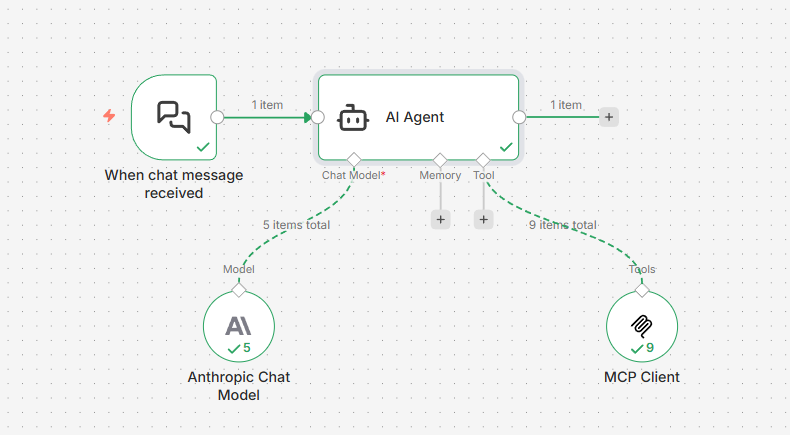
- Add MCP Client Tool node
- Configure:
- HTTP Streamable Endpoint:
http://localhost:8000/mcp - Authentication: None
- Tools to Include: All
- HTTP Streamable Endpoint:
- Connect to an AI Agent node
4. Development: Updating & Applying Changes
If you modify the addon code or the MCP server logic, follow these steps to ensure changes are applied:
- Reload Scripts: In Blender, press
F3and type "Reload Scripts" (or use the shortcutAlt + Rif configured). - Restart Blender Server: In the N-Panel, click Stop MCP Server and then Start MCP Server again.
- Restart Python Server: Stop and restart the server with
python -m src.main serve.
[!IMPORTANT] All Blender operations now run on the main thread via a command queue, ensuring stability and preventing dependency graph errors.
Available Tools
The server exposes 45+ Blender tools across several categories:
Scene & Inspection
| Tool | Explanation |
|---|---|
| get_scene_info | Get information about the current Blender scene (objects, collections, etc.). |
| get_object_info | Get detailed information about a specific object. |
| get_viewport_screenshot | Capture a screenshot of the 3D viewport. |
| get_distance | Measure the distance between two objects. |
| get_debug_info | Get diagnostic information about the MCP server. |
Collections
| Tool | Explanation |
|---|---|
| create_collection | Create a new collection in the scene. |
| set_active_collection | Set the active collection for new objects. |
| move_to_collection | Move objects to a specific collection. |
| get_collections | Get the hierarchy of all collections in the scene. |
Modeling
| Tool | Explanation |
|---|---|
| create_cube | Create/update a cube mesh. |
| create_cylinder | Create/update a cylinder mesh. |
| create_sphere | Create/update a UV sphere mesh. |
| create_icosphere | Create/update an Ico sphere mesh. |
| create_torus | Create/update a torus mesh. |
| create_plane | Create/update a plane mesh. |
| create_text | Create/update a 3D text object. |
| duplicate_object | Duplicate an object with optional transformations. |
| create_and_array | Create a primitive and apply a linear array modifier in one step. |
| batch_transform | Transform multiple existing objects at once. |
| apply_modifier | Add and configure a modifier (ARRAY, SOLIDIFY, BEVEL, etc.). |
| copy_modifier | Copy a modifier from a source object to targets. |
| remove_modifier | Remove a modifier from an object. |
| boolean_operation | Perform INTERSECT, UNION, or DIFFERENCE between objects. |
| transform_object | Transform an existing object (location, rotation, scale). |
| circular_array | Create objects arranged in a circular/radial pattern. |
| select_objects | Select multiple objects by name. |
| select_by_pattern | Select objects matching a glob pattern (e.g., 'Facade_Fin*'). |
| set_object_dimensions | Set exact dimensions for an object in meters. |
| join_objects | Join multiple objects into a single mesh. |
| random_distribute | Randomly distribute copies of an object with constraints. |
Architectural Modeling
| Tool | Explanation |
|---|---|
| build_room_shell | Create a 3D building shell (floor, walls, ceiling) from a 2D perimeter with door/window openings. |
| build_wall_segment | Create a solid interior partition wall with a specified thickness. |
| build_wall_with_door | Create an interior wall with a door opening (clean geometry, no booleans). |
| build_column | Create structural columns at specific locations, optionally merged with wall objects. |
| toggle_ceiling | Show or hide ceiling objects to inspect building interiors. |
| set_view | Quickly switch viewport orientation (TOP, ISO, FRONT, SIDE) for precision modeling. |
Materials
| Tool | Explanation |
|---|---|
| create_material | Create a material with PBR presets and assign it to objects. |
| assign_material | Assign an existing material to objects or patterns. |
| set_material_properties | Modify properties of an existing material. |
| add_shader_node | Add a shader node to a material's node tree. |
| connect_shader_nodes | Connect two shader nodes in a material. |
| assign_builtin_texture | Apply a procedural texture to a material. |
Animation
| Tool | Explanation |
|---|---|
| set_keyframe | Set a keyframe for an object property at a specific frame. |
| get_keyframes | Get all keyframes for an object. |
| set_timeline_range | Set the start, end, and current playback frames. |
| play_animation | Start or stop animation playback. |
Rendering
| Tool | Explanation |
|---|---|
| configure_render_settings | Set render engine, samples, and resolution. |
| render_frame | Render the current frame to a file. |
| render_animation | Render an animation sequence to a directory. |
Camera
| Tool | Explanation |
|---|---|
| create_camera | Create a new camera in the scene. |
| set_active_camera | Set the active camera for the viewport and rendering. |
| camera_look_at | Point a camera at a target location. |
Lighting
| Tool | Explanation |
|---|---|
| create_light | Create POINT, SUN, SPOT, or AREA lights. |
| configure_light | Update light properties like energy, color, and size. |
Example Usage in n8n
Example Interaction
User: "Create a red metallic sphere at position [0, 0, 2]"
Assistant: Perfect! I've successfully created a red metallic sphere at position [0, 0, 2]. Here's what was done:
- Created a sphere named "RedMetallicSphere" with a radius of 1 unit at coordinates [0, 0, 2]
- Applied a red metallic material using a polished metal preset with a red base color (#FF0000)
The sphere is now ready in your Blender scene with a shiny red metallic appearance.
User: "Duplicate the red sphere, move it to [5, 0, 2], and change its color to blue"
Assistant: Perfect! I've successfully completed all the tasks:
- Duplicated the red sphere and created a new object named "BlueMetallicSphere"
- Moved it to position [5, 0, 2]
- Changed the material to blue metallic with a polished metal finish
You now have two metallic spheres in your scene: RedMetallicSphere at [0, 0, 2] (red) and BlueMetallicSphere at [5, 0, 2] (blue).
User: "Select both the original red sphere and the duplicate, then add a Subdivision modifier to both"
Assistant: Excellent! I've successfully:
- Selected both spheres (RedMetallicSphere and BlueMetallicSphere)
- Added a Subdivision Surface modifier (SUBSURF) to both objects with 2 levels of subdivision
This modifier will smooth and refine the geometry of both spheres, giving them a more polished and rounded appearance.
User: "Add a torus with minor_radius 0.1 and major_radius 25 at [2, 0, 0]"
Assistant: Perfect! I've successfully created a torus with the specifications you requested:
- Name: Torus
- Position: [2, 0, 0]
- Major radius: 25 (distance from center to center of the tube)
- Minor radius: 0.1 (thickness of the tube)
This creates a very thin, large torus - essentially a large ring with a thin profile. It's now in your Blender scene alongside the two metallic spheres!
Community Showcase
This project is powered by its community! Explore recorded sessions and documentation created by users to see what's possible with the Blender MCP:
- Community Gallery: Browse all user-submitted projects and learn how to contribute your own recordings.
- Condominium Tower: A complete guide to creating a procedural 20-story building with glass facade and balconies.
- Boolean Pavilion: Demonstrates boolean operations, unified structures, and advanced lighting/camera setup.
[!TIP] Share Your Work: Have you built something cool? Check out our Contribution Guide to learn how to record, clean, and share your session with the community!
⚡ POWER TIPS: Avoiding Rate Limits
To prevent n8n or LLM "Too many requests" errors, follow these Stateless Power Working rules:
1. Avoid Selection-Based Workflows
❌ Slow (4+ turns): select_by_pattern('Wall_*') → create_material('M_Gray') → assign_material()
✅ Fast (1 turn): create_material(name='M_Gray', pattern='Wall_*')
2. Group by Collections
❌ Unreliable: Selecting individual objects.
✅ Reliable: create_material(name='M_Glass', collection='Cutters')
3. Bulk creation
If you need 10 objects, don't create them one-by-one. Use create_and_array or duplicate_object with count.
Configuration
Set environment variables in .env:
BLENDER_MCP_HOST=127.0.0.1
BLENDER_MCP_PORT=8888
BLENDER_ASSETS_DIR=C:/path/to/your/assets
Architecture & Technical Design
This project uses a modular src/ structure to ensure maintainability:
graph TD
    A[main.py] --> B[server.py]
    B --> C[tools/ package]
    C --> D[modeling.py]
    C --> E[scene.py]
    C --> F[materials.py]
    B --> G[connection.py]
    B --> I[sessions.py]
    G --> H[Blender]
Transport Model
Although the MCP specification supports persistent HTTP Streamable sessions, many clients (including n8n) currently operate in a stateless execution model, performing:
Initialize → Discover Tools → Call Tool → Close
for each interaction.
The server uses the official HTTP Streamable transport introduced in MCP SDK 1.8.0+, which supports both stateful sessions and stateless requests.
The Stateless Fallback Mechanism
To ensure reliability across clients, the server implements a robust fallback strategy:
- Protocol Resilience: If no active HTTP Streamable session exists, the server transparently handles standard JSON-RPC requests over HTTP.
- Execution Isolation: Each tool call is processed independently, preventing session corruption or deadlocks.
- Visual Success Indicators: Tool responses are prefixed with
✓when successful. This helps the AI Agent’s conversational memory confirm task completion and avoid unintended re-execution loops. - Clear State Boundaries: Persistent state is intentionally separated:
- 🧠 Conversation memory → AI Agent (n8n Simple Memory)
- 🧩 Scene state → Blender runtime
- 🚀 MCP server → Stateless execution bridge
Architecture Diagram
n8n AI Agent
      ↓
MCP Client (HTTP Streamable / JSON-RPC)
      ↓
MCP Server (ASGI)
      ↓
TCP Socket Bridge
      ↓
Blender Addon (Main Thread Queue)
      ↓
Blender Scene (Persistent State)
Testing
We use an integrated test suite to verify Blender tools and layout scenarios.
# Run the Arch layout test
python tests/run_integration.py run --scenario arch

# Run the standard functional grid test
python tests/run_integration.py run --scenario grid
See the Integration Testing Guide for full details on verification and benchmarking.
Troubleshooting
Server won't start: Install dependencies with pip install -r requirements.txt
Connection failed: Ensure Blender MCP addon is running on port 8888.
Dependency Graph Error: If you see this, ensure you have the latest blender_mcp_addon package which implements the main-thread command queue.
Tools not appearing in n8n: Check the HTTP Streamable endpoint URL is correct (http://localhost:8000/mcp)
Acknowledgments
This project was inspired by blender-mcp by [ahujasid], which demonstrated the potential of MCP servers for Blender automation.
License
MIT License - See LICENSE file for details