Integration between an AI Agent and MCP Server in an n8n workflow
MCP Server Agent (n8n + AI + MCP)
This project demonstrates how to integrate an AI chat agent with an MCP Server (Model Context Protocol) inside an n8n workflow. The workflow uses MCP tools to extend the model’s capabilities, enabling secure tool execution, dynamic actions, and real-time responses inside the chat.
Features
- 🔗 Full integration with an MCP Server
- 🧠 AI chat agent (gpt-4o-mini) capable of calling tools dynamically
- 🛠️ MCP tools:
listToolsexecuteTool
- ⚙️ Built entirely inside n8n
- 📦 Exported workflow JSON included
How It Works
1. User sends a message
The workflow starts with an UI input.
2. AI interprets the request
The model decides whether a tool call is needed based on the message.
3. MCP Client nodes handle tool execution
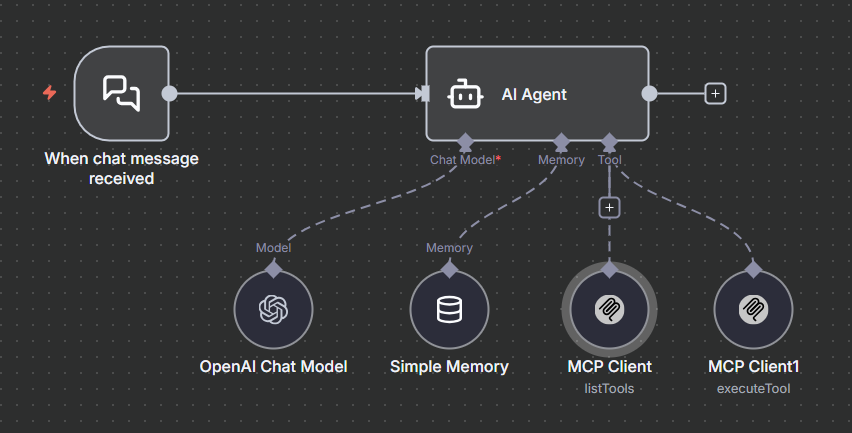
- The workflow communicates with the MCP Server using:
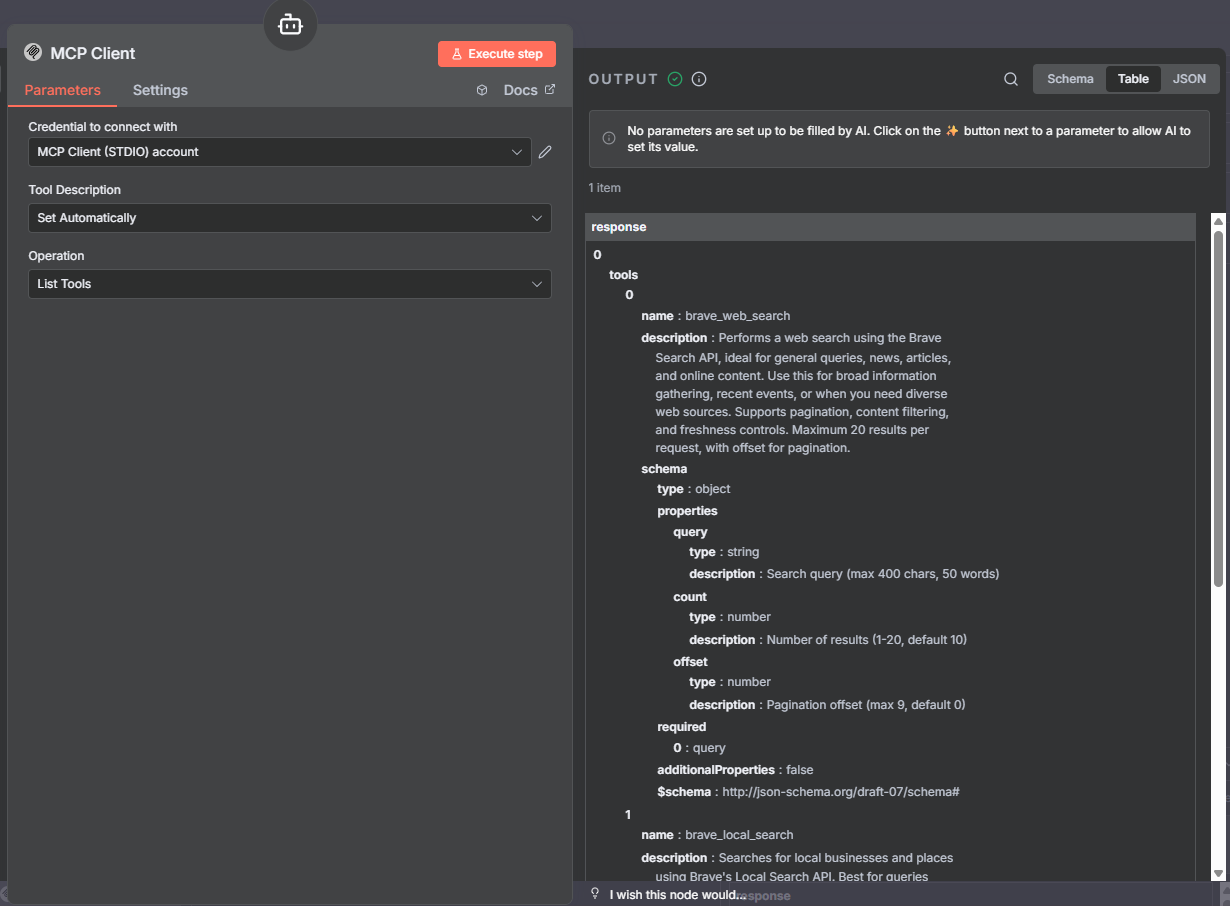
- List Tools → retrieves available tools
- Execute Tool → runs a specific tool with parameters
- Parameters are passed dynamically from the AI.
4. Results returned to the AI
The AI receives the tool output and generates a refined response.
5. Final response is delivered
The user receives an enriched, tool-powered answer.
Screenshots
🔧 MCP — List Tools
Shows the parameters used to query the available MCP tools.
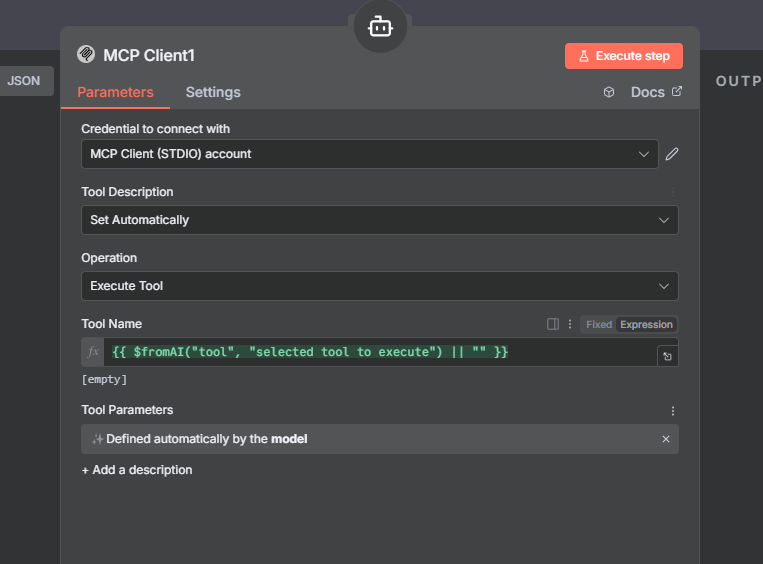
⚙️ MCP — Execute Tool
Example of a tool execution with dynamic inputs from the AI.
💬 Chat Flow
End-to-end demonstration of the agent using MCP tools.
How the Agent Works
The AI Agent Node follows this logic:
- Always list tools before executing
- Use only
brave_web_searchandbrave_local_search - Execute the selected tool using
$fromAI("tool", "selected tool to execute") - Send parameters through
$fromAI("Tool_Parameters", "", "json")
Workflow Steps
- Detect intent
- List available tools
- Select the appropriate tool
- Call the MCP server
- Return the final response to the chat
How to Run Locally
1. Import the workflow
In n8n: Settings -> Import from File -> workflow.json
2. Configure environment variables
Set your model key, MCP Server URL, and any required API credentials.
3. Start n8n
n8n start
4. Trigger the workflow
You can test it via:
- n8n UI
- The chat interface connected to the workflow