Build a conversational AI agent that analyses sales data using Azure AI Foundry Agent Service, Model Context Protocol (MCP) for external data connections, and PostgreSQL with Row Level Security (RLS) and pgvector for role-based data protection and semantic search.
 Azure AI Foundry with Model Context Protocol and PostgreSQL
📋 Description
Build a conversational AI agent that analyzes sales data and helps customers find products. Learn to create secure, intelligent agents using Azure AI Foundry Agent Service, Model Context Protocol (MCP) for external data connections, and PostgreSQL with Row Level Security (RLS) and pgvector for role-based data protection and semantic search.
💻 Technologies Used
- Azure AI Foundry
- PostgreSQL including Row Level Security (RLS) and Semantic Search with the pgvector extension
- Model Context Protocol (MCP)
⚙️ Set Up
This sample uses azd and a bicep template to deploy all Azure resources:
- Python Environment Setup
python3.11 -m venv .venv
source .venv/bin/activate  # On Windows: .venv\Scripts\activate
pip install -r requirements.txt
-
Login to your Azure account:
azd auth login -
Deploy the Infrastructure
cd infra && ./deploy.sh
The deploy script generates the .env file, which contains the project and model endpoints, model deployment names, and Application Insights connection string. The .env file will automatically be saved in the src/python/workshop folder.
🏃 Run the Application
-
Start the database server
docker-compose up db -d -
Add the environment variable (since the database is running inside a local container)
POSTGRES_URL=<your-local-container-address> -
Start the MCP server
python src/python/mcp_server/sales_analysis/sales_analysis.py -
Start the dev tunnel
cd src/python/workshop # Run DevTunnel script bash ../../shared/scripts/start_devtunnel.sh -
Start the backend
python src/python/workshop/app.py -
Start the frontend
cd src/shared/webapp/
python app.py
🚀 Usage
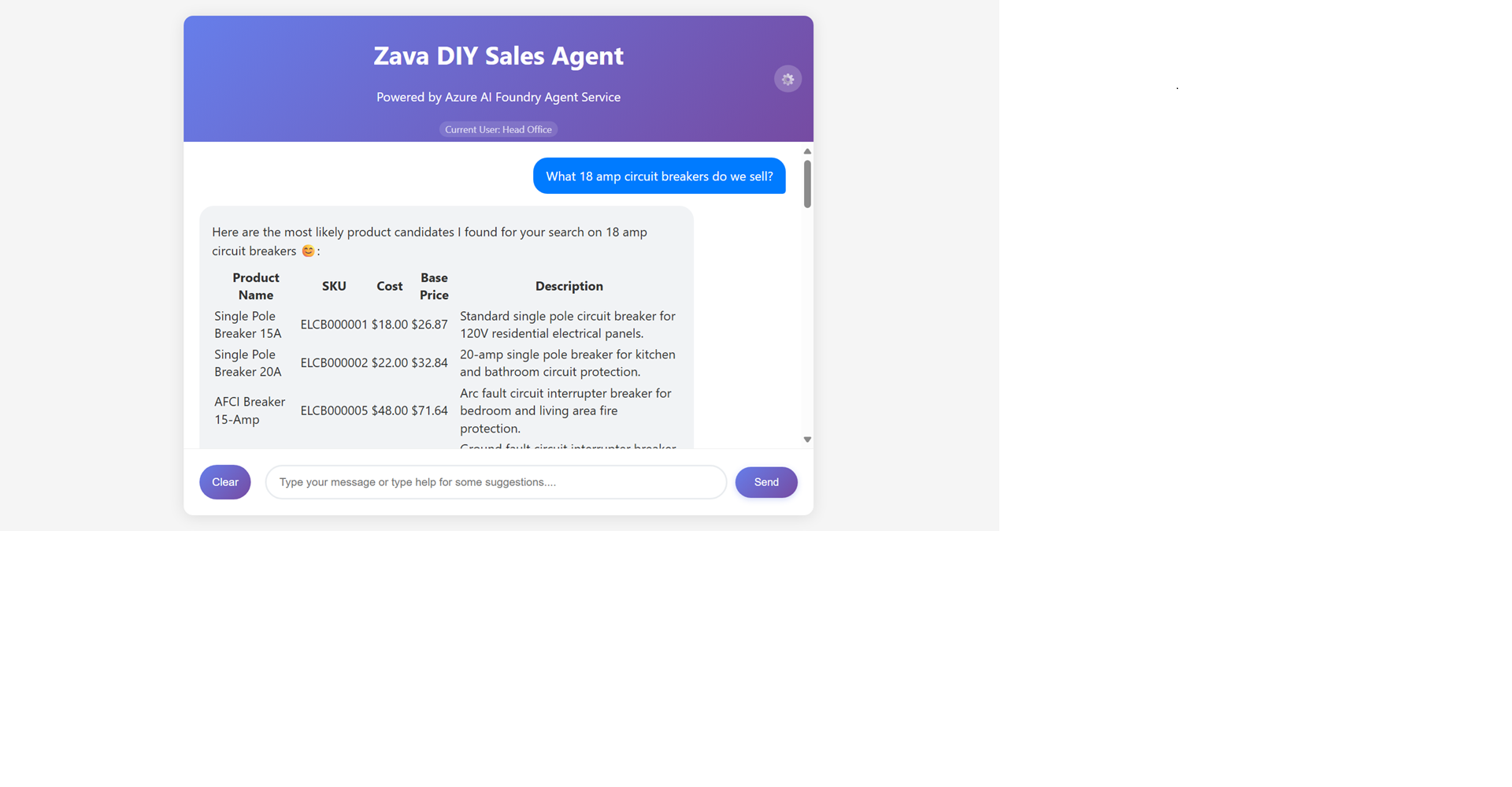
Open your web browser and navigate to the frontend application. Start asking questions!
🗑️ Delete resources
To delete the Azure resources:
- Visit the Azure Portal
- Click Resource groups
- Click on your resource group rg-agent-workshop-**
- Click Delete Resource group
- In the field at the bottom "Enter resource group name to confirm deletion" enter rg-agent-workshop-**
- Click Delete
- At the Delete Confirmation prompt, click "Delete"
Then cleanup the resources with the script:
bash infra/cleanup-deleted-resources.sh