A demo showcasing the MongoDB MCP Server and an AI-powered ReAct Agent that processes financial data from MongoDB Atlas through an intuitive interface.
Investment Portfolio Management - MCP Interaction
A demo application that demonstrates the power of the MongoDB MCP Server combined with an AI-powered ReAct Agent to process financial data queries stored in MongoDB Atlas through an intuitive interface that supports both pre-defined questions and custom text input.
🔌 What is Model Context Protocol (MCP)?
The Model Context Protocol (MCP) is an open standard introduced by Anthropic that enables seamless communication between AI assistants and external data systems. MCP provides a universal protocol for connecting Large Language Models (LLMs) to diverse data sources, allowing AI agents to access real-time, contextually relevant information.
Key benefits of MCP include:
- Standardized Communication: A unified protocol for AI-to-data interactions
- Tool Integration: Direct access to external systems from within AI workflows
- Context Preservation: Maintains conversational context while accessing external data
- Security: Built-in authentication and authorization mechanisms
🍃 MongoDB MCP Server: Connecting AI to MongoDB
MongoDB has announced the MongoDB MCP Server, which enables developer tools with MCP clients to interact directly with MongoDB databases. This server handles a range of administrative tasks, such as managing cluster resources, as well as data-related operations like querying and indexing.
This demo uses the official mongodb-mcp-server npm package, which provides the MCP protocol implementation for MongoDB.
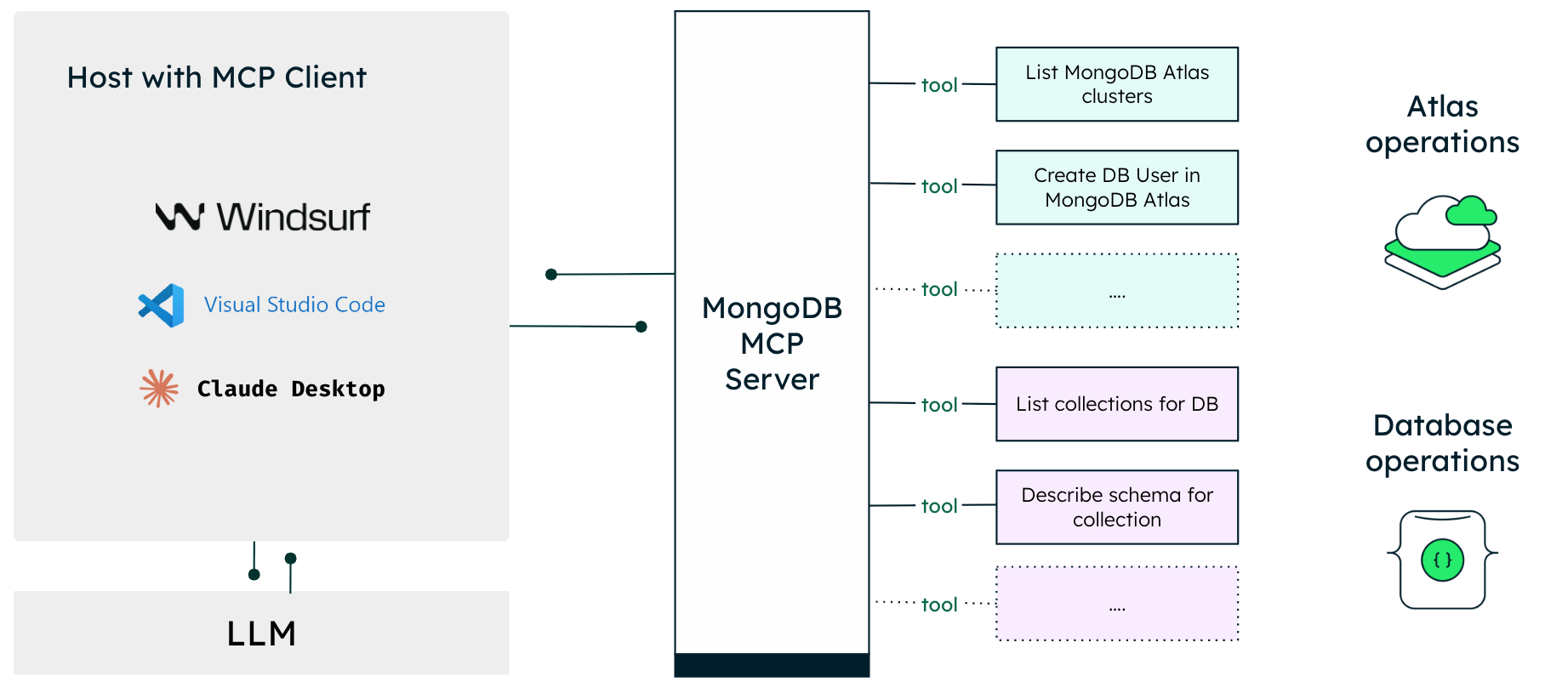
The MongoDB MCP Server enables integration with popular development tools:
- Windsurf - AI code editor with built-in MongoDB MCP support
- Cursor - AI-powered code editor
- Visual Studio Code - Via GitHub Copilot integration
- Claude Desktop - Anthropic's AI assistant
With the MongoDB MCP Server, developers can:
- Effortless data exploration: Use natural language to explore database schemas and data
- Streamlined database management: Perform administrative tasks through conversational interfaces
- Context-aware code generation: Generate MongoDB queries and application code based on your data structure
🎯 Demo Purpose
This application showcases how Model Context Protocol (MCP) enables AI assistants to directly interact with databases through standardized tools, enhanced with intelligent natural language processing via AWS Bedrock and the ReAct (Reasoning and Acting) framework for financial data analysis.
🏗️ High Level Architecture
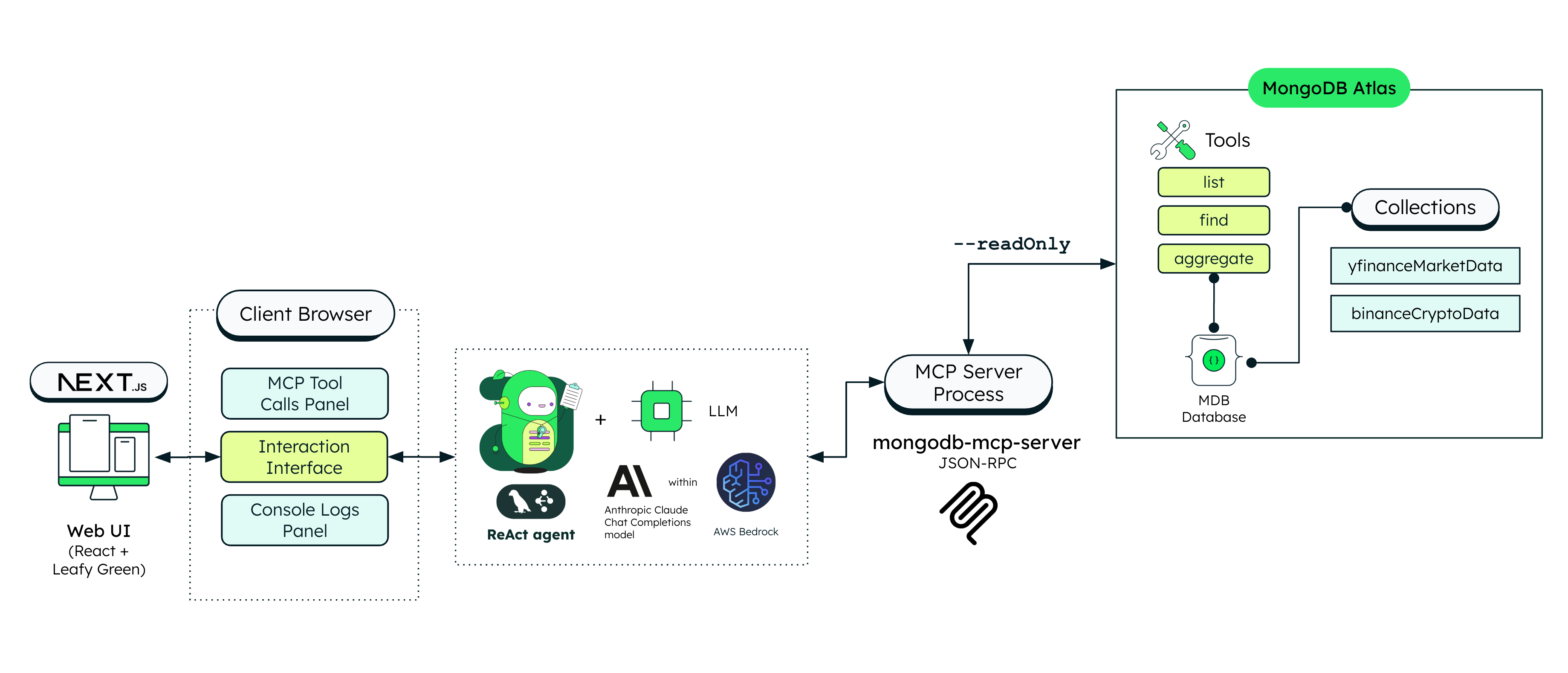
This demo application demonstrates a complete implementation of the MongoDB MCP Server integrated with an AI ReAct Agent:
🚨 IMPORTANT: Docker Required
The application requires the mongodb-mcp-server npm package which is installed and configured within the Docker container. Running this locally without Docker is not supported as it would require manual installation and configuration of the MCP server dependencies.
📋 Demo Limitations
This is a demonstration application with the following constraints:
Read-Only Operations
- Only
find,aggregate, andlist-collectionsoperations are supported - No create, update, or delete operations for security
- Limited to querying existing financial time series data
Supported Assets Only
- Cryptocurrencies: BTC, ETH, XRP, SOL, DOGE, ADA (in
binanceCryptoDatacollection) - Stocks/ETFs: HYG, LQD, TLT, GLD, USO, EEM, QQQ, SPY, XLE, VNQ (in
yfinanceMarketDatacollection) - Only these specific symbols can be queried from the provided sample data
Basic Calculations Only
- Simple aggregations (averages, sums, counts)
- Price comparisons
- NOT supported: Complex calculations like volatility, moving averages, RSI, technical indicators
Time Range Limits
- Default: Last 7 days when not specified
- Maximum: 60 days (8 weeks or 2 months)
- All prices rounded to 2 decimal places
🚀 Key Features
✅ AI-Powered ReAct Agent
- Natural Language Understanding - Processes both pre-defined and custom queries in plain English
- Intelligent Tool Selection - Automatically chooses the right MCP tools
- AWS Bedrock Integration - Powered by Claude models via SSO authentication
- Real-time Tool Tracking - See exactly which tools are used for each query
✅ Pure MCP Protocol Implementation
- NO MongoDB client connections - Uses only MCP protocol
- JSON-RPC communication with MongoDB MCP Server
- Transparent MCP communication logs
✅ Real-time Monitoring
- Live MCP tool calls tracking with status updates
- Console logs panel showing all MCP communication
- Statistics dashboard for calls and logs
- Auto-refresh every 2 seconds
✅ Robust Response Handling
- Always shows raw MCP response for transparency
- Attempts to parse when possible for user-friendly display
- Graceful fallback when parsing fails
- Educational value - see exactly what MCP returns
✅ Developer Tools & Debugging
- AWS Debug endpoint for troubleshooting credentials
- Bedrock Status endpoint with connection testing
- MCP Server reset capability for fresh demos
- Available tools listing for API discovery
- Comprehensive error logging at every layer
🛠 Technical Architecture
┌─────────────────┐    JSON-RPC    ┌──────────────────┐    MongoDB    ┌─────────────────┐
│   Web UI        │ ◄────────────► │  MCP Server      │ ◄────────────► │  MongoDB Atlas  │
│   (Chat)        │                │  (Child Process) │                │  (Database)     │
└─────────────────┘                └──────────────────┘                └─────────────────┘
         │                                   │
         │                                   │
         ▼                                   ▼
┌─────────────────┐                ┌──────────────────┐
│  ReAct Agent    │                │  Tool Tracking   │
│  (AWS Bedrock)  │                │  & Logging       │
└─────────────────┘                └──────────────────┘
No Direct Database Connections
- ✅ Uses MCP protocol only
- ✅ ReAct Agent for intelligent query processing
- ❌ No
mongodbnpm package - ❌ No
MongoClientconnections - ❌ No direct database queries
📊 Query Options
Users can select from the following pre-defined questions or type their own custom queries:
Database Exploration
"List collections in the database"- Shows all available collections in the financial database
- Identifies which collections support queries
Latest Price Queries
"What is the latest available BTC close price?"- Returns the most recent Bitcoin closing price
"What is the latest available GLD close price?"- Returns the most recent Gold ETF closing price
"What is the latest available DOGE open price?"- Returns the most recent Dogecoin opening price
Price Analysis
"Show me the highest price of ETH close price over the last 14 days"- Finds the maximum Ethereum closing price in the past 2 weeks
"Show me the lowest price of SOL close price over the last 7 days"- Finds the minimum Solana closing price in the past week
Volume Analysis
"What are the average trading volumes for SPY on the last 7 days?"- Calculates average S&P 500 ETF trading volumes for the past week
Price Comparisons
"Compare BTC and ETH prices over the last week"- Shows price ranges and comparisons between Bitcoin and Ethereum
Custom Queries:
In addition to the pre-defined questions above, users can type their own queries about the supported financial data. The ReAct Agent will intelligently process custom questions using the same MCP tools.
Important Notes:
- Pre-defined questions are recommended for optimal results
- Custom queries should focus on the supported assets listed in the demo
- All queries must work within the read-only limitations of the demo
- Complex calculations (volatility, moving averages, RSI) are not supported
- All prices are rounded to 2 decimal places
🎨 User Interface
Chat Panel (Left)
- Pre-defined question buttons for quick access to common queries
- Text input field for typing custom questions
- Real-time responses with tool usage indicators
- Parsed data display when available
- Raw MCP response for transparency
MCP Tool Calls Panel (Top Right)
- Live tool call tracking with status indicators
- Call parameters display
- Timing information (start/completion)
- Statistics summary (completed/executing/errors)
MCP Console Logs Panel (Bottom Right)
- Real-time MCP communication logs
- Color-coded entries (info/notifications/success/errors)
- Raw JSON-RPC messages for debugging
- Auto-scrolling to latest entries
UI Framework
- Built with MongoDB LeafyGreen UI component library
- Responsive design with professional MongoDB styling
- Dark mode support via LeafygreenProvider
- Accessible components following WCAG guidelines
- Interactive elements: Modal dialogs, badges, skeleton loaders
- Typewriter animation for AI responses
🔧 Technical Implementation
AWS Bedrock Client
The application uses a BedrockClient class that:
- Supports AWS SSO authentication (primary method)
- Falls back to AWS credentials file or environment variables
- Automatically picks up credentials from the mounted
~/.awsdirectory - Uses the model specified in
CHAT_COMPLETIONS_MODEL_ID
ReAct Agent Integration
// Create ReAct agent with MCP tools
const agent = createReactAgent({
  llm: bedrockClient,
  tools: mcpTools,
  systemMessage: systemPrompt,
});

// Process user question
const stream = await agent.stream({
  messages: [new HumanMessage({ content: userQuestion })],
});
MCP Server Communication
The application spawns the mongodb-mcp-server as a child process and communicates via JSON-RPC:
// Spawn MongoDB MCP Server process
mcpProcess = spawn('npx', [
  '-y', 'mongodb-mcp-server',
  '--connectionString', 'mongodb+srv://...',
  '--readOnly'
]);

// Send JSON-RPC request
const request = {
  jsonrpc: '2.0',
  id: mcpMessageId++,
  method: 'tools/call',
  params: { name: 'find', arguments: params }
};
mcpProcess.stdin.write(JSON.stringify(request) + '\n');
Tool Call Tracking
- Unique call IDs for each MCP tool invocation
- Status tracking (executing → completed/error)
- Parameter logging for transparency
- Timing information for performance monitoring
Real-time Updates Implementation
- 2-second polling interval for MCP data refresh
- Non-blocking UI updates during data fetch
- Conditional rendering to prevent unnecessary re-renders
- Efficient state management with React hooks
Global MCP Store (Singleton Pattern)
- Single MCP server instance shared across all API routes
- Prevents multiple server spawns for better resource management
- Centralized state management for tool calls and logs
- Thread-safe operations with proper lifecycle management
- Reset capability for fresh demo sessions
🚀 Quick Start with Docker
Prerequisites
- Docker and Docker Compose installed
- MongoDB Atlas cluster with database created
- AWS account with Bedrock access
- AWS CLI configured with SSO on your host machine
MongoDB Data Setup
This demo requires financial time series data to be loaded into your MongoDB database. Sample data files are provided in the src/public directory:
binanceCryptoData.json- cryptocurrency OHLCV data (BTC, ETH, XRP, SOL, DOGE, ADA)yfinanceMarketData.json- stock/ETF OHLCV data (HYG, LQD, TLT, GLD, USO, EEM, QQQ, SPY, XLE, VNQ)
Import Data to MongoDB Atlas
- Import data:
- Navigate to your cluster in MongoDB Atlas
- Click on "Collections"
- Create two collections:
binanceCryptoDataandyfinanceMarketData - Use the "Import Data" feature to upload the JSON files
Important: The demo will only work with these exact collection names as they are hardcoded in the React Agent.
Data Structure
Both collections follow the OHLCV (Open, High, Low, Close, Volume) format:
{
  "_id": "ObjectId",
  "symbol": "BTC",              // Asset symbol
  "timestamp": "2025-07-01T00:00:00Z",  // ISO timestamp
  "open": 65432.10,            // Opening price
  "high": 65500.00,            // Highest price
  "low": 65400.00,             // Lowest price
  "close": 65450.25,           // Closing price
  "volume": 12345.67           // Trading volume
}
Why Docker?
The MongoDB MCP Server (mongodb-mcp-server) is a specialized npm package that:
- Implements the Model Context Protocol for MongoDB
- Requires specific Node.js runtime configuration
- Needs proper process management for spawning and communication
- Is pre-installed and configured in the Docker image
Without Docker, you would need to manually install and configure the MCP server, which is not supported for this demo.
AWS SSO Authentication Setup
1. Configure AWS SSO
# Configure AWS SSO
aws configure sso

# Enter the following information when prompted:
# SSO start URL: https://your-sso-portal.awsapps.com/start
# SSO Region: us-east-1 (or your preferred region)
# Account ID: your-aws-account-id
# Role name: your-role-name
# CLI default client Region: us-east-1 (or your preferred region)
# CLI default output format: json
2. Login to AWS SSO
# Login to AWS SSO
aws sso login --profile default

# This will open a browser window for authentication
# Complete the SSO login process
3. Verify Bedrock Access
# Test Bedrock access
aws bedrock list-foundation-models --region us-east-1 --profile default

# You should see a list of available models including Claude
4. Set Environment Variables
Create a .env file in the project root:
# MongoDB MCP Server Configuration
NEXT_PUBLIC_MCP_CONNECTION_STRING=
NEXT_PUBLIC_MCP_API_CLIENT_ID=
NEXT_PUBLIC_MCP_API_CLIENT_SECRET=
# AWS Bedrock Configuration
NEXT_PUBLIC_AWS_REGION=us-east-1
NEXT_PUBLIC_CHAT_COMPLETIONS_MODEL_ID=anthropic.claude-3-haiku-20240307-v1:0
Replace the placeholders:
<USERNAME>: Your MongoDB Atlas username<PASSWORD>: Your MongoDB Atlas password<CLUSTER_NAME>: Your MongoDB Atlas cluster name<DATABASE_NAME>: Your database name (e.g.,financial_data)<YOUR_API_CLIENT_ID>: Your API client ID<YOUR_API_CLIENT_SECRET>: Your API client secret
Environment Variable Configuration
The application supports multiple environment variable formats for flexibility:
MongoDB Configuration
NEXT_PUBLIC_MCP_CONNECTION_STRING- MongoDB connection stringNEXT_PUBLIC_MCP_API_CLIENT_ID- API client ID for MCP serverNEXT_PUBLIC_MCP_API_CLIENT_SECRET- API client secret for MCP server
AWS Configuration
AWS_REGIONorNEXT_PUBLIC_AWS_REGION- AWS region (default: us-east-1)AWS_PROFILEorNEXT_PUBLIC_AWS_PROFILE- AWS profile name (default: default)CHAT_COMPLETIONS_MODEL_IDorNEXT_PUBLIC_CHAT_COMPLETIONS_MODEL_ID- Bedrock model IDAWS_SHARED_CREDENTIALS_FILE- Path to AWS credentials file (auto-mounted in Docker)AWS_CONFIG_FILE- Path to AWS config file (auto-mounted in Docker)
The application intelligently checks both standard and NEXT_PUBLIC_ prefixed variables for maximum compatibility.
Running the Demo with Docker
1. Clone the Repository
git clone <repository-url>
cd leafy-bank-capitalmarkets-mcp
2. Configure Environment Variables
Create a .env file in the project root (NOT in the src directory):
# MongoDB MCP Server Configuration
NEXT_PUBLIC_MCP_CONNECTION_STRING=
NEXT_PUBLIC_MCP_API_CLIENT_ID=
NEXT_PUBLIC_MCP_API_CLIENT_SECRET=

# AWS Bedrock Configuration
CHAT_COMPLETIONS_MODEL_ID=anthropic.claude-3-sonnet-20240229-v1:0
AWS_REGION=us-east-1
AWS_PROFILE=default
3. Build and Run with Docker Compose
# Build the Docker image
make build

# Start the application
make up

# Or use docker-compose directly
docker-compose up --build
4. Access the Application
Open http://localhost:8080 in your browser.
5. Stop the Application
# Stop the containers
make down

# Or use docker-compose directly
docker-compose down
Docker Configuration Details
The docker-compose.yml file:
- Mounts your AWS credentials for SSO authentication
- Installs the
mongodb-mcp-serverpackage - Configures the Node.js environment
- Exposes port 8080 for the web interface
Important: The application runs entirely within Docker. Do not attempt to run npm install or npm start locally.
📡 API Endpoints
POST /api/mcp/react-agent
Process questions using the ReAct agent.
Request:
{
  "question": "What is the latest BTC price?"
}
Response:
{
  "success": true,
  "question": "What is the latest BTC price?",
  "toolCalls": [
    {
      "name": "mcp_find",
      "arguments": {
        "database": "agentic_capital_markets",
        "collection": "binanceCryptoData",
        "filter": { "symbol": "BTC" },
        "projection": { "symbol": 1, "close": 1, "timestamp": 1, "_id": 0 },
        "sort": { "timestamp": -1 },
        "limit": 1
      }
    }
  ],
  "toolResults": [
    {
      "tool": "mcp_find",
      "arguments": {...},
      "result": {...}
    }
  ],
  "finalAnswer": "The latest BTC price is $119,415.55 as of 7/28/2025, 1:59:00 AM.",
  "timestamp": "2025-07-31T09:46:11.000Z",
  "status": {
    "health": {...},
    "toolCalls": {...},
    "consoleLogs": {...},
    "availableTools": [...]
  }
}
GET /api/mcp/tool-calls
Get real-time information about MCP tool calls.
GET /api/mcp/console-logs
Get MCP server communication logs.
GET /api/mcp/health
Health check with MCP server status.
GET /api/mcp/bedrock-status
Check AWS Bedrock client status and optionally test connection.
Query Parameters:
test=true- Perform actual connection test to AWS Bedrock
Response:
{
  "timestamp": "2025-07-31T09:46:11.000Z",
  "status": {
    "initialized": true,
    "region": "us-east-1",
    "modelId": "anthropic.claude-3-haiku-20240307-v1:0"
  },
  "connectionTest": {
    "success": true,
    "message": "Connection successful"
  },
  "environment": {
    "nodeEnv": "production",
    "awsRegion": "us-east-1",
    "hasAwsProfile": true
  }
}
GET /api/mcp/aws-debug
Debug AWS credentials and configuration issues.
Response:
{
  "success": true,
  "message": "AWS credentials working!",
  "environment": {
    "AWS_REGION": "us-east-1",
    "AWS_PROFILE": "default"
  },
  "credentialFileExists": true,
  "configFileExists": true,
  "modelsFound": 12
}
GET /api/mcp/status?reset=true
Get system status with option to reset MCP server for fresh demos.
Query Parameters:
reset=true- Reset the MCP server instance
GET /api/mcp/tools
List all available MCP tools.
Response:
{
  "count": 3,
  "tools": [
    {
      "name": "find",
      "description": "Find documents from MongoDB collections..."
    },
    {
      "name": "aggregate",
      "description": "Perform aggregation operations..."
    },
    {
      "name": "list-collections",
      "description": "List collections in a database..."
    }
  ]
}
🎯 Demo Scenarios
Scenario 1: Basic Price Query
- Select:
"What is the latest available BTC close price?" - Watch ReAct Agent analyze the question
- See MCP tool call execute in real-time
- View parsed answer + raw MCP response
- Observe console logs showing the communication
Scenario 2: Price Analysis
- Select:
"Show me the highest price of ETH close price over the last 14 days" - Watch ReAct Agent choose the
aggregatetool - See aggregation pipeline find the maximum value
- View the highest price with its date
- Monitor performance in console logs
Scenario 3: Multi-Tool Analysis
- Select:
"Compare BTC and ETH prices over the last week" - Watch ReAct Agent make multiple tool calls
- See data from both cryptocurrencies
- View comprehensive comparison analysis
- Understand how ReAct Agent combines tools
Scenario 4: Database Exploration
- Select:
"List collections in the database" - See ReAct Agent choose
list-collectionstool - View available database collections
- Understand MCP tool capabilities
Scenario 5: Custom Query
- Type your own question:
"What was the average closing price of BTC last week?" - Watch ReAct Agent understand your custom query
- See it select appropriate MCP tools (likely
aggregate) - View the calculated average price
- Experience the flexibility of natural language processing
🔍 Educational Value
This demo demonstrates:
ReAct Agent Benefits
- Natural language to database queries conversion
- Intelligent tool selection based on context
- Complex query decomposition into multiple tool calls
- Real-time reasoning and acting process
MCP Protocol Benefits
- Standardized tool interface for database access
- No direct database dependencies in applications
- Real-time communication with database servers
- Transparent tool calling for debugging
Production Readiness
- Read-only mode for safety
- Process lifecycle management
- Comprehensive logging and monitoring
- Graceful error handling
🛡 Security Features
- Read-only database access - No write operations
- Process isolation - MCP server runs in separate process
- No direct credentials in application code
- Timeout protection - Prevents hanging requests
- AWS SSO authentication - Secure access to Bedrock
📈 Performance Monitoring
- Tool call timing - Track MCP server performance
- ReAct Agent response time - Monitor AI processing speed
- Response parsing - Monitor success rates
- Error tracking - Identify issues quickly
- Real-time statistics - Live performance dashboard
🔄 Future Enhancements
- Additional MCP tools support (db-stats, etc.)
- More data sources (stocks, crypto, news)
- Advanced query parsing for complex questions
- User authentication and personalization
- Export capabilities for analysis results
- Custom ReAct Agent prompts for specific domains
📝 Troubleshooting
Docker Issues
# Check if containers are running
docker ps

# View container logs
docker logs leafy-bank-capitalmarkets-mcp-app-1

# Rebuild if needed
docker-compose down
docker-compose build --no-cache
docker-compose up
AWS SSO Issues
# On your HOST machine (not in Docker):
# Check SSO login status
aws sts get-caller-identity --profile default

# Re-login if needed
aws sso login --profile default

# Verify Bedrock access
aws bedrock list-foundation-models --region us-east-1 --profile default
Note: AWS credentials are mounted from your host machine into the Docker container. Ensure you're logged in via SSO on your host before starting Docker.
MCP Server Issues
- Connection refused: Check MongoDB Atlas connection string in
.env - Authentication failed: Verify API credentials are correct
- No data returned: Ensure you're querying supported assets only
- Check logs: Use
docker logsto see detailed MCP server output
Common Docker Problems
- Port already in use: Another service is using port 8080
- Permission denied: Check Docker daemon is running
- AWS credentials not found: Ensure
~/.awsdirectory exists on host - Environment variables not loaded: Check
.envfile is in project root
Developer Tools & Debugging
1. AWS Debug Endpoint
# Test AWS credentials and configuration
curl http://localhost:8080/api/mcp/aws-debug
2. Bedrock Status Check
# Check Bedrock client status
curl http://localhost:8080/api/mcp/bedrock-status

# Test actual Bedrock connection
curl http://localhost:8080/api/mcp/bedrock-status?test=true
3. MCP Server Reset
# Reset MCP server for a fresh demo
curl http://localhost:8080/api/mcp/status?reset=true
4. View Available Tools
# List all available MCP tools
curl http://localhost:8080/api/mcp/tools
5. Real-time Monitoring
- Open browser DevTools to see console logs
- Monitor Network tab for API calls
- Check Console Logs panel for MCP communication
- View Tool Calls panel for execution tracking
📚 Additional Resources
Setting up MongoDB MCP Server with Cursor
Want to use MongoDB MCP Server in your own development workflow? Check out this excellent video tutorial:
▶️ How to Configure MongoDB MCP Server with Cursor
This video provides a clear step-by-step guide on setting up MongoDB MCP Server with Cursor. It's perfect to share after the demo, as it showcases the real potential of MCP when used in advanced development tools.
Learn More
- MongoDB MCP Server GitHub Repository - Official implementation and documentation
- MongoDB MCP Server Announcement - Full details about MongoDB's MCP implementation
- Model Context Protocol Documentation - Learn more about the MCP standard
📄 License
See LICENSE file for details.