Ladybug Tools MCP core publish repository
Ladybug Tools MCP

Overview
Ladybug Tools MCP is an MCP service built with FastMCP for agent applications. Through natural-language conversation, users can use the core capabilities of Ladybug Tools for common workflows including modeling, editing, querying, simulation, and data visualization, and can do so without depending on a CAD interface.
Please note that this project does not have any funding support, so it may remain in a long-term experimental stage. Please use it carefully.
There is a fairly large demo GIF here, so it may take a moment to load.
This project has been built entirely by Codex, including the source code and all demo images. GPT 5.4 and GPT 5.5 were used for project development, MiniMax 2.7 was used for focused and partial tool-call testing, and GPT 5.4 Mini was used for complete cross-functional workflow testing. The overall cost is roughly 5 billion tokens per month.
Contents
- Overview
- User Groups
- Core Concepts
- Quick Start
- First Use
- Workflow Examples
- Main Tools
- How to Contribute
- Todo
- Acknowledgements
- Open Source License
- Contact
User Groups
The original purpose of Ladybug Tools MCP is to turn design or technical concepts into concrete outputs quickly. For example, when a professor explains “What is a Trombe wall?” in a building technology course, a student can open Codex voice mode during the lecture, and by the time the explanation is finished, Codex can already transform the concept into inspectable models and files, together with graphical workflow output.
For that reason, the main target users are students and teachers, followed by building professionals and senior engineers. They may want an agent to take over some tedious work, while still keeping the final choice for most tasks in their own hands. For users who do not know much about 3D software workflows, Ladybug Tools MCP can also serve as a way to experience the Ladybug Tools ecosystem.
Core Concepts
Ladybug Tools MCP is different from Ladybug Tools as used inside Rhino / Grasshopper. To use it well, it helps to understand several core concepts of this project, including MCP, agents, skills, tokens, Garden, and Flowerpot.
Model Context Protocol
Model Context Protocol (MCP) is an open standard used to connect external systems to agent applications. For most users, Ladybug Tools provides a user interface for human interaction inside Rhino / Grasshopper. Ladybug Tools MCP, by contrast, is a toolbox that an agent can call through natural language. It packages the core capabilities of the Ladybug Tools Core SDK into a standardized set of tools and usage guidance, and exposes them through MCP so that agent applications can call them.
Agent
An Agent is a large language model with instructions and tools. Ladybug Tools MCP is usually called as a toolset from inside an agent application.
Agent Skills
Skills are a practical way to turn prompt engineering into reusable operating guidance. By summarizing domain knowledge and workflows in Markdown, they provide an “instruction manual” that helps an agent follow your intent more reliably.
Tokens
Tokens are the unit used to calculate cost in agent applications. Models differ in performance, speed, and token pricing, but I still recommend using the best and most cost-effective model you can reasonably access if you want a good Ladybug Tools MCP experience.
For practical Ladybug Tools use, a context window of at least 258K is usually needed, together with a sufficiently large Coding Plan subscription. Because of cost, I cannot test broadly across many subscription models, but for GPT Plus users, it should generally be possible to complete three to four complex model creation and editing tasks every five hours inside Codex.
Garden
A Garden is the local path used to store and manage everything generated by Ladybug Tools MCP. The main outputs inside it are tracked through Git.
Because agent applications can easily do things beyond expectation in real work, a large part of this project has been about constraining the agent’s attention inside the Garden. This has been one of the main successful lessons from several months of development practice.
Flowerpot
Flowerpot is the intermediary layer used by Ladybug Tools MCP to exchange information with other non-agent interfaces. For example, the Flowerpot components we developed for Ladybug Tools mainly act as relay plugins inside the ecosystem, with the goal of helping users complete the necessary manual work.
Because we want users to keep as much attention as possible on the interaction with the agent, instead of returning to manual production steps, we have not tried to build separate platform UIs for Ladybug Tools MCP. Instead, we recommend that you make good use of existing Ladybug Tools infrastructure and then pass data and information through Flowerpot.
Quick Start
Prerequisites
Before using Ladybug Tools MCP, some system prerequisites usually need to be configured. At minimum, that often includes:
- Python 3.12
- Ladybug Tools 1.10*
- Git
- uv
- Any agent application, such as Codex, Claude Code, Open Code, or OpenClaw
If you are not familiar with agent applications, I am very happy to recommend Codex.
Please note that Ladybug Tools is a complete ecosystem and is still being actively and continuously updated, so these prerequisites can move over time. For the actual situation, you should refer to the Ladybug Tools compatibility matrix.
Installation Guide
If you do not really know what MCP is and do not want to do the setup manually, you can hand this job over to Codex or another agent application.
Using Codex as an example, you only need to:
- Install Codex.
- Open a local workspace.
- Send this project link to Codex.
- Say:
Help me install and configure the MCP from this project into this workspace.
The following part is intended for agent applications:
Local Installation Commands
Run the following commands in the target workspace. Replace <repo-url> with the repository URL of this project and <repo-dir> with the cloned folder name.
Windows PowerShell:
powershell -ExecutionPolicy ByPass -c "irm https://astral.sh/uv/install.ps1 | iex"
uv --version
macOS / Linux:
curl -LsSf https://astral.sh/uv/install.sh | sh
uv --version
Then run the following on all systems:
git clone <repo-url>
cd <repo-dir>
uv venv --python 3.12 .venv
uv pip install -r requirements.txt
uv pip install -e .
uv run python -c "import ladybug_tools_mcp; print(ladybug_tools_mcp.__version__)"
MCP Configuration Examples
Replace <absolute-repo-path> with the absolute path of this repository on your machine, and replace <python-command> with the Python executable inside this project’s virtual environment.
Windows:
<absolute-repo-path>\.venv\Scripts\python.exe
macOS / Linux:
<absolute-repo-path>/.venv/bin/python
Codex uses TOML:
[mcp_servers.ladybug-tools-mcp]
command = "<python-command>"
args = ["-m", "ladybug_tools_mcp.server"]
cwd = "<absolute-repo-path>"
Cursor, OpenCode, or other agent applications that use mcpServers can use JSON:
{
  "mcpServers": {
    "ladybug-tools-mcp": {
      "command": "<python-command>",
      "args": ["-m", "ladybug_tools_mcp.server"],
      "cwd": "<absolute-repo-path>"
    }
  }
}
Claude Code is recommended to add the local stdio MCP through the CLI:
claude mcp add ladybug-tools-mcp -- "<python-command>" -m ladybug_tools_mcp.server
If you need project-level shared configuration, you can use:
claude mcp add ladybug-tools-mcp --scope project -- "<python-command>" -m ladybug_tools_mcp.server
Claude Code project-level .mcp.json files also use the mcpServers structure:
{
  "mcpServers": {
    "ladybug-tools-mcp": {
      "command": "<python-command>",
      "args": ["-m", "ladybug_tools_mcp.server"],
      "env": {}
    }
  }
}
OpenClaw uses mcp.servers in its MCP client registry:
{
  "mcp": {
    "servers": {
      "ladybug-tools-mcp": {
        "command": "<python-command>",
        "args": ["-m", "ladybug_tools_mcp.server"],
        "cwd": "<absolute-repo-path>"
      }
    }
  }
}
After configuration is finished, restart the agent application and confirm that the MCP server is connected.
Grasshopper Component Path
If you need to use the GHPython components in src/grasshopper_components/, Grasshopper also needs to be able to find the project source.
It is recommended to set an environment variable first:
Windows PowerShell:
[Environment]::SetEnvironmentVariable("LADYBUG_TOOLS_MCP_ROOT", "<absolute-repo-path>", "User")
macOS / Linux:
export LADYBUG_TOOLS_MCP_ROOT="<absolute-repo-path>"
If you need to copy the component scripts to another machine or deliver them independently, also check and modify _DEVELOPMENT_SRC_ROOT near the top of each FP *.py file. On Windows it should point to:
<absolute-repo-path>\src
On macOS / Linux it should point to:
<absolute-repo-path>/src
These components add that path into sys.path at startup so they can load flowerpot.runtime and the Grasshopper collaboration code inside the project.
First Use
After Ladybug Tools MCP is enabled, you can invoke the ladybug-tools-mcp-use skill with /, then input HI , Ladybug Tools ! to activate the onboarding flow for the three main usage intents that we provide. After the onboarding is complete, you can start building according to your intent.
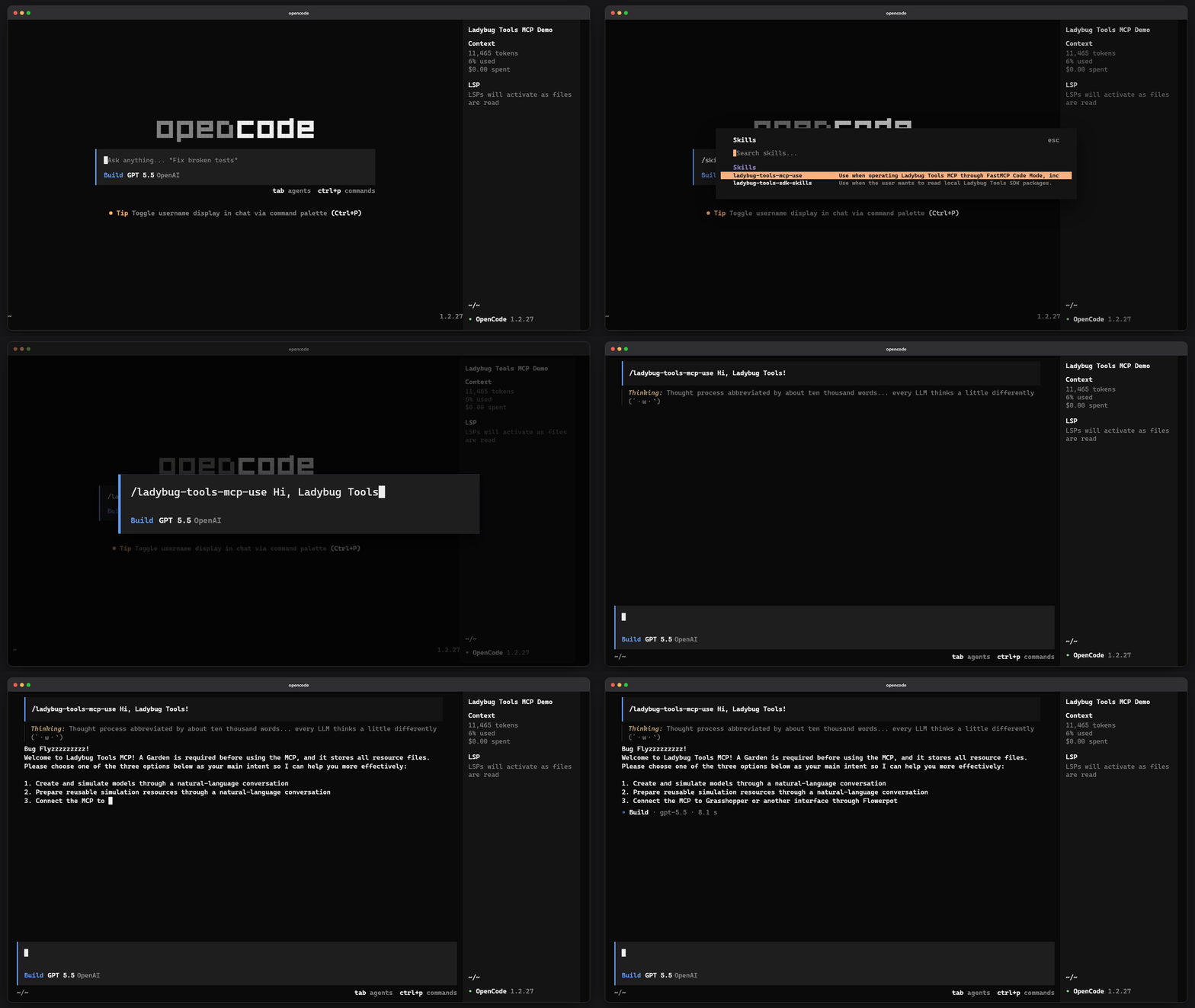
In general, the agent application will output the onboarding template according to the guidance in our skills, but the actual result still depends on the host application’s instructions and the base capability of the language model. I strongly recommend that you use the best model available within your means in order to use our tools more effectively.
Workflow Examples
It is normal to feel a bit lost when you first start using it, so please do not give up.
In our cross-testing set, we have successfully made agent applications complete the following kinds of work. The stability and token cost of these workflows have become relatively steady, and I believe they are a good place to begin learning.
Build a small model from a blank project
- Create a new Garden.
- Create a Honeybee Model.
- Create one or two Rooms.
- Add windows, doors, and shades to exterior walls.
- Check whether the model has missing faces, broken adjacencies, or boundary-condition issues.
Continue editing an existing model
- Find the specified room, wall, window, or door.
- Modify the location, dimensions, and construction of windows.
- Add low-U-value windows, heavy wall constructions, occupant loads, and equipment loads.
- Assign program types, setpoints, and a simple HVAC system to rooms.
- Re-check the model after editing.
Building performance simulation workflow
- Search for and download the EPW weather file for a specified city.
- Save the weather file into the Garden.
- Start an Energy simulation.
- Read EUI, error information, and some hourly results.
- Export the results as monthly charts, hourly charts, or HTML pages.
Prepare reusable Energy resources
- Create schedules, program types, construction sets, setpoints, and HVAC templates.
- Save them into the Garden Properties Library.
- Search for and reuse these resources in later models.
- For incomplete sources, record only what can be determined and do not invent material layers or window parameters.
Do basic Radiance work
- Create skies, WEA files, sky matrices, sensor grids, and views.
- Assign Radiance modifiers to model objects.
- Start grid or view simulations.
- Read HDR, falsecolor, GIF, or annual daylight metrics.
- Convert the results into inspectable visualization sets.
Connect Grasshopper and the agent
- Use Flowerpot components in Grasshopper to hand over the current model or project context.
- Let the agent continue modeling, editing, saving, and validating in the Garden.
- Let the Grasshopper side continue to handle manual selection, preview, and the necessary manual operations.
- This is suitable for a workflow where geometry is handled in the interface and organization plus long-chain tool use is handled by the agent.
Preserve and restore project state
- Create a Garden Version before important operations.
- Try modifying the model or simulation resources.
- If the result is unsatisfactory, restore to the earlier version.
- After restoration, continue exporting HTML / SVG and other inspection outputs.
Main Tools
Ladybug Tools MCP is not suitable for being a tiny MCP service with only a handful of tools. Because of the breadth of the application domain, I will only briefly list the currently supported and relatively stable tool areas here. For a detailed tool list, you can always ask your agent application.
Project and environment
- Query the local Ladybug Tools runtime configuration
- Create, search, read, and clean Gardens
- Save, read, and switch the Garden Base Model
- Create, list, inspect, and restore Garden Versions
- Search models, objects, files, and artifacts inside the Garden
Flowerpot collaboration
- Create Flowerpot platform handoff records
- Read the current Flowerpot context
- Retrieve and clean Flowerpots
- Support Grasshopper components in handing models, resources, and interaction context over to the Garden
Model creation
- Assemble Honeybee Models
- Create Rooms, Faces, Doors, Apertures, and Shades
- Batch-create Apertures and Shades from parameters
- Save creation results as Targets that can continue to be called inside the Garden
Model editing
- Search for and locate objects inside a Honeybee Model
- Validate Honeybee Models
- Change object geometry (Ladybug Geometry)
- Change object boundary conditions (Boundary Condition)
- Change object types (Face Type)
- Move, rotate, scale, and mirror objects
- Delete Rooms, Faces, Doors, Apertures, and Shades
- Relate model objects and organize adjacency relationships
Property resources
Energy
- Create Program Type and Loads
- Create People, Lighting, Equipment, Infiltration, Setpoint, Ventilation, and Service Hot Water
- Create Schedule Day, Schedule Rule, and Schedule Ruleset
- Create Construction Set, Construction, and Material
- Create Ideal Air System
- Search HVAC Template
- Create Ventilation Control and AFN
- Create Daylighting Control
- Create PV Properties and Electric Load Center
Radiance
- Create Modifier Set and Modifier
- Create Glass, Metal, Mirror, Opaque, and Trans Modifier
- Create Sensor Grids
- Create Views
- Create WEA and Sky
- Create Sky Matrix and Radiance Parameters
- Create Dynamic Groups
- Create Shade State, SubFace State, and State Geometry
- Create Luminaires and Lamps
Garden Library
- Save Energy and Radiance property resources into the Garden Properties Library
- Search and read Garden Properties Library objects
- Standardize the Garden Properties Library storage structure
Simulation
Energy
- Search for and download EPW weather files
- Create Energy Output Requests
- Start, poll, list, and read Energy Runs
- Read ERR, EUI, and result data
- Export Energy hourly charts and monthly chart HTML
Radiance
- Start Grid, View, and Matrix Radiance Runs
- Poll, list, and read Radiance Runs
- List Grid Results, HDR Images, and Artifacts
- Summarize Annual Daylight Metrics
- Summarize Glare Metrics
- Generate Falsecolor and GIF
- Convert Radiance results into Visualization Sets
Visualization and export
Visualization is one of the main capabilities that lets Ladybug Tools MCP operate away from CAD platforms, and I strongly recommend that you get familiar with it.
- Convert Honeybee Models, Rooms, and Faces into Visualization Sets
- Convert DataCollections into charts, files, and Visualization Sets
- Compose multiple Visualization Sets
- Create and edit 2D Legend Parameters
- Export HTML, vtk.js, and SVG visualization artifacts
How to Contribute
Because this project is built to a very large extent through agent-assisted development, I do not reject contributions made with agent applications. However, there are several principles that need to be followed so that the project does not grow in an uncontrolled way.
- Ladybug Tools Core SDK is the core of all MCP tools in this project. If the tool you want to add is not within the scope of the SDK, then this project should not be the place for the follow-up implementation. In that case, it is more appropriate to contribute directly to the Ladybug Tools project itself.
- All new tool development should first go through an open GitHub Issue discussion, and the discussion content and development plan should be led by humans.
- Only write code that solves the current problem. If an AI code review points out issues that you have not actually encountered in normal usage scenarios, then we should not handle those issues.
- Better to have too few tools than too many; do not add entities unless they are truly necessary.
- If these principles can be followed, I would be very happy for you to join this community-driven maintainer group.
Todo
These are the main directions for later development. Before there is a broad user signal telling us otherwise, the project will continue to expand in these directions.
- [ ] Dragonfly Model creation and editing tools
- [ ] Add UrbanOpt support
- [ ] More Visualization Set pre-processing and post-processing support
- [ ] Support Ironbug in order to enable real custom HVAC system authoring
- [ ] Web View and Model Editor tools for direct agent collaboration
- [ ] A demo mode that can visualize all processes and steps
- [ ] Cloud service support
- [ ] ...
Most of these items have already been proven effective in the test environment and will appear in the near future.
Acknowledgements
Special thanks to the Ladybug Tools community and the Ladybug Tools team:
- Mostapha raised the priority of Pydantic compatibility, which greatly reduced the development difficulty of this project.
- Chris helped make the
.svgformat of Visualization Set the main model visualization scheme for the MCP workflow, which made it possible for us to fully inspect built content without relying on a CAD interface.
Beyond that, the implementation core of this project remains the Ladybug Tools Core SDK, which is the result of many years of development by the Ladybug Tools team.
Open Source License
Ladybug Tools MCP is released under the GNU General Public License Version 3 (GPL v3), consistent with the open source license used by the Ladybug Tools project.
Contact
You can contact me through the following methods:
- Email:
loftytao@foxmail.com - WeChat:
LoftyTao
If someone can offer some Codex or Claude Code tokens, or even a subscription plan, that would be even better. I would really appreciate that kind of support.